Windows 8. + Windows Phone
75.4K views | +0 today
Windows 8.  + Windows Phone
Your new post is loading...
Scooped by Thomas Kalhauge
October 30, 2013 8:15 AM
Scoop.it!

InNote for Windows Phone 8, note taking at your fingertips

InNote for Windows Phone 8, note taking at your fingertips | Windows 8.  + Windows Phone | Scoop.it

InNote is a new Windows Phone 8 app that was announced during Nokia World 2013. It's a feature rich handwriting note taker for your Windows Phone.  InNote comes in handy when you need to jot down spur of the moment ideas, work on a shopping list, sketch a drawing, or craft a to do list.

Notes created in InNote can be shared in .PDF format or image format as well as organized into notebooks. InNote makes a nice impression and if you're in the need for a handwriting note taker, it's well worth a try.

InNote's main pages display all your notes and any notebooks you've created. Menu options from the main pages includes options to multi-select notes, sort your notes, send feedback to the developer and view the About Screen.

The multi-select option allows you to delete or share multiple notes. To view an existing note, just tap on the thumbnail and choose the edit button at the bottom of the screen.  To create a note, just tap the "+" at the bottom of the main pages and you'll be sent to a blank page.

At the top of the note creation page you will find the following tools.

Handwriting tool: Here is where you choose your brush style, color and pen point size. You have a fine tip pen, brush, marker, highlighter and quill pen to choose from.

Eraser: The eraser tool will let you selectively erase content or erase the entire note.

Photo: If you need to insert or use a photo in your note, you can import an image from your Windows Phone Pictures Hub. Images can be resized, repositioned and drawn/written on.

Text Tool: If free hand writing is too informal for a note, you can add text blocks. You can adjust the font size of the text as well as select between one of three text colors (black, white and gray).

Audio Notes: Need to add an audio note to things? Tap the microphone button and you can add an audio note to your written note.

Along the bottom of the note creation tool are four control buttons to view your note full-screen, an undo and redo buttons, and a save button.  You will find paper style options hidden up under the three-dot menu where you can choose between plain note paper, lined paper or graph paper.

Once saved, your note will appear on the main pages and can be shared by your typical Windows Phone sharing methods (email, SMS, Tap+Send, Twitter, OneNote, etc.).

InNote is an easy, well laid out handwriting note taking app for your Windows Phone 8 device. The only drawback I found in using InNote is that the smaller screen of our Windows Phone may be too small for handwriting.  InNote performed great with a stylus pen but with my fingertip, not so good. If you have slender fingers, your results may vary but my thick fingertips didn't always register well. I can see InNote being better suited for tablets or even the Lumia 1520 when it hits the shelves.

As is, InNote is a very appealing app but may be a little limited on devices with screens smaller than 4.5". The nice thing about it all is that InNote is a free app available for Windows Phone 8 

No comment yet.
Scooped by Thomas Kalhauge
October 29, 2013 5:16 PM
Scoop.it!

Nokia brings RAW format support to the Lumia 1520; Lumia 1020 following soon

Nokia brings RAW format support to the Lumia 1520; Lumia 1020 following soon | Windows 8.  + Windows Phone | Scoop.it

The camera in smartphones has improved over the years to the point where you can purchase a Windows Phone with a 41MP shooter. As well as the megapixels, Nokia also includes numerous features that come together to create a superb experience when snapping those special moments.

The company is now looking to bring in RAW image format support. 

This will be a first for smartphones, according to a blog post over on Nokia Conversations. The Lumia 1520 (and Lumia 1020 in time) will be able to save photos in lossless DNG (Digital Negative) format. But what does this mean for the average consumer and enthusiast? What's the difference between DNG and JPEG (the latter is currently used for saving images)?

RAW format essentially enables you to work with the images and develop them post-capture. When saving in JPEG format, the smartphone carries out the processing to enable you to save and share the end results on social media and more. With the RAW files, Nokia will allow you to define the likes of noise filtering, tone mapping and sharpening on a PC.

This is quite the advancement as not even point-and-shoot cameras support the format. ...

No comment yet.
Scooped by Thomas Kalhauge
October 29, 2013 3:40 PM
Scoop.it!

Windows 8.1 is great for touch, mouse, and keyboard

Windows 8.1 is great for touch, mouse, and keyboard | Windows 8.  + Windows Phone | Scoop.it

When I got my new touch laptop for work, I was expecting an adjustment period while I learned to use touch gestures alongside the mouse and keyboard I’m more familiar with. I was a little worried that it would make using my PC awkward, or that I’d have a hard time getting used to new ways of doing things.

What I found was that touch with Windows 8.1 became second nature to me very quickly. I think most people have a unique “system” when it comes to their PCs and devices. They stay organized in a certain way, keep track of what they’re doing in a certain way, and navigate however feels comfortable. My favorite thing about Windows 8.1 is that I can choose how to do all these things. I found that touch became part of my mouse and keyboard “system” pretty seamlessly.

For example, I often go back and forth between the Start screen and the desktop in Windows 8.1. I like how there are several ways to get to and from the Start screen. When I’m writing a blog post, my hands are typically on the keyboard already, so I press the Windows logo key image on my keyboard to get to the Start screen.

But later, when I’m using a mouse to drag some photos into an album, I’ll click the Windows logo in the lower-left corner with my mouse.

start button

If I’m sitting on the couch and using my laptop like a tablet to search the web or watch movies, I’ll swipe in from the right with my thumb to open the charms and tap the Start charm.

charms

I’ve found adding touch brings a whole new dimension to how comfortable I am when using my laptop. I’m usually lying around being lazy when I use it like a tablet, so it feels very natural to just reach out and touch the screen to scroll through a webpage or thumb through a document I’m reading. I also really enjoy the touch keyboard for dashing off a quick message to a friend when I’m in tablet mode. You can choose whatever touch keyboard works best for you—there are three different configurations—but I like the thumb keyboard, which has the keys within each hand’s thumb reach. I can easily reach all the keys while I’m holding the screen in both hands.

thumb keyboard

On the other hand, the familiar keyboard shortcuts I’ve come to rely on still work with Windows 8.1, and I’ve been getting used to some of the newer ones that came along with Windows 8, like Windows logo key image + C to open the charms, or Windows logo key image + Z to show all the commands available within an app. If you’re a keyboard shortcut enthusiast, be sure to check out the list of keyboard shortcuts for Windows 8.1.

Touch also makes multitasking (one of my favorite parts of Windows 8.1), feel tactile and natural. With Windows 8 you could have two apps share the screen at a time—now in Windows 8.1, depending on your screen resolution, you can have up to 4 apps on one screen at a time. You can also adjust the amount of space each app takes up on the screen. When I use it, I just drag each app with my finger to where I want it, and then drag the divider between the apps to resize them.

multitasking

Multitasking has some great shortcuts for when I’m using a mouse and keyboard, too. If I want to maximize one of the apps that I have sharing the screen for a moment, I just double-click it at the top. If I want to go back to having it share the screen, I double-click the top once again. I find I often do this when I’m answering emails and putting things on my calendar—while I want them side-by-side for most of the time, sometimes I want a larger focus on one particular email or day in my calendar. When I open a third app, if I want it to take the place of one of the first two, I can use the arrow keys on the keyboard to place or insert it. Also, when I’m looking at the list of recently used apps, if I right-click any of them, I can choose from a list of options—I can choose to replace the app I’m using, or use it next to the app I’m using.

list of recent apps

I can also use the Windows logo key image + arrow keys to change the order of apps on the screen fast. I LOVE keyboard shortcuts. There’s a few more that I’ve found come in really handy—if I hold down the Ctrl key while I’m dragging the divider around, I can place it more precisely. Also, if I double-click the divider between two apps, it automatically divides the screen evenly between them.

Windows 8.1 is great for touch screens, but it still feels totally natural to use a mouse and keyboard, too. They all work in harmony to make using my PC feel more effortless than ever before. Do you use a Windows 8.1 device? How do you interact with it? Do you use touch, a keyboard and mouse, or even a stylus? Some combination of them all? Let me know in the comments!

No comment yet.
Scooped by Thomas Kalhauge
October 29, 2013 10:36 AM
Scoop.it!

Viber For Windows Phone 8 Gets A Redesigned UI, Support For Viber Desktop And More | WMPoweruser

Viber For Windows Phone 8 Gets A Redesigned UI, Support For Viber Desktop And More | WMPoweruser | Windows 8.  + Windows Phone | Scoop.it
No comment yet.
Scooped by Thomas Kalhauge
October 29, 2013 3:07 AM
Scoop.it!

Social Scene - Social Time Lapse Photography for Windows Phone

Social Scene - Social Time Lapse Photography for Windows Phone | Windows 8.  + Windows Phone | Scoop.it
One of the great things about Nokia, is networking. At this year's event in Abu Dhabi, I got to meet Jason, a budding developer who took part in Nokia's Future/Capture Hackathon in Sweden earlier t...
No comment yet.
Scooped by Thomas Kalhauge
October 29, 2013 2:47 AM
Scoop.it!

Inside Surface: Steve Bathiche demonstrates advances in Touch Cover 2 - The Official Microsoft Blog - Site Home - TechNet Blogs

Surface 2 and Surface Pro 2 have been getting a lot of attention in the press since their Oct. 21 launch. To give you more detail on what went into making the most productive tablets on the planet, each day this week the Surface Blog is posting a video from the Sept. 23 Surface 2 announce event in New York City.

On Monday it shared the first video, which you can view above. Stevie Bathiche, Microsoft distinguished scientist and head of the Applied Science team at Microsoft, talks about the refinements to Touch Cover 2 – the much-talked-about accessory for Surface 2 and Surface Pro 2. A protective cover that easily clicks into your Surface, Touch Cover 2 is more rigid than its predecessor, features a full QWERTY keyboard that is now easier to type on, and supports gestures that make you more productive.

Try one for yourself at a Microsoft retail store or other select retailer in your area. Find out where to buy, and stay tuned for more videos through the week.

No comment yet.
Scooped by Thomas Kalhauge
October 28, 2013 7:01 AM
Scoop.it!

How to Rebuild the Outlook 2013 Search Index

How to Rebuild the Outlook 2013 Search Index | Windows 8.  + Windows Phone | Scoop.it
When you're having trouble with searches in Microsoft Outlook, there's a possibility that a corrupted search index is to blame. Rebuilding it may fix the problem.
No comment yet.
Scooped by Thomas Kalhauge
October 25, 2013 9:50 AM
Scoop.it!

WhatsApp update now live in the Store; brings voice messaging improvements and more

WhatsApp update now live in the Store; brings voice messaging improvements and more | Windows 8.  + Windows Phone | Scoop.it
We told you recently of the upcoming changes expected with the cross platform instant messaging application WhatsApp, and the word on the street is that the update is now live. The changes in this version may not be the biggest in the world (unless...
No comment yet.
Scooped by Thomas Kalhauge
October 25, 2013 7:22 AM
Scoop.it!

How to Change Start Button Icon in Windows 8.1? - mywindows8.org

How to Change Start Button Icon in Windows 8.1? - mywindows8.org | Windows 8.  + Windows Phone | Scoop.it
he Start Button is back again with Windows 8.1. This Start Button were dismissed intentionally since Windows 8 to as to make users get used to the Apps stud
No comment yet.
Scooped by Thomas Kalhauge
October 25, 2013 6:15 AM
Scoop.it!

Microsoft confirms Windows Phone's Twitter feature is causing excess data use, says it'll be fixed

Microsoft confirms Windows Phone's Twitter feature is causing excess data use, says it'll be fixed | Windows 8.  + Windows Phone | Scoop.it

Noticing that your Windows Phone device is using more data than usual? You're not alone. As The Verge reports, Microsoft has confirmed that a recent backend change on Twitter's part has caused the built-in Twitter feature of Windows Phone to eat up data a far higher than expected rate; specifically, it's caused it to frequently re-download profile images. In an effort to fix the problem, Microsoft has made a change to sync Twitter accounts just once a day, but a fix will need to be implemented on Twitter's end to completely remedy the problem -- that, Microsoft says, will take a few more weeks. In the meantime, the only other alternative is to unlink your Twitter account from the device -- or accept the data charges.

No comment yet.
Scooped by Thomas Kalhauge
October 23, 2013 1:29 PM
Scoop.it!

Phablet War: Nokia Lumia 1520 vs Samsung Galaxy Note

Phablet War: Nokia Lumia 1520 vs Samsung Galaxy Note | Windows 8.  + Windows Phone | Scoop.it
In this video, the third generation of the phone that created the phablet category (Note 3- Sammy's flagship phablet) goes up against Nokia's first attempt in entering the phablet market, the Nokia...
No comment yet.
Suggested by Richard Boss
October 23, 2013 10:16 AM
Scoop.it!

How Nokia Lumia 2520 tablet measures up against iPad Air

How Nokia Lumia 2520 tablet measures up against iPad Air | Windows 8.  + Windows Phone | Scoop.it
While Apple's iPad Air is a more refined version of its hugely popular iPad lineup, the Nokia Lumia 2520 marks the Finnish company's first foray into an already competitive tablet market.
No comment yet.
Scooped by Thomas Kalhauge
October 23, 2013 7:41 AM
Scoop.it!

Innovation reinvented at Nokia World – Nokia Conversations : the official Nokia blog

Innovation reinvented at Nokia World – Nokia Conversations : the official Nokia blog | Windows 8.  + Windows Phone | Scoop.it
No comment yet.
Scooped by Thomas Kalhauge
October 29, 2013 5:52 PM
Scoop.it!

WhatsApp Messenger Has Beta Version Accessible to the Public on Windows Phone 8

WhatsApp Messenger Has Beta Version Accessible to the Public on Windows Phone 8 | Windows 8.  + Windows Phone | Scoop.it
If you're tired of waiting for key updates to roll out to WhatsApp for Windows Phone, news emerged this morning of a beta version that has made an appearance over the weekend in the Windows Phone S...
No comment yet.
Scooped by Thomas Kalhauge
October 29, 2013 5:14 PM
Scoop.it!

Surface 2 Review | Mobile devices content from Paul Thurrott's SuperSite for Windows

Surface 2 Review | Mobile devices content from Paul Thurrott's SuperSite for Windows | Windows 8.  + Windows Phone | Scoop.it

With Surface 2, everything has changed: This device offers significantly better performance and better battery life in a package that is better looking, thinner and lighter than that of its predecessor. But questions about the Windows RT platform remain. Is Surface 2 good enough to jumpstart Microsoft's Windows devices vision?

If you've been paying attention to my reviews about the second-generation Surface devices and accessories, you know that this one was a long time coming. I didn't review the first generation Surface RT because I didn't see the point. But Surface 2 is such a huge and eye-opening improvement over the original. I wanted to get this one right.

Be sure to check out Microsoft Surface 2: First Impressions and Photos for my photos of the device. This review is all business.

The basics

How much of an improvement is Surface 2 over Surface RT? This much: There is not a single area in which this device falls short of its predecessor. For example, Microsoft didn't have to sacrifice a bit of battery life to get a huge increase in performance. In fact, even the battery life is better. So it's not a net win. It's a win across the board.

Key features of this release include:

Magnesium color. While the original Surface RT and the Surface Pro and Pro 2 all come in a professional-looking dark titanium (read: almost black) color, Surface 2 sports a new medium gray color that Microsoft says is the natural color of the magnesium body material. Opinions vary, of course, but I think the new color is more attractive and provides a visual hint that Surface 2 doesn't take itself too seriously. Microsoft should offer this color as an option on Surface Pro 2, too.

Thinner and lighter. Weight and thickness were not among the laundry list of issues I had with the original Surface RT. Indeed, I felt that that device presented a near-perfect form factor for a full-sized Windows tablet. And then I got my hands on Surface 2. This bad boy is actually slightly thinner and lighter than its predecessor. And while the differences may not seem like much on paper—a mere 0.2 inches in thickness and .01 pounds of weight less—when you combine them with the new color, it just seems lighter and airier somehow. It's kind of strange.

Dual-position kickstand. Microsoft is justifiably proud of the kickstand that's built into its Surface devices and Surface 2, like Surface Pro 2, offers a new dual-position unit that should provide an ideal viewing experience in far more conditions than before. Many complain that no Surface device works well on a lap, but I've found that Surface 2 with Type Cover 2 works just fine in this configuration, and the additional kickstand angle really helps there.

1080p screen. I've been spending a lot of time lately with the Surface RT and Surface 2 in front of me, side by side, doing various tests. And while I've always asserted that the 1366 x 768 resolution of the original RT device was perfectly adequate—still do, really—even for text, you can really see the difference when you look at the same screens on both devices next to each other. Surface 2 offers the same 1080p (1920 x 1080) screen as the Surface Pro 2, with the same 10.6-inch size. As with that unit, colors are markedly richer than on Surface RT. But the touch digitizer supports just 5 multi-touch points, as did that of Surface RT. (You get 10 with Surface Pro and Pro 2.) Put simply, this screen is absolutely gorgeous.

Processor. Surface 2 comes with a 1.7 GHz TEGRA 4 processor, which isn't just an improvement over the lowly TEGRA 3 in Surface RT, it's a revelation. The performance of this device is so dramatically better than that of Surface RT that I've broken it out into its own section below. Night and day.

RAM. As with Surface RT, Surface 2 comes with 2 GB of RAM. This can't be expanded, and there's no version of Surface 2 with more RAM. But contrary to what you may be thinking, 2 GB is in fact perfectly adequate for Windows RT. No issues at all.

Storage. And as with Surface RT, Surface can be had in versions with 32 GB or 64 GB of solid-state storage. That may seem limiting, but I think most users will get by just fine with 32 GB, and those that need to upgrade later can do so via the included micro-SD slot. Best of all, that slot is now far more conveniently located. (It was next to impossible to find on Surface RT unless you really knew what you were looking for.)

Battery life. I was really impressed by the battery life of Surface RT, and it was so good in fact that I probably spent more time trying to adapt to that device's terrible performance than I might have otherwise. But Surface 2 amazingly provides even better battery life than does Surface RT: up to 10 hours, according to Microsoft. (Versus 8 hours for Surface RT.) Because this is such an important aspect of this device, I discuss battery more below.

USB. Where Surface RT provided a lowly USB 2.0 port, Surface 2 offers a full-sized USB 3.0 port, which offers dramatically better performance, especially for file transfers. This is a great addition and it continues to be a huge differentiator between Surface and the iPad/Android competition.

Cameras. I didn't spend a lot of time testing the dual cameras on Surface 2, but I can tell you that they are improved since Surface RT with a 5 megapixel 1080p unit in the back and a 3.5 megapixel 1080p version in the front. (Surface RT had two 720p cameras.) The rear camera enables the neat new panorama feature that's provided by theWindows 8.1 Camera app too.

Sound. I didn't cover this in my Surface Pro 2 review, but that unit offers richer sound than its predecessor. So, too, does Surface 2, but the audio coming out of this device's stereo speakers is even better than that of Surface Pro 2. The reason is Dolby Digital Sound, Microsoft says, which provides a fuller sound. And sure enough, you can really hear the difference.

Video out. As with Surface RT, Surface 2 offers a micro-HDMI port so you can connect the device to an external display or HDTV. Microsoft sells both HDMI and VGA adapters for this purpose, but a normal micro-HDMI converter cable works fine in a pinch too.

Windows RT 8.1 and Office Home & Student 2013 RT. Surface 2 benefits greatly from the software advances in Windows RT 8.1 (the ARM-based version of Windows 8.1), and as before it comes with Office Home & Student 2013 RT, which includes full-featured (desktop-based) versions of Word, Excel, PowerPoint, OneNote, and, now, Outlook too. This is a tremendous value, since most people need Office, and it's free for the lifetime of the device and is not tied to a subscription in any way.

Power connector. While Surface 2 still uses a short, single piece power cord like that of Surface RT, the magnetic connector that latches onto the tablet is vastly improved with a large and easily-seen ring of light that indicates a solid connection. This is a meaningful and appreciated upgrade.

Heat and fan noise. Like Surface RT, Surface 2 is absolutely silent and doesn't run particularly hot, regardless of what you do. This is a big benefit of the ARM platform, which is more efficient than high-end Intel processors.

Pricing. Surface 2 starts at $449 for the 32 GB version (and $549 for the 64 GB version), which is $50 less than the original starting prices of comparable Surface RT units a year ago. (By comparison, Microsoft didn't lower the price of Surface Pro 2 relative to its predecessor at all.) But that price doesn't include a typing cover--$119 for Touch Cover 2 or $129 for Type Cover 2—which are arguably required. I appreciate the small price drop, but these devices are still quite an investment: $570 and up, basically.

Useful extras. As with Surface Pro 2, each Surface 2 ships with codes to provide 200 GB of free SkyDrive storage for two years—a $200 value—and one year of free voice calling over Skype in over 60 countries, a value of $30 or so. If you need such things, that's a nice savings that can help mitigate the relatively high prices of the devices.

OK, this is all good news for the most part. But this device doesn't exist in a vacuum, and its predecessor was completely unacceptable on a number of levels. So when it comes to Surface 2, we have some additional criteria to explore. And how Surface 2 ultimately rates—whether I can feel comfortable recommending it to anyone, really—depends on how well this device deals with what I feel are perhaps the three most crucial areas: Performance, battery life and ecosystem.

Performance

A few Surface RT stalwarts still get bristly when I state the obvious, but here we go again: Surface RT performance sucks. So I'm happy to report that with Surface 2, performance is no longer an issue. Indeed, the snappiness of this device is one of its strong points. This is a stunning turnaround.

I don't run—or care about—traditional benchmark tests. And in this case, I can confidently claim that it doesn't matter anyway. Surface 2 is a like a race car. It performs consistently fast, across the board, in all possible situations. In the real world, hands on keyboard.

Everything runs faster, often much faster. The Office 2013 desktop applications and all of the bundled Metro-style apps snap onto the screen with an alacrity that will astonish Surface RT users. I mentioned side-by-side tests before, and I'll provide a video to back this up: There is a not a single app that doesn't run faster on Surface 2, and in many cases it's much faster.

But there's another bar that Surface 2 has crossed, and it's worth exploring. Obviously, when I'm confronted by a machine as thin and light as a Surface RT/2, my mind turns towards whether it could ever make sense to use this machine as a daily driver on trips. With Surface RT, this was a pipedream, as the machine was just too slow to do anything—everything—including such basics as load Word 2013, navigate to a SkyDrive location, and then actually open and edit a Word document. It was just a non-starter.

The performance in Surface 2 is such that my mind is tingling again. Could it be? Could this machine actually satisfy this need?

Amazingly, the answer is yes. Last weekend, my family traveled to Stowe, Vermont for a bit of down time and while I brought a few PCs just in case, I spent hours each day working on the recently completed Xbox Music chapter for "Windows 8.1 Book" using only Surface 2. And it didn't just "work" or "work well," it worked in a way that was indistinguishable from a real PC. Excellent performance. (And I didn't charge it once all weekend; it ran on battery the whole time.)

Now, my normal workday involves more than Word and Paint, which is all I needed this past weekend. I'm on Twitter for the duration, I use Photoshop for image editing for this site, and I use other apps, and prefer some that aren't available on Windows RT at all. But where Surface RT was so embarrassingly terrible, Surface 2 is something altogether different. Something very positive indeed.

Surface 2 is so speedy, so spritely, that it's caused me to rethink my approach to Windows RT. Suddenly, this OS could work.

Verdict: Surface 2 performance is a game changer for Windows RT.

Battery life

I spent much of last week running my own kinds of battery life tests: Streaming HD video. SD video off of a USB device. SD video off of the internal storage. And so on.

On Surface Pro 2, the results were all over the map, and were sometimes surprisingly lower than expected. But Surface 2 has been amazingly consistent, and I've always gotten over 10 hours of battery life. Every time.

Measuring real-world battery life is a bit tougher. Windows RT doesn't provide battery life predictions, as does Windows 8, and before last weekend my day-to-day use with the device consisted largely of night-time web browsing and email and Facebook checking. But the results I'm seeing here are truly impressive. This is a very real advantage for this device, and in an area that was frankly already a win for Surface RT.

Verdict: Amazingly, Surface 2 delivers even better battery life than its predecessor.

Ecosystem

It may seem a bit unfair to ding Surface 2 because of its supporting ecosystem—the apps, games, services, accessories and other stuff that make the device truly useful and irreplaceable. But it's inevitable, perhaps, that we would need to turn our attention to the platform's Achilles Heel. And while I can report some improvements here in the past year—more apps, of course, including some key apps like Facebook—this is still very much an issue.

Whether it's a deal breaker will depend on your own needs. For the masses who wish to read and reply to email, post to Facebook, browse the web, play light games and read the news, Surface 2 is of course an excellent choice, and doubly so if you've either invested in the PC world over time or have really bought into the Microsoft ecosystem (SkyDrive, Xbox Live, Xbox Music Pass, Outlook.com and so on).

For others, Surface 2 is a bit of a wash. It is absolutely lacking in key apps, and you will most likely never see such crucial solutions as full Photoshop, iTunes, or Google Chrome on this platform. But if we're being honest with ourselves here, as we must, these apps are, for better or worse, important. (The addition of Chrome alone would be a huge win for both Windows RT and Surface 2.) And what's also missing are a ton of little apps that millions of people rely on every day on other mobile platforms like iPad. Instagram. Google Maps. JetBlue. Costco. Whatever.

Those latter mobile-type apps are a tough nut to solve because the list of what's needed varies so much from person to person, and the lack of one even important app is enough to sync a purchase decision for many people. This is an issue facing Windows Phone too, not coincidentally.

Is there a light at the end of the tunnel? Maybe. Microsoft has announced vague plans to combine the Windows RT and Windows Phone platforms, and just bringing Windows Phone 8's excellent collection of Xbox Live games to Windows RT/Surface 2 would make a huge difference. (So much so I'm curious why this hasn't already happened.)

The other alternative is the web, and this is where Internet Explorer 11 plays such a crucial role. While many tier-one online services—Spotify, Pandora, Amazon Cloud Player and Prime Video, and so on—are lacking native Windows RT aps, the web interfaces (should) work fine, and IE 11 is evolving into a full-featured web app platform that should present a reasonable compromise for those users. I wish that the Metro version of IE 11, however, offered a pinning feature like that on the desktop where pinned apps ran "outside" of the normal browser and didn't have all the heavy IE user interface bits. That would make a huge difference too.

In the meantime, the situation here hasn't really changed much since last year: Surface 2 can't be everything to all users because of huge ecosystem holes, only some of which I've highlighted here. So potential customers will need to evaluate this issue on their own and make a decision based on their needs. That's a lot of work when an iPad, frankly, is kind of a no-brainer.

Verdict: The Windows RT ecosystem remains the Surface 2 Achilles Heel, though it may not be an issue for some users.

Final thoughts

Surface 2 is a significant advance over the previous Surface RT device, one that offers dramatically better performance and better battery life in a form factor that is better looking, thinner and lighter. Whether I can recommend this device to you, however, depends on your needs. But to be fair, that statement alone is a huge improvement over last year's Surface RT, which I still cannot recommend to anyone at any price.

Should you buy one?

If you are an existing Surface RT owner, my advice is simple: Trade in the device wherever you can get the best price and upgrade. Your existing typing cover (and micro-SD) card will just work and you can save money there as well. You will find the performance improvements in Surface 2 to be staggering.

If you are a PC- or Microsoft-centric user with a years-long investment in these ecosystems, Surface is an excellent companion device, assuming you want a full-sized tablet. But it's a bit expensive, and you will want to compare it to competition such as the Google Nexus 10 (which should be refreshed soon), the Amazon Kindle Fire HDX 8.9 and Apple's iPad Air.

If you absolutely must use some desktop/Win32 app—Photoshop, iTunes, whatever—Surface 2 is not for you, unless you're buying it as a secondary device. You should consider Surface Pro, of course, though a coming generation of Haswell-based (and even lower-end Bay Trail-based) PC hybrids could complicate the decision.

If you're looking for a device you may use in portrait mode, Surface 2 is not for you. The 16:9 aspect ratio looks absolutely ludicrous in portrait mode—it's too tall—and you're better off with an 8-inch Windows tablet or any mini-tablet for that matter (Google Nexus 7, which is excellent, Amazon Kindle Fire HDX, Apple iPad mini, whatever).

So why would one choose a Surface 2 over the competition?

Office, for one. Having a full-featured Office suite is huge, though I expect this to be replaced by a slightly less full-featured Metro version over time.

Some of Surface 2's PC-like qualities are going to be a big deal for those making the transition from traditional PCs to PC devices. For example, the USB port works like it does on PCs, and you can cart around terabytes of video files if you want to.

Some people, justifiably, aren't interested in the lock-in Amazon, Apple or Google ecosystems, and Surface 2 is certainly a great solution for them, assuming some of the other conditions don't apply.

And as amazing as this may be to some people, there is an audience out there who personally prefers Microsoft. I'm among that crowd, of course, and after years of high quality experiences with such things as Media Center, Zune, and Windows Phone, I know the advantages of sticking with Microsoft. I like Surface 2 quite a bit. And it is making its way into my regular rotation of devices: This is a device I will keep using.

Put simply, Surface 2 is vastly improved but it also faces an improved collection of competitors, each of which offers its own advantages too. I'll be reviewing competing devices inside and outside of the Windows camp in the weeks ahead—including the Kindle Fire HDX, the new iPads, the expected Nexus 10 refresh, and the Dell Venue Pro 8, among others—but for now I can say this: Surface 2 has single-handily resurrected Windows RT and positioned Microsoft's devices business for success.

Recommended, depending on your needs.

No comment yet.
Scooped by Thomas Kalhauge
October 29, 2013 11:05 AM
Scoop.it!

Nokia Camera App Update Now Available, Fixes The Reframing Issue | WMPoweruser

Nokia Camera App Update Now Available, Fixes The Reframing Issue | WMPoweruser | Windows 8.  + Windows Phone | Scoop.it

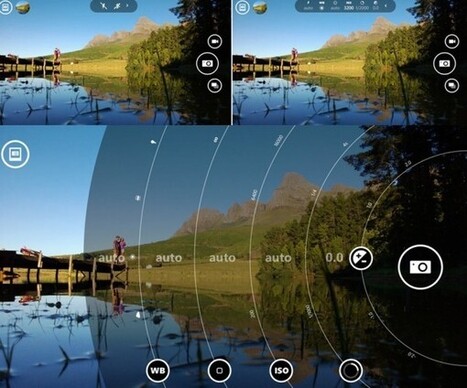
Nokia Camera app just got updated v4.3.0.6 in Windows Phone Store. This is a minor update which includes the fixes for reframing issue. Nokia Camera app now integrates all the features of Nokia Pro Cam and Nokia Smart Cam so that you don’t have switch between your apps to best capture the moment.Nokia Camera App Download QR

The auto mode makes it easy for anyone to capture great images with ease, and provides quick access to sport and night controls. And when you want to create that perfect composition, manual mode offers controls for exposure, shutter speed, ISO, white balance and focus.
There’s also smart mode, which shoots a sequence of photos that can be combined in different ways. Try emphasizing motion, removing moving objects or showing action with a strobe effect. You can also change faces in group shots so everyone will have their eyes open.
Original versions are stored, so you can zoom, reframe and edit your photos long after you took them.

No comment yet.
Scooped by Thomas Kalhauge
October 29, 2013 10:34 AM
Scoop.it!

Nokia Q3 2013 results - a tale of two Nokias

Nokia Q3 2013 results - a tale of two Nokias | Windows 8.  + Windows Phone | Scoop.it
Nokia has released its Q3 2013 results, reporting an operating profit of €118 million (up from a loss of €564 million in Q3 2012), with net sales of €5.6662 billion (down 22% year-on-year).
No comment yet.
Scooped by Thomas Kalhauge
October 29, 2013 3:06 AM
Scoop.it!

"NOKIA" Software Update Available for Lumia 1020

"NOKIA" Software Update Available for Lumia 1020 | Windows 8.  + Windows Phone | Scoop.it
I;m not sure exactly what's in this update, but my 1020 just alerted me of an available NOKIA software update. It only took about 3 minutes to install, but it's currently "migrating data" so I'm no...
No comment yet.
Scooped by Thomas Kalhauge
October 28, 2013 1:30 PM
Scoop.it!

Qualcomm: Microsoft's Surface 2 can't compare to Nokia's Windows tablet

Qualcomm: Microsoft's Surface 2 can't compare to Nokia's Windows tablet | Windows 8.  + Windows Phone | Scoop.it
Raj Talluri and Stephen Horton, two of the chipmaker's product management executives, also say partners are developing about 40 tablets using Qualcomm's Snapdragon processors. Read this article by Shara Tibken on CNET News.
No comment yet.
Scooped by Thomas Kalhauge
October 25, 2013 9:56 AM
Scoop.it!

Make Downloading Windows Phone Apps Easier in Chrome

Make Downloading Windows Phone Apps Easier in Chrome | Windows 8.  + Windows Phone | Scoop.it
Windows Phone users can download the apps they want to use, but this handy extension for Google Chrome will automatically display a QR Code for them.
No comment yet.
Scooped by Thomas Kalhauge
October 25, 2013 9:49 AM
Scoop.it!

Windows Phone apps and games that go bump in the night

Windows Phone apps and games that go bump in the night | Windows 8.  + Windows Phone | Scoop.it
Windows Phone Central Roundup: Halloween Games and Apps
Halloween is right around the corner and the Windows Phone Store has plenty of Halloween themed games and apps to add to your haunting experiences.
No comment yet.
Scooped by Thomas Kalhauge
October 25, 2013 7:20 AM
Scoop.it!

How to get the Windows 8.1 ISO and create USB install stick?

How to get the Windows 8.1 ISO and create USB install stick? | Windows 8.  + Windows Phone | Scoop.it
Are you mooched that you can't lay your hands on the Windows 8.1 ISO file since you don't have an MSDN account. Well, a token of thanks to an easy trivial
No comment yet.
Scooped by Thomas Kalhauge
October 23, 2013 1:30 PM
Scoop.it!

Collection: Nokia lumia 2520 hands on videos - Nokia's First Tablet

Collection: Nokia lumia 2520 hands on videos - Nokia's First Tablet | Windows 8.  + Windows Phone | Scoop.it
    Some hands on videos of the Nokia Lumia 2520, Nokia's first Windows Tablet. http://www.youtube.com/watch?v=4ouQMLovOFA by TELEFONINOpuntoNET http://www.youtube.com/watch?v=mKahQUu4ylk...
No comment yet.
Scooped by Thomas Kalhauge
October 23, 2013 10:55 AM
Scoop.it!

WP8 Update 3 changelog; Nokia Camera available for Lumia PureView and Nokia Black coming early next year

WP8 Update 3 changelog; Nokia Camera available for Lumia PureView and Nokia Black coming early next year | Windows 8.  + Windows Phone | Scoop.it
Three main tidbits: 1) The WP8 Update 3 changelog. This is just the raw stuff from MS, which does not include Nokia's goodies. 2) Nokia camera. Available right now for Nokia Lumia PureView devices....
No comment yet.
Scooped by Thomas Kalhauge
October 23, 2013 8:01 AM
Scoop.it!

Download Now: Windows RT 8.1 Update Is Back In Windows Store | WMPoweruser

Download Now: Windows RT 8.1 Update Is Back In Windows Store | WMPoweruser | Windows 8.  + Windows Phone | Scoop.it

Windows RT 8.1 update is now back in Windows Store. Microsoft released Windows RT 8.1 update for Surface users last week and later pulled it from Windows Store as few users experienced issues while updating. Microsoft was aware of the issue and it was working on a fix for past couple of days. Microsoft provided the following statement on this issue, “This was due to a rare situation where firmware updates had not completed at the time of the update to RT 8.1. In most cases, if a customer encountered this issue the result was simply an extra reboot. However, for a very small percentage, the boot configuration data was affected which prevented a successful boot….

No comment yet.