Your new post is loading...

|
Scooped by
Thomas Kalhauge
March 19, 2013 4:03 AM
|
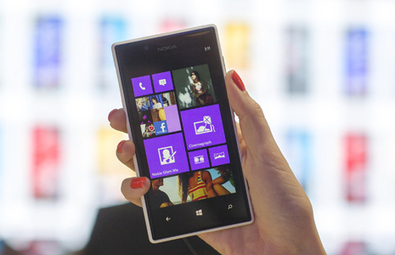
The two newest members of the Nokia Lumia family of Windows Phone 8 smartphones, the Lumia 720 and Lumia 520, start shipping in select countries in the coming weeks. The wide range of Lumia smartphones underlines Nokia’s commitment to the growing Windows Phone ecosystem and ensures that there’s a device that’s suitable for everybody. While each Nokia Lumia has their own individual characteristics, just like all families, they also all share a common DNA. These are the defining features that everyone loves about Lumia –beautiful design, extraordinary imaging capabilities, great tools for location and navigation, stellar accessories and wonderful apps, such as Nokia Music and Cinemagraph. You’re always guaranteed a fantastic experience, no matter which Nokia Lumia you choose, but here’s a guide to help you pick the right one.
|
|
Scooped by
Thomas Kalhauge
March 19, 2013 3:31 AM
|
... The last big update to Skype came back in early January. But if you direct your attention to the Windows Phone Store, you’ll see a new Skype sitting there at version 2.4.0.108. What do you get in the latest version? Three nifty features actually. Face-to-face video calls look better than ever with high definition video support.Show your smile or just what’s around you – with front and rear camera support.Video calls in portrait or landscape, whichever feels best. It’s nearly midnight here on the West Coast, so I haven’t had a chance to test out the new high definition video support. We’ll play with it in the morning when people are actually awake and see if we can notice better video quality during video calls. You also get front and rear camera support, a welcome addition for when you want to share what you’re seeing with someone (and a feature we’ve heard in the comments you want). And finally you can now make video calls in either portrait or landscape, again a nice addition. Update: Found a friend on the West Coast willing to put up with a Skype call at midnight. Everbody sendChris a high five. So we tried out the video calls on our Windows Phone, he has an 8X on Verizon and I was using a Lumia 620 (I know, test out the high definition video support on an entry level handset, good move Sam). That said, I can't comment on video quality just yet. WiFi at the far end of the house and the Lumia 620 probably don't show off the high defintion support of Skype. Play around with it yourself and let us know below if you see any improvements. The two features I can comment on are the new landscape and rear camera support. Rear camera works as you expect, you just hit the video icon during the call and select 'switch camera' from the options. Skype will automatically switch to landscape when you change the orientation of the phone. It looked nice and is a perfect combo when you're using it with the rear camera. Anyways, let us know below what you think of the latest update. Below are some screenshots from the video call. Again I'm going to stress bad WiFi plus low-end front-facing camera equal blurry time. That said, I am jazzed about the landscape support. ...
|
|
Scooped by
Thomas Kalhauge
March 18, 2013 4:02 PM
|
|
|
Scooped by
Thomas Kalhauge
March 18, 2013 3:01 PM
|
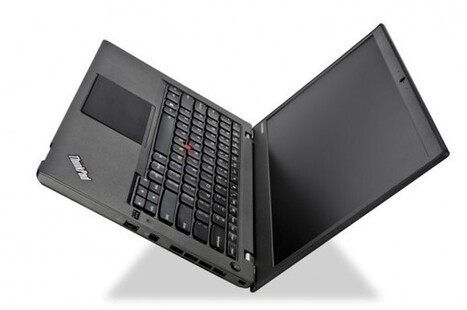
Company's fans bemoan lack of high-res screen CHINESE COMPUTER MAKER Lenovo has unveiled the T431s notebook, an overhauled addition to its Thinkpad range. Lenovo claims the T431s is the first product based on an all new design for the Thinkpad series and signifies Lenovo's move from "a PC company to a PC+ technology company with new products like smartphones and smart TVs in many countries across the world". The firm has introduced more than 26 changes to the Thinkpad's visual design, inspired by opinions from its customer base. "We want to retain the right amount of Thinkpad-ness that satisfies our loyal customers who've always valued it while modernizing Thinkpad under the influences of consumerization's focus on simplicity, interoperability and connectedness," the firm said in a blog post. The Lenovo T431s brings a more simple design optimised for Windows 8, while modernising the screen and bezel with an overall thinner structure. The Chinese firm says the T431s is the thinnest and lightest T series ever made, weighing 1.63kg and measuring 20.6mm thin. On the lid there's a carbon fiber cover and magnesium exterior. On the inside, the T431s is powered by a choice of Intel's third generation Core processors with Turbo Boost, features improved Intel HD Graphics, up to 12 GB of memory and additional HDD and SSD storage options. The T431s has a 14in HD+ 1600x900 anti-glare display, two USB 3.0 ports and is also available with Intel vPro. It also supports ThinkPad docking. "We unified the clickpad by integrating the trackpoint buttons into the elegant glass touchpad, making it appear even larger and more streamline," Lenovo's blog said. "The trackpad now has five buttons which you can customize for Windows 8 gestures via the device driver." The T431s also opens 180 degrees to let you lay it flat, if you ever need to. In addition to simplifying the laptop inside, it also removed the latches for a cleaner look. "Of course, the red dot remains for all our trackpoint users," Lenovo said. "We kept the six row island-style keyboard that we introduced with the first generation Thinkpad X1, but...
|
|
Scooped by
Thomas Kalhauge
March 18, 2013 2:58 PM
|
Mobile devices like phones, slates need operating systems that try and get the best out of the battery power that the device has while providing a fast, responsive experience for the user. The operating system itself can do a tonne of work in this area but at some point the applications that are running on the device also need to do the right thing to make sure that the OS can do its job. This surfaces itself in the “Application Lifecycles” that applications go through when running on a platform like Windows 8 or Windows Phone 8 and it’s one of the first things that would hit a traditional desktop developer coming from a Windows world as being very different from what they’re used to. Generally, these lifecycles specify something like; The only app that runs is the one in front of the user.Other apps are put into some kind of suspended animation whereby their memory pages are preserved but they aren’t scheduled to run on CPUs.At some point the OS may actually kill a suspended app in order to reclaim the resources it was using.There’s the question of what to do if the user navigates back to an app that has been secretly suspended or even killed by the OS since they were using it. and, usually, there’s some way of having other opportunities for code to run within the system ( “background tasks” ) such as on a particular interval or on a particular system event and the OS needs some mechanism for making the user aware of this and also ( via some kind of quota system ) of making sure that the “background tasks” don’t go crazy ( either by design or by error ) and start draining the user’s battery when they weren’t expecting it. In recent times, I’ve been focused more on Windows 8 apps than Windows Phone apps so I wanted to try and write down where I thought I was up to with the Windows 8 model and then make some notes/comparisons with the Windows Phone model to get myself back up to speed there in the light of Windows Phone 8. That’s the rest of this post and, hopefully, it manages to avoid too many inaccuracies. Windows 8 On Windows 8, the run->suspend->resume cycle feels relatively simple. If you’ve got an application like this one built in XAML and .NET (based on the blank template in Visual Studio) which...
|
|
Rescooped by
Thomas Kalhauge
from Nokia, Symbian and WP 8
March 18, 2013 11:11 AM
|
The first apps from the AppCampus joint app incubator initiative between Nokia, Microsoft, and Aalto University have begun to be published in the Windows Phone Store.
|
|
Scooped by
Thomas Kalhauge
March 18, 2013 11:07 AM
|
Microsoft Virtual Academy is offering a new Jump Start course for developers who wish to build apps for both Windows 8/RT and Windows Phone 8. According to the firm, this course targets developers with some experience developing for Windows Phone and features guidance, best practices, patterns and techniques that will them deliver apps for both platforms. The full course is presented by Ben Riga and is now available online from both Microsoft Virtual Academy and Channel 9, and includes the following modules: Comparing Windows 8 and Windows Phone 8, Part 1
Comparing Windows 8 and Windows Phone 8, Part 2 Windows 8 and Windows are not the same platform. This module will cover how they are different by going over the UI and XAML, Platform specific features and reviewing the data model and supporting code. Basics of View Models This session will go over Data binding basics and look further into Dependency object and property. It will review properties for binding specifically INotifyPropertyChanged and INotifyCollectionChanged, and include business logic to respond to user actions in the view. Model-View-ViewModel This module introduces the user to MVVM (Model-View-ViewModel), the architecture and the Pros and cons. It will provide and overview for how to share code using MVVM, .NET portable class library as well as going over best practices and providing a wealth of resource information. Sharing Code Between Windows 8 and Windows Phone 8 Ben creates live demos to show examples of how to maximize code reuse. This final segment will include an overview of reuse techniques such as portable library, shared source code, inheritance, conditional compilation, partial classes and methods.
|
|
Scooped by
Thomas Kalhauge
March 18, 2013 9:17 AM
|
A few months ago we learned that Microsoft's (MSFT) Windows Phone 8 is the fastest growing OS in the smart-phone market. Adding to that just a couple of days ago, PC Magazine gave Windows Phone 8 the "Readers' Choice Award" for 2013. The award is given based on a survey for user satisfaction among smart-phone OSes, and in this one Windows Phone 8 was the clear winner. Lets take a look at this survey and see what we can take and use for our investments. The Results In the overall satisfaction score Windows Phone 8 was almost half a point ahead of Apple's (AAPL) iOS and almost a whole point ahead of Google's (GOOG) Android. Furthermore, Windows Phone 8 was equally satisfying to its users regardless of the age of their phone. Both iOS and Android were more satisfying in newer phones.
|
|
Scooped by
Thomas Kalhauge
March 18, 2013 5:10 AM
|
To help inspire Windows Phone 8 users everywhere, we've put together a few different homescreen layouts that show off its impressive customization options.
|
|
Scooped by
Thomas Kalhauge
March 18, 2013 5:05 AM
|
With many Atom-powered Windows 8 tablets and hybrids to choose from, one stands out as the best of the bunch. Read this article by Scott Stein on CNET.
|
|
Scooped by
Thomas Kalhauge
March 18, 2013 4:49 AM
|
The new Twitter app for Windows 8 has some familiar features as well as a few new ones that are specific to Windows 8. We'll show you how to get started with the new app. Read this article by Ed Rhee on CNET.
|
|
Scooped by
Thomas Kalhauge
March 18, 2013 4:47 AM
|
If you're having a tough time finding this important feature in the new Windows, here are three super-easy options. Anyone new to Windows 8 knows that there's a learning curve, especially when it comes to seemingly simple things likeshutting down your PC or enabling the hibernate option. Indeed, if you've ever gone looking for the Control Panel, you know that it can be a little elusive. You might think, "Oh, I'll just hit the ol' Charms Bar and tap Settings," but, alas, Control Panel doesn't appear in that list. As it turns out, though, it's really easy to access the CP, though the method is a bit different depending on whether you're viewing the Start Screen or the Desktop. For example, if you're using the Desktop (which I assume most people are), there's no Start button, and therefore no immediately obvious way to find Control Panel. However, as explained in "20 must-know Windows 8 tips and tricks," if you right-click in the lower left corner of the screen, you'll see Windows' new Quick Access Menu, which includes Control Panel near the bottom. Click it and presto, you're there. A second Desktop option: press Windows-I (that's "i" as in "igloo") on your keyboard, which will activate a Charms Bar-like Settings menu that does include Control Panel. (As noted earlier, it's not there when you open the Charms Bar in the Start Screen. Um, okay.) Finally, Start Screen users can take to the keyboard and just start typing. By the time you tap out con, you'll see the Control Panel "app," which you can then tap or click. If you've found a faster or easier way to access the CP, be sure to share it in the comments.
|
|
Scooped by
Thomas Kalhauge
March 17, 2013 4:11 PM
|
Major flight tracking app for Windows Phone gets new features before iOS/Android in a latest update There are apps that people must-have in the sense they rely on them for a specific service, and then there are apps that are must-have by the fact they are just so cool. Flightradar24 falls into that latter category, as we can’t imagine many scenarios where you 100% need this for daily life, but you still want it because it’s just impressive. Flightradar24 (www.flightradar24.com) is a service that tracks, in real-time, all the planes in the world (or at least a whole lot). It uses your location to hone in on your area and you can pan and swoosh around, clicking on planes and pulling up their flight info. In of itself, that’s neat. But the app (which goes for $2.99) just received what looks to be a major update and it has blown us away for levels of 'awesome sauce'. Head past the break to see our hands-on video of the app and mini-review... Version 2.0 brings the two really amazing features: augmented reality and “cockpit view”. The first one is simply tapping the camera button to enable AR and then using the phone’s camera, you can pan and scan around the skies to ID plans in real-time that are flying around you. The second new feature is a 'virtual cockpit view' of any flight that you select. We don’t mean that it shows you the layout of the cockpit (zzzz…) but rather it re-creates what the pilot would actually see at that exact moment. It does this by using the flight info (altitude, speed, direction) and computes it using a 3D virtual map. Hear a plane flying overhead? Hop into the cockpit and virtually watch as it flies over. We’re not going to pull any punches: this is one of the coolest (although admittedly useless) things we’ve done with our Windows Phone. If you won’t feel like tracking random flight around you, you can of course just enter in a specific flight to track that one. Friends or family flying? Track their plane, hop into the cockpit and more with Flightradar24. Flightradar24 even features in-app purchasing, whereby you can buy “model graphics” for $0.99. So instead of seeing a generic “plane” for each flight, the plane will reflect its actual make and model. It’s kind of ridiculously great. Sure, totally useless, but we’re already sold on this app so an extra $0.99 ain’t going to break our bank. The app is available on iOS, Android, Windows 8 (but not RT) and Windows Phone 8 but currently only Windows Phone 8 has the “cockpit view” feature. Clearly the developers are throwing their hat into the whole “develop for two systems at once” with Microsoft. Seeing as the Windows Phone 8 version is getting features first, we’re kind of excited to be at the forefront of mobile technology. So is it worth $2.99 (plus no trial)? For us, yes. This is like the virtual sky map apps, where you point your phone at space and see all the stars. Not exactly a priority app but it’s damn fun to use. Flightradar24 is like that for us but more so since we’re plane bluffs (and live not too far from JFK international airport. And here’s the thing: the app is done very well. Augmented reality? Check. Cockpit view? Check. In-app purchases? Check. Locksreen notifications (for social updates on the company). Check. The developers have embraced Windows Phone 8 to its fullest capability to bring a unique and fun app for you plane-watchers out there. But ultimately it’s your money and you need to decide if you can part with $2.99. Watch our video demonstration above to get an idea of how it all works and pick up Flightradar24 for Windows Phone 8 here in the Store ($2.99, no trial). For Windows 8 users (non RT) you can that version here for $3.49 though it has yet to be updated to version 2.x. Thanks, Amir, for the tip!
|
|
|
Scooped by
Thomas Kalhauge
March 19, 2013 3:58 AM
|
The official Windows Phone Blog is the place for Windows Phone news, tips & tricks, app reviews, podcasts, and more! More than 100 great Windows Phone apps have already appeared in our ads. Today, we’re pleased to launch Windows Phone Next App Star on Facebook, which lets you help decide the next app to win a coveted spot in one of our TV commercials. The competition pits 64 apps against each other in a bracketed tournament. You vote on which ones should advance. If that’s not enough motivation, we’re also giving away 21 new Nokia Lumia 920s—one free phone for each day of the contest. To enter, all you have to do is vote. (See the official sweepstakes rules for more info.) Going head-to-head in the first round of Windows Phone Next App Star are two photo apps that take the camera to new heights:
|
|
Scooped by
Thomas Kalhauge
March 19, 2013 3:14 AM
|
We may be picking a bit here on Android, but as many Windows Phone users know we are not familiar with getting games first or second. That’s why when we see Brotherhood of Violence and now Puzzle Craft go to Windows Phone 8 (and Windows 8) ahead of Android, we get a little excited. Puzzle Craft is made by popular game makers Chillingo (though ported by SYZYGY Deutschland GmbH for WP8/Windows RT) and has been described as “…if The Simpsons: Tapped Out and Bejeweled had a baby”. If you’ve ever engaged in Farmville-like online games and happen to like the easier aspects of Bejeweled, this game is for you. ...
|
|
Scooped by
Thomas Kalhauge
March 18, 2013 3:13 PM
|
We’re proud to launch Aviary’s Photo Editor SDK for Windows 8, specifically designed for apps on Windows 8 tablets and PCs. This new SDK joins our existing SDKs for iOS, Android, HTML5 & Windows Phone 7, collectively used by our 3,500+ partners.
We worked closely with AMD and Microsoft to build this SDK from the ground up, optimizing our photo-editing technology by leveraging unqiue AMD APU architectural advantages. We’ve achieved significant performance improvements by implementing filters and effects through the new heterogeneous compute language C++ AMP. Computations are performed on the highly parallel graphics processing unit (GPU) cores inside the AMD APU instead of the more serial central processing unit (CPU) cores. Applying CAMP allows for processing of our complete range of filters and effects instantaneously – on average 16x faster than comparable processors, according to benchmark studies conducted by AMD. Launch Partners But don’t just take our word on how well the Aviary SDK performs. We’ve partnered with some old and new friends for this exciting launch, all available...
|
|
Scooped by
Thomas Kalhauge
March 18, 2013 2:59 PM
|
Thanks to a partnership with AMD and Microsoft, Aviary's Photo Editor SDK will be available to Windows 8 developers starting today. While in the long run this could mean Windows 8 will gain more photo-centric apps, this new SDK will bring the the photo service to apps running on Windows 8 notebooks and tablets immediately, and those devices running AMD processors should benefit from "higher, optimized performance," according to the company. The Aviary app has been available on iOS and Android since last summer, though its customizable SDK is also used by services such as Flickr and Twitter, which integrate the photo-editing features into their respective apps. To kick off its launch on Microsoft's most current OS, Aviary announced partnerships with Rowi, Memorylage and several other apps available for download in the Windows Store.
|
|
Scooped by
Thomas Kalhauge
March 18, 2013 11:31 AM
|
Mobile platforms are generally awash with social photo utilities with filters, of course, but (especially in the absence of Instagram) Fhotoroom stands out for a few reasons: the outrageous spelling(!), the range of filters and output options, and the frequency of updates, with the new version 3.0 (changelog below) coming in the last 12 hours. Here's the quoted changelog for the big 3.0 update: Updated tilt-shift filterNew before/after viewsNew gestures:swipe left/right for filterdrag up/down to control sliderdouble tap to see before/afterCamera now supports full resolution auto-saveFaster multi-shot supportUI updates throughout Good stuff. Here's Fhotoroom 3.0 in action: ...
|
|
Scooped by
Thomas Kalhauge
March 18, 2013 11:09 AM
|
For those users who are sporting the LINE app on Windows Phone, you may be happy to know that the application has been brought even closer to the versions avail
|
|
Scooped by
Thomas Kalhauge
March 18, 2013 10:17 AM
|
Whether you own a high-end Nokia Lumia 920, an entry-level Nokia Lumia 620 or rocking the now classic Nokia Lumia 800 when it comes to apps you’re spoilt for choice, as Nokia makes sure there are plenty on offer – something you won’t find on rival handsets from the likes of Samsung or HTC. We believe it’s why Why Nokia has the edge when it comes to Windows Phone 8. Windows Phone 8 now has over 125,000 apps in the Windows Phone Store and is the fastest growing market of any platform out there. When it comes to apps, Nokia is pushing this growth harder than anyone by offering a host of home grown apps, such as Nokia Music, HERE Maps and HERE Drive+, as well as partnering with some exciting developers to bring third-party apps exclusive to Nokia Lumia. Top 35 exclusive Windows Phone 8 apps for Nokia Lumia Paul Thurrott over at winsupersite has written a highly informative and interesting article called, ‘The Nokia Advantage: Apps’ in which he points out that ‘ If you’re considering a Windows Phone handset, Nokia’s sometimes amazing apps need to be part of the decision-making process.’ It’s a highly valid point and one we’ve raised ourselves recently with the arrival of such rival devices as the HTC Windows Phone 8S and Huawei Ascend W1. Both of these smartphones offer a great design and affordable price but when it comes to apps you’ll find them sadly lacking. ...
|
|
Scooped by
Thomas Kalhauge
March 18, 2013 5:11 AM
|
The developers behind the StartIsBack program that adds its version of the Start menu to the Windows 8 desktop have released a 2.0 version which adds a number of new features. There are quite a few Start menu programs for the desktop interface for Windows 8; in fact there's so many it's practically become a cottage software industry on its own. One of those programs is called StartisBack, which released its first version back in October. This week, the team behind StartisBack have launched version 2.0 of the software with a number of new features. The release notes for the new version reveal that StartisBack 2.0 allows users to create a shortcut to the Windows 8 Start screen inside the start menu, along with an option to have a Start Screen hot corner on the desktop UI. It also has a new option to display all programs as a multi-column flyout menu, similar to the Start menu in Windows XP. All of the "Modern" Windows 8 apps can now be integrated into the StartisBack Start menu. The development team have also improved the program's Appearance interface, along with a new skin and orb image. There are also quite a few bug fixes and improvements along with some other new features and options. There's a free trial version available for the program and if you like it you can purchase the full version for $3 which gives users two PC licenses, or $5 for the license rights to five PCs.
|
|
Scooped by
Thomas Kalhauge
March 18, 2013 5:07 AM
|
There has been a lot of hatred for Windows 8 online lately from some poorly informed websites. This hatred is seated in the fact that Microsoft has made some major mistakes in their release of Windows 8 on both the hardware and software front. First, Microsoft focused far too many resources on the development of Windows 8 RT and from our conversations with hardware vendors, neglected the traditional PC market who would make Windows 8 ultimately successful.
Microsoft spent far too much time and effort on trying to make Windows 8 RT work and to launch at the same time as regular Windows 8. The problem with this is that Microsoft only really had two major partners in Windows 8 RT in Qualcomm and Nvidia. These two companies are realistically the only two ARM SoC vendors that are capable of shipping a windows-basedtablet running an ARM SoC. Why was Windows 8 RT so important to Microsoft? While we can’t 100% confirm this fact, it was quite clear that Windows 8 RT was Microsoft’s reaction to the Android and iOS growth on ARM devices. Once Microsoft’s most cherished hardware partner, Intel, started to get involved in Android, it became clear that Microsoft needed to expand their operating system’s hardware base. By expanding beyond Intel x86 and AMD x86, Microsoft believed that they could increase their install base to tablets that were running on Qualcomm and Nvidia.
The problem with this strategy is that Microsoft neglected their most experienced partners and eventually ended up causing them not to really be ready until well after the official launch of Windows 8. When Windows 8 launched on October 26th, the real truth was that nobody was really ready. Yes, many of them had products out the door and ready for sale, but many of them ended up releasing rolling updates on the devices with new drivers and firmwares. Additionally, Microsoft quietly did lots of patching on the OS and generally tried to play down the fact that the hardware and drivers simply were not ready yet.
Back in December, we reviewed two Windows 8 tablets, comparing Windows 8 x86 and Windows 8 RT.
Now that Windows 8 has had some time to mature, most of the growing pains for standard versions of Windows 8 have been ironed out. However, Windows 8 RT had greater growing pains than regular Windows 8, and to this point is still suffering from them. Qualcomm was originally chosen by many vendors to be the SoC of choice, but eventually failed to deliver a product that actually worked. There were numerous designs that involved Qualcomm SoCs that simply never materialized as a result of not having mature drivers for Windows. Microsoft even sent a team of engineers down to Qualcomm to help resolve the driver issue just so that they could have a somewhat timely launch.
As a result of this screw up, many companies either ended up going with Nvidia designs and Nvidia’s tablets were touted initially as the best Windows 8 RT tablets. This is partially the reason why we see Microsoft’s Surface RT tablet running an Nvidia Tegra 3 instead of a Qualcomm SoC. If you look at the overall state of Windows 8 RT tablets, you can see that there are basically four Windows 8 RT tablets. Those tablets are: Microsoft Surface RT, Dell XPS 10 Tablet, Samsung ATIV and ASUS VivoTab RT.
Other than those four tablets, everyone else has gone for Intel-based x86 designs. This means that those tablets will have nearly fully app compatibility with apps from Windows 7 and Vista. Furthermore, there is no need to worry about an app store on the part of the manufacturers as they can rely on more apps in the app store for x86 as well as the ability to essentially download any executable from any website and run it and install it. This difference was recently shown in our review of the ASUS VivoTab RT versus the Acer Iconia W510. The Acer runs an Intel chipset, while the ASUS runs an Nvidia chipset. As a result, I could not run apps like Spotify or Chrome on it like I could on the Acer tablet, this ruined the experience. Not to mention, my Windows 8 x86 tablet worked with my network printers while my RT tablet didn't. In my opinion, if Windows wants to compete against Android, iOS and others in the tablet market they have to operate like a desktop would in terms of compatibility but still have an intuitive touch interface.
As we’ve seen from OEMs’ reactions, some of them are simply dropping entire products that involve Windows 8 RT from the US (like Samsung).
Now, looking forward to Windows 8 as a whole, we see that Windows 8 had some fundamental issues in terms of forcing people into a new user interface and making people figure out the new way around Windows. Because of this, Microsoft is effectively throwing away almost 20 years of user experience with essentially the same UI and nobody is happy. Windows 8 is now the de facto new operating system for the majority of PCs but the majority of those PCs are not yet touch enabled. When you take into account that not all computers are touch, while Windows 8 was designed for touch, we already begin to encounter problems. Microsoft, instead, should have enabled an option for OEMs and users to retain their old Windows UI with some features being locked into the new UI. By allowing people to use their desktops as their default UI, they would solve some of people’s biggest gripes about Windows 8.
I cannot tell you how many times I’ve heard people complain about the Windows 8 UI when their desktop or laptop was not touch enabled. A simple hardware check on Windows should decide whether or not to enable the new Windows UI. Microsoft’s approach to Windows 8 was too uniform and alienated broad segments of the market that want nothing to do with the new UI. The only thing that we can say here is that we don't necessarily recommend you buy a Windows 8 device unless you have a touch screen or a special touch pad.
Microsoft’s own decision to launch hardware to compete with their customers in the Surface and Surface Pro also didn’t help the Windows 8 situation. Microsoft spent precious resources on building and optimizing their own hardware and drivers instead of helping their customers make sure that they were able to deliver a bug-free, solid experience. As such, many initial Windows 8 devices had lots of driver updates and bug fixes from the get go. Microsoft’s obsession with building their own hardware ultimately may have been what bit them in the ass with Windows 8.
By building their own hardware, Microsoft also made many of their software partners further explore Windows alternatives rather than double down on Windows. Microsoft’s Windows 8 strategy seems like a schizophrenic situation, where by one end they are trying to pull in more hardware partners with Windows 8 RT and on the other, pushing them away by building their own hardware.
Windows 8 is not Microsoft’s best operating system, nor is it their worst. Windows 8 represents a half step of trying to unify mobile with the desktop all while trying to deal with human interfaces like touch and gesture. Microsoft did an admittedly poor job with Windows 8, but they still have a chance to save face with updates and giving users what they want (like a start button). Will the fix Windows 8 or just release a new version quicker than usual? Time will tell.
|
|
Scooped by
Thomas Kalhauge
March 18, 2013 4:50 AM
|
Microsoft has updated their web-based Windows Phone simulator to Windows Phone 8, allowing iPhone and Android users to easily try out the UI and features of the operating system on their own phones. The fully-interactive web demo lets you try out most built-in apps, and can be personalized by connecting to your Facebook account. The updated simulator now supports multiple sized live tiles and also features like Kids Corner. The demo can be launched in nearly any up to date browser simply by going towindowsphone.com/demo. Via the Windows Team Blog.
|
|
Scooped by
Thomas Kalhauge
March 18, 2013 4:48 AM
|
Before Windows 8, resetting a PC was a complex and time-consuming affair. But thanks to Push Button Reset, you can now “nuke it from space,” as I think of it, and return the PC to its factory-fresh state in just minutes.
|
|
Scooped by
Thomas Kalhauge
March 18, 2013 3:06 AM
|
Microsoft quietly removed the ability to make your Windows 8 laptop a WiFi hotspot for mobile devices. You can still do it though, here’s how using Virtual Router Plus.
|