At the Lumia 920's India launch, Nokia strapped a Lumia 920 and a Galaxy S3 to a quadcopter and flew it around the conference hall. They referred to the S3 as a competitor's device, but I could make out it was a S3. They then showed the captured footage from both smartphones side by side, the difference was remarkable. See for yourself.
This, wireless charging, is supposed to be the future - but I approached this latest accessory with extreme caution. I understood the theory behind the Qi charging standard - electromagnetic induction, and so forth, but I was sceptical about the value proposition ('how hard is plugging in a cable, after all?') and I was even more sceptical about how much power could be transferred in this manner ('surely it's going to take five times as long to charge a phone?'). Well, I've been using the Nokia DT-900 Wireless Charger with the Lumia 920 for the last week and it has made me a believer. Turns out this really is the future.
Although the box here shows a variety of colours, the review accessory was black, but hey, at least it goes with everything in my house(!) The DT-900 retails for about £55 and for most use cases you're going to want at least two of these, so it's not a cheap solution - but then the future rarely is....
A new LiveMailMessage component has been added to the WPGeek Component Marketplace. The author offers FREE trial and developer support!
LiveMailMessage fills a big hole on both Windows Phone 7 and Windows Phone 8 SDKs, you can finally send unattended emails from your app without using EmailComposeTask, and attach any type of file (mp3, wav, mp4, pdf...).
Main Features:
- connects directly to Microsoft Live SMTP mail server through a secured SSL connection, it does not use any web services. - supports any kind of attachment, from resource or isolated storage. - sends an email without calling EmailComposeTask and user intervention - multithreaded: will not freeze/block your UI. - works on wifi and data connection. - only need a valid Live/Hotmail account for authentication. - this component will not cause any issues with app certification. - comes with a complete VS2012 demo project. - unlimited support via email/forum.
Quite a few weeks it has been, and I am not referring to the holidays or New Years. So in my search for my next smartphone, I was pretty darn satisfied with my Note 2. Then, on a very sad day, as I returned to my office from a meeting, it was gone.
Someone took it from my desk. Yes, I tried all the tracking solutions out there including Plan B, Where’s My Droid, and even Samsung’s own Dive site, which is intended to help track lost Samsung devices. None of them were successful and so, with great sadness, I parted with my beloved Note 2 forever and continued my search.
Well, lucky for me, pretty much the next day, my package arrived from Microsoft and it had two shiny and beautiful new phones in it. The HTC 8X and the Nokia Lumia 920, both running Windows Phone 8.
I will of course compare the two devices in a future post but for now, both are fantastic, both have their upsides as well as their downsides and I have enjoyed using both for the past few weeks.
Well, let’s just get right to it, since we all know about the skeleton in the Windows Phone closet. Apps. Yes, there are many apps missing. Many apps I use regularly on iOS and Android are nowhere to be found in the Windows Phone Marketplace. The Marketplace, besides the lack of many apps, is also a mess. The experience of paying or even downloading free apps needs much improvement.
Having said all that, the vast majority of apps I use on a regular basis are there, in one form or another. I am not fooling myself into thinking that the Windows Phone ecosystem is not lacking. It is, but it is far from the disastrous state many bloggers would lead you to believe it is in.
So before we get into what is there, let’s talk about what is missing. The only apps I personally need (well, not need but very much want) for Windows Phone and that are absent are Instagram, Waze, Google+, Flipboard, Path (Yes, Path. Big fan), and that is pretty much it.
I have hundreds of apps on my iPhone and Android devices, but only use 10-15 of them regularly. Out of those ten, the above five apps are the only ones missing.
So what apps do I use regularly on Windows Phone? Here we go:
4th and Mayor (FREE): This is, hands down, the nicest Foursqure app on Windows Phone, and quite possibly the nicest Foursquare app on any platform. With all the features of the original Foursquare app, 4thand Mayor (yes, that is the name. I know.) is fully optimized for the famous Metro UI and it looks and works beautifully.CloudMagic (FREE): Out of all my apps on all platforms, this is one of the only ones that I have on my home screen on my iPhone, my iPad, my Android phones and tablets, as well as my Windows Phone devices. It is that good. Cloudmagic enables you to connect to pretty much all your web services including Gmail, Twitter, Facebook, and much more in order to easily search through old posts/messages. I cannot tell you how many times I had to find an old DM and Twitter did not have it saved. Cloudmagic saved me every single time in a matter of seconds. A fantastic app. One of my favorites.Facebook Viewer (FREE): I recently discovered this Facebook replacement after experiencing the slowness in the official app. This app is designed beautifully and is very snappy. The down side is that it is ad supported, but the ads are placed in a way that their annoyance is kept to a minimal level. The developer made it very clear that a pro version with no ads is something he is considering seriously.Linkedin (FREE): Well, I have to hand it to Linkedin, these guys know how to make apps. Their iOS app, since its major redesign is one of the nicest and the iPad app is off the charts in terms of its design. Same goes for the Windows Phone app. It is solid and pretty. In fact, the app, in my experience is more stable and visually appealing than the actual site but then again, that is not saying much.Rowi (FREE or $1.49): OK, people, listen up. Rowi is quite possibly the best Twitter app on any mobile platform. Yes, including Tweetbot on iOS. Tweetbot is Rowi’s only competition and while it beats Rowi on some aspects like looks, Rowi is much more customizable and efficient, at least for me. You can completely change the layout of the app and have your Twitter lists as the main timeline, something almost no other apps allow. The full version has push notifications, but unfortunately, some notifications like native retweets are not yet supported. The free version does not have notifications but other than that, it is also fantastic.Skype (FREE): Well, being as Microsoft owns Skype, it was quite ironic that Skype for Windows Phone 7 was limited and laughable. Skype for Windows Phone 8 is as solid as it gets on any mobile OS and unlike Skype on Mac or even Windows, the UI on Windows Phone 8 just works. The app is fantastic.Zite (FREE): This app is as close to Flipboard as it gets in terms of consuming content on the go in a visually appealing and responsive user interface. All in all, the layout makes sense but I would like some extra bells and whistles like page turning transitions.Ask Ziggy (FREE): I was on the fence whether to include this app or not, but at the end of the day, despite it not being as responsive as Siri or Google Voice search, Ask Ziggy is the best voice-activated personal assistant Windows Phone users have. It is not bad at all. There are hundreds of questions you can ask this app including mathematical equations, the weather, and much more, all will be met with an accurate (yet somewhat delayed) response. It is far from perfect, but definitely deserves to be on this list.Battery Sense (FREE): There is nothing exciting to say about this app besides the fact that it is the best battery monitoring app out there for Windows Phone. You get a live tile with the percentage of battery left and you can see some in-depth information about your battery usage. Useful but far from sexy.Metrotube ($0.99): Finally, one of the biggest disappointments about Windows Phone is the total lack of love from Google. No search app, no Gmail app, no Calendar app, and of course, no YouTube app. The YouTube app that is at the top of the Marketplace is a simple shortcut to the mobile YouTube site. How it got to the top of the free apps section is beyond me but we already talked about that. The best replacement out there for YouTube on Windows Phone is Metrotube and it is not bad at all. It is no native YouTube app but it is pretty darn close and I enjoy using it.
That’s all folks. While there are many great games available for Windows Phone as well, that is less my focus. If you are using Windows Phone and have some more app suggestions, by all means, share them in the comments.
Mixing business with pleasure thanks to my Windows Phone
Being an IT Executive usually means occasional travel. I chronicled a recent business trip I took to Las Vegas with only my Nokia Lumia 920 smartphone. It was actually my first such travel with it so I thought it would be interesting to document and share my experiences with Windows Phone and Nokia’s flagship hardware since it has become my primary mobile device.
I focused on the 1st party apps and services from Microsoft and Nokia. My goal here is to highlight that despite Windows Phone’s lack of apps, I still consider the Lumia 920 a best in breed smartphone that *SPOILER ALERT* made an excellent travel companion for both business and pleasure.
As I mentioned, I was in Las Vegas for the day scouting out datacenters for the company I work for. Since it was a quick turnaround, I didn’t pack my laptop or iPad for that matter, just my Windows Phone. I thought this would be the perfect time to put it through it’s paces. Without further ado….
Email/Calendar/Contacts:
I won’t spend too much too much on email and calendar. Every smartphone does a serviceable job of push messaging. And the Lumia 920 is no exception. Being that we are a Microsoft back end, the native Exchange connectivity works well as you would expect.
SharePoint/Lync/OneNote:
By now, most businesses have turned to tools beyond email and phone calls for communicating and managing work. Windows Phone has built in integration withSharePoint, Lync, and OneNote.
SharePoint is Microsoft’s file sharing and collaboration platform. It makes it easy to view, edit and update all types on MS Office files right on the fly. So if I need to give an approval for a change made on one of our operation logs for instance, I can quickly view the file and if necessary, make any changes I need and save right back up to our shared team document library. My team then gets pinged that I made changes and it’s all set. It’s that simple.
If I need to send a fast FYI, I can go into Lync, our corporate IM system which is also native on Windows Phone. I can see who on my team is available and in turn, they know I am reachable as well even though I am out on the road. But back to my FYI, I can see if the person who is waiting on me is online and if they are, I just send a message with the update I made.
On my trip, I was scouting and evaluating various datacenters in the Las Vegas area. I had done research and reached out various points of contact via email and phone. Rather than try to organize all of this in my email, which I find counter productive, I used a much better solution: One Note!
One Note is Microsoft’s version of a digital notebook. I am a recent convert to it and it has become an indispensable tool I use daily. Similar to something like Evernote, it is a way to take free notes, emails, web pages, almost anything you can type, copy, paste, speak, and compile and categorize it into notebooks, tabs, pages, etc. Much like you would do in an ‘analog’ notebook. The One Note desktop program is a part of Microsoft Office, so there is a lot of integration across the suite. In the case of my datacenter trip, I would take the prospects that emailed me and after I made arrangements to visit them, I would send the emails over to One Note, a 1 click process from Outlook, my default email program. The true power of One Note is when you have your notebooks in SkyDrive, Microsoft’s cloud storage service and yet another baked in Windows Phone goodie. Once in SkyDrive, you can access and sync all of your notes across any myriad of computers, phones, tablets, you name it. You can also share your notes if you need to.
For my trip, I had proposals, contact phone numbers, and addresses all in the One Note library I created for my trip. I even added notes from my visit to each site right from my phone. When I was back in the office, I could open up One Note from my laptop and organize and edit further if I needed to. Since I sync to SkyDrive, the changes were already on my screen. In the short time I have used One Note, it has quickly become a big part of my personal workflow. It really has gone a long way towards keeping me organized and not having to wade and plow through piles of email, a welcome time saver.
Maps/GPS
While in Vegas, I was driving around from place to place. Though I’ve been there lots of times, I don’t claim to know it like the back of my hand, far from it. This is where my Lumia 920 and Nokia Drive shined bright!
This was the 1st time having to use Nokia Drive extensively and it did not steer me wrong once (no pun intended). It’s fast, current, accurate, and keeps you up to date on traffic and other real time info along the way. It’s as good as Google Maps, no hyperbole. And yes Google does have an advantage when it comes to how Maps ties into Google Now and contextual directions. But for everything else, Nokia provides an outstanding GPS and mapping experience.
Work hard Play hard
With my datacenter visits complete and some time to kill before my flight home, I had some time to find a gym and get a good workout in. Hitting the gym is my therapy, it helps me clear my mind and refocus after a long day. I’m always trying new workout routines and eating regimens. I keep my workout plans on SkyDrive, that way I can access it anywhere as I mentioned before with One Note. Since I have 25GB of storage on SkyDrive, I am moving more and more documents and other personal data to it. It is also where the photos and videos I take with my Lumia 920 get auto uploaded to. So now I know what workout to tackle, it’s time to play my workout tunes!
Bing/Xbox Music
My workout was complete and it was time for some dinner before heading to the airport. It was then that I discovered the power of Bing and XBox Music. As I got in the car and turned it on, there was a song on the radio that I liked. I hit the search button on my Lumia, which opens up Bing. Besides search, there is also a Music button. This works just like Shazam, but it’s baked into Windows Phone, which is important to how this played out. Once I tapped Music, I held the phone by the speaker so it would tell me what song was playing. When it returned the result, it not only showed me artist and title, it also gives me the option to open up the XBox Music store. The beauty of this was because I have XBox Music Pass, Microsoft’s all you can eat music service, rather than give me the option to buy, I had access to download the entire album (EP) onto my phone.
Wrap your head around that for a second. This seamless sequence of events is ONLY possible on Windows Phone. As in on iOS and Android, you need 3rd party apps to make it happen. Neither offer a streaming/download service. And despite Google’s power in search, they can’t offer music discovery without an app like Shazam. So on an iPhone, I would open Shazam, it would give me song artist and title, and then an iTunes link to BUY the song or album. I would then go into iTunes. Same on Android. This example exemplifies Microsoft’s approach. Apps are important, in today’s mobile landscape they make or break your platform (ex. WebOS). And while Windows Phone still needs the top apps like Instagram and Flipboard to be a strong and relevant mobile player, what they can already deliver with the ecosystem and services already at their disposal sets them apart, and impressively in my opinion. With Windows Phone, Microsoft has deemphasized apps and has concentrated more on a comprehensive 1st party experience without the need to pop in and out of app after app. From the built in Facebook and Twitter integration, to the Office Hub, Windows Phone brings a lot to the party without the need for a 3rd party. That fluid functionality is what sold me on it from day 1.
Now it was time to fly back to LA with my newly acquired music. Once I got home, I put my Lumia on its charging stand (wirelessly) and declared it a successful business trip. And thanks to my Windows Phone, I didn’t skip a beat.
Before I start allow me to make one thing absolutely clear; I HATE regional restrictions with a passion that burns hotter than the sun. I understand that in some instances it’s a must (such as Music streaming apps due to licensing issues, i.e. Nokia Music or Video streaming such as Netflix etc.), but it still gets on my nerves A LOT!
And it seems the folks over at Redmond are dead on intent on boiling my nerves, as the regional selection of apps for the MEA and Gulf areas is beyond ridiculous (and it definitely doesn’t help that there aren’t that many apps to start with). The app selection is limited by some idiotic system that doesn’t seem to have any basis at all; and to make things even worse reviews, change-logs and screenshots aren’t shared throughout different marketplaces (example: Whatsapp on my marketplace only has 3 ratings vs. the thousands on the UK/US marketplace).
Further complicating things is the limited payment options for different marketplaces; whereas most marketplaces have the ability to use a paypal card, Visa Card and sometimes Vouchers; Gulf & MEA marketplaces only accept bank cards, and the bank card MUST match the region you’re buying from (meaning I can’t purchase apps from the UK marketplace using a Jordanian bank card.
Now according to @windowsPhoneSupport (the official support account for WP) these app restrictions and removal from regional markets is a choice done by the developer and not by Microsoft which I personally find extremely hard to believe, what sort of app developer would choose to limit his app availability/coverage? Especially when it comes to games that require no online/regional connectivity?
The really disturbing part about this is I’m not referring to little known apps/titles; but MAJOR titles and applications (you know the ones Microsoft keeps boasting they have 48/50 from iOS and Android?); for example here’s a simple list of apps not available in multiple marketplaces (compiled by @nabkawe5):
Essential Apps (don’t work on the Lumia 920 although they’re not region specific in nature)
Pinspiration
PDF Reader
Twitter
Metrotube
Blueprints
rowi
Must have games (Don’t work on the Lumia 920 in Saudi Arabia although they are available on other platforms )
Words With Friends
Cut The Rope
Survivalcraft
MONOPOLY
The Sims 3
Wordament
Wordfeud
Xbox SmartGlass
Doodle Jump
Fruit Ninja
Final Fantasy
Sonic CD
Contre Jour
Plants vs. Zombies
Endomondo Sports Tracker
The list goes on but it’s too sad to continue it …
As you can see most of these apps are completely region independent; and have no reason to be blocked in some regional marketplaces; so i don’t care who’s fault it is (be it MSFT or the developers) get your $h!t together people, this is ridiculous…
(oh BTW Angry Birds Star-wars is also unavailable).
Point is as dismal as the Windows Phone marketplace is; developers MSFT aren’t making it any better, especially in markets like the Gulf which are fresh for picking (trust me people in the Gulf love finding new trends to jump on, and have no problem switching phones on a monthly basis, so there’s some free market-share right there, if only someone would people their stuff together).
Google Maps has never officially been supported on Windows Phone, but today many users have reportedly been cut off entirely. Frustrated owners report that trying to visit the web version of Google's popular service results in them being redirected to the company's main website. As numerous posts in our forums and our own tests confirm, the issue is currently affecting a wide number of handsets running Windows Phone 7 and 8.
The rivalry between both tech giants has grown deeper in recent weeks after Google announced plans to move away from Microsoft's Exchange platform, news which Redmond insists it was surprised by. This development shouldn't come as any type of shock, however, since Google Maps relies on WebKit on mobile devices; the Internet Explorer app Microsoft built for Windows Phone doesn't utilize the rendering engine. Still, though it was never officially supported for non-Webkit browsers, Google Maps was previously accessible to some degree on Windows Phone. For many, that's no longer the case.
Update: We've updated the original text to emphasize that Google Maps on Windows Phone was never officially supported by Google.
Update 2: Google has issued a statement on the situation to Gizmodo:
The mobile web version of Google Maps is optimized for WebKit browsers such as Chrome and Safari. However, since Internet Explorer is not a WebKit browser, Windows Phone devices are not able to access Google Maps for the mobile web.
It's important to note that while the statement does support our reporting above — that Google Maps is optimized for WebKit browsers — it doesn't clarify why the Google Maps mobile site was previously accessible for many Windows Phone users, or what has been recently changed to prevent that access.
Update 3: Microsoft provided a short statement to Gizmodo as well, simply saying that "Internet Explorer in Windows Phone 8 and Windows 8 use the same rendering engine."
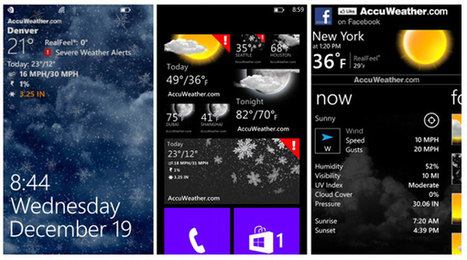
“Accuweather” the best free weather app is now available for Nokia Lumia WP8 smartphones overWindows Phone Store. The WP8 version adds lockscreen integration and customizable live tile sizing to the app.
Every day over half a billion people worldwide rely on AccuWeather to help them plan their lives, protect their businesses, and get more from their day. AccuWeather for Windows® Phone provides the most accurate and detailed forecasts for 2.7 million locations worldwide and is now accessible from your Windows Phone 8 lock screen! Users tell us it is “Possibly the best weather app in the store.” It is “very appealing to the eye” and “an absolute must have.”
Key features of AccuWeather :
Accurate, local forecasts for 2.7 million global locations. Forecasts are updated each hour and include hourly forecasts for the next twenty-four hours, day and night weather forecasts, and a ten-day forecast.New for Windows Phone 8: Populate your phone’s lock screen with a snapshot of the weather forecast for your home location including severe weather alerts and a beautiful weather image. How: open your phone’s settings, select “Lock Screen,” and choose AccuWeather as your “Background.” Select “Open App” and you now have one-touch access to your weather forecast!Also New for Windows Phone 8: Three-Size, customizable Live Tiles for multiple locations that peek and automatically update the forecasts on the home screen.Multiple location storage for your GPS location and seven others. Nickname your locations and easily swipe between them using the panoramic view and by saving them to your home screen.Current weather conditions displayed with location name and time, temperature, wind speed, wind gust speed and wind direction, precipitation and amounts, humidity, visibility, UV Index, cloud cover, pressure, and AM and PM times for sunrise and sunset.Severe weather notices for all locations – visible from anywhere within the application.Animated radar and satellite maps, and interactive Bing™ maps.
So you’ve got yourself a spanking brand new Lumia; but what now? Well after you’ve set up your social networks and hooked up your emails you’re going to want to download some apps
and games; so here’s our hand-picked selection of the best of the best (and don’t worry most of them are free!). Of course we highly recommend you download ALL available Nokia apps, since their pretty much all amazing; such as: City Lens, PhotoBeamer, Nokia music, Nokia Maps/Drive, XBrowser, Nokia Pulse Beta, Nokia Reading, Nokia Transit and much more (they can be found in your app store under “Nokia Collection”).
*Note: most of these apps SHOULD work on a WP 7.x device, but unfortunately not all do :/
Maybe you already known what Windows 8 won't allow you to boot directly to Classic Desktop. Instead of that you have to click on "Desktop" tile every time you logged in. This is very annoying behavior for all of us who prefer to work with Class Desktop instead of Metro Start Screen. So I decide to fix it. Skip Metro Suite for Windows 8 allows you to boot directly to Classic Desktop in Windows 8 RTM and Release Preview. Also it allows you completely disable all edge panels, not just hide them! All of them will be disabled, including square start button at...
Installing multiple versions of Windows on a single PC may be useful for a number of purposes. From taking an operating system for an extended test ride to software testing or running legacy applications on a system that do not run on newer versions of Windows.
Sometimes you may make the decision to uninstall one version of Windows from your PC. While you can do that manually, by editing the boot loader so that the operating system won’t be displayed anymore during start of the system and by deleting the files and folders so that it does not take up disk space either anymore. The problem is that it is not often that easy to do so, especially not if you are an inexperienced user.
NanWick Windows Uninstaller has been designed to provide users of all experience levels with an easy to use program to remove installed versions of Windows from the PC.
To get started download the program from the developer’s website and run it afterwards on your system that you want to keep.
Click on the scan button to have the program scan the PC for additional versions of Windows installed on it. The program displays the drive letters that Windows is installed on and asks you to pick the one that you want to remove from the system.
The program performs a series of operations then that remove the version of the system from the PC. The program author explains what is happening in the background then. The program takes ownership of directories and files belonging to the selected version of Windows so that they can be deleted. It removes the entry from the boot manager in addition so that the system is no longer listed when you boot the computer.
You can use the instructions on the author’s homepage instead if you prefer to run the operation manually.
Please note that the program is only able to detect and remove Windows Vista, Windows 7 or Windows 8 and not older versions of Windows such as Windows XP. Experienced users likely prefer the manual option, that is deleting the partition for instance and editing the boot menu afterwards manually as well.
Windows 8 goes to Sleep after several minutes of inactivity. But logging in each time gets annoying when waking it up, so disable the required password.
One of our favourite lock stream customisation apps has been updated. Photostream has added support for Skydrive folders, allowing you to manage your wallpaper collection from any web browser (or from the Skydrive app on your mobile phone).
I'm spotting an interesting trend in articles talking about Windows Phone 8, and I want to disagree with some of the automatic thinking that is going on. The idea that there are hordes of Windows Phone 7 users ready to flay Microsoft alive because they aren't getting a new OS was laughable at best, but now I've had some time with Windows Phone 8, I think the phrase 'be careful what you wish for' is appropriate here. If Windows Phone 8 was available for the first and second generation Windows Phone 7 devices and forced on them, that's when the trouble (and the flaying) would start.
The majority of people purchase a phone and sign up for a two year contract, fully aware that two years is a long time. And contrary to expectations, they don't want the latest bleeding edge code on their handset... they want a handset that will work for the whole contract period. And if any code is updated by the manufacturer, it better not change the user experience or diminish the functionality of the handset.
That's exactly what Windows Phone 8 running on the older handsets (such as the Lumia 800 or the Samsung Focus) would be like.
I know that some of you are going to cite Apple here, the huge numbers of OS upgrades that platform achieves, and how people expect their Apple experience to always be up to date. That's taking one effect (the almost constant reminders to update iOS) and extrapolating a reaction that suits the geekerati of the world who always want the latest thing.
My iPhone 3G is constantly prompted to update the version of iOS that is running on it. When iOS 4 came out it was offered to the iPhone 3G, and like a pavlovian smartphone user, I hit upgrade. Big mistake, the hardware wasn't up to the task, the UI became clunky and slow, and the experience was destroyed. Neither was there a way back to iOS 3.x from Apple.
For those of you with any concern, I found a way to downgrade the OS, and the handset is still in service as a faux-iPod Touch, on iOS3. ...
...
Which leads me back to the point. Every other commentator out there has decided that anyone with a Windows Phone 7 device is feeling betrayed, stabbed in the back, and emotionally destroyed by Microsoft's decision to not give them Windows Phone 8, and is pawning them off with Windows Phone 7.8.
Well, I'm not.
Windows Phone 8 diminishes some of the functionality that I have grown to love in Windows Phone 7. Features that are part of my daily routine have been taken away because I moved from a 7.x device to an 8.x device. That was my choice, and given I write and comment on Windows Phone for a living, one that I can put up with.
But the regular consumer would not react well to having Windows Phone 8 forced onto their older handset. The correct thing to do would not be to bring a new OS to those handsets, but to update the existing OS in such a way as compatibility is maintained as far as possible.
Windows Phone 8 is not the answer for Windows Phone 7.5 users. The answer is Windows Phone 7.8. It might be tough for some commentators to write, but Microsoft were right all along.
Just a short post after I received information that there has been a major update for CameraPro for Windows Phone 8. You’ll find all about the application here, including a ton of screenshots I made to show you what to expect from it (this is just one of them): ...
Dropbox has added its metro-style app in the Windows Store. While not yet as robust as the desktop version, it's welcome news for Windows RT tablet owners.
The official Windows Phone Blog is the place for Windows Phone news, tips & tricks, app reviews, podcasts, and more!
There were two big Windows Phone-related announcements today at the Consumer Electronic Show (CES) in Las Vegas.
First, Samsung said that the ATIV Odyssey will go on sale at Verizon Wireless in the “coming weeks.” Samsung makes some amazing hardware and this is its first Windows Phone 8 device in the US, so we’re all pretty excited about the ATIV Odyssey’s debut.
The phone—that’s it below—is a great new addition to Verizon’s Windows Phone 8 lineup, which also includes the Windows Phone 8X by HTC and Nokia Lumia 822. It features a 4-inch 800x480 Super AMOLED display, 5-megapixel rear camera with full 1080p recording and playback capability, 1.2-megapixel front-facing camera, 1.5GHz dual-core processor, and 2100mAh battery.
The ATIV Odyssey, designed to work on Verizon’s 4G LTE network, comes with 8GB of storage and supports up to 64GB microSD cards. It also includes handy Samsung apps such as Photo Editor, Mini Diary, and Now (real-time weather, news, stock, and currency info). The Verizon Wireless News Center has more details.
The other exciting news today comes from Sprint, which hinted last fall that it would be debuting a Windows Phone 8 device sometime in 2013. Today the company filled in a bit more detail, saying it actually planned to launch two Windows Phones on its network by summer—one each from Samsung and HTC.
Sprint, which is the nation’s third-largest carrier, didn’t provide any other details on the phones (read their press release). But it’s exciting news for Sprint customers and for everyone here at Windows Phone HQ. So stay tuned.
Microsoft unveiled the Dropbox Windows 8 app back at its build developer conference in October, and now it's finally available in the Windows Store. Available for Windows 8 and Windows RT users,...
High Dynamic Range (HDR) is one of those specialist photography areas that 'captured' popular acclaim as software automated the process, making it accessible to hobbyists and casual users.
Windows 8 can take some getting used to. While the desktop app works very much like Windows 7, there are plenty of new shortcuts, options, and tricks built into the operating system.
We’re not sure if this is just a temporary error or something more nefarious but Google appears to have changed something whereby Windows Phone users are now blocked when trying to access maps.google.com.
Granted, it’s not clear why you would want to use Google’s less-than-awesome mapping service through a browser, but humor us for a second. The move appears to be a continued approach to lockout all Google services from those who adopted Windows Phones. Or it’s just poor service.
We were able to verify on our Windows Phones that when going to maps.google.com we are redirected to www.google.com/m for mobile, regardless of IE10’s settings i.e. Desktop mode. Reports suggest that maps.google.co.uk still works for some folks but for us that too redirects, making this an in-motion change that is evidently occurring worldwide.
We were also able to confirm that on the iPhone users are prompted to download the Google Maps app (must be nice) but they can bypass that redirect and still successfully access maps.google.com if the user so chooses. Android users, trying various browsers, also have no problems making this a unique issue with Windows Phones only.
From a comment on this article by gmlongo:
"It is definitely on purpose. If you change the user agent in Firefox (using User Agent Switcher) to "Mozilla/5.0 (compatible; MSIE 10.0; Windows Phone 8.0; Trident/6.0; ARM; Touch; IEMobile/10.0", you get redirected to the Google home page. But if you set the user agent to "Mozilla/5.0 (compatible; MSIE 10.0; Windows Phne 8.0; Trident/6.0; ARM; Touch; IEMobile/10.0" (notice I intentionally misspelled Windows Phone), the maps.google.com page comes up just fine. In other words, the only way I was able to get it to redirect is to have Windows Phone in the user agent string. So something on Google's side is keying off the user agent for windows phone"...
In conclusion, we have to ask the question: is it time to actively boycott Google? We’re assuming a lot of you have made the move off of their ad-laden services but is it time to step it up a notch and go offensive with individual anti-Google campaigns? Perhaps.
If Windows Phone had a counter that registered how long you spent inside each application, I have no doubt that the lion's share of my time would have been spent on Numberrific, a hideously evil and addictive number search game from Kirill All you have to do is delete every number from the grid. It's simple... honestly. ...
Taking place on a grid that is ten squares wide (and infinitely long) you delete pairs of numbers that are either matching (so two ones next to each other are valid), or that add up to ten (one and nine). Distance is not an issue, so they can be next to each other, or a whole strip of paper apart either horizontally or vertically - but they must not have any other numbers between them, i.e. you can't delete the ones from a line that goes one-eight-one.
At any point in the game, you can add in more numbers, by simply writing out all the numbers on the grid after the last number, with no spaces. This doubles the number of digits in the grid, but should give you more options to delete. ...
In our recent ‘eight reasons you want NFC on your phone‘ story, we explained why NFC is here to stay and why it makes your life easier.It prompted a few of you to ask about how to write your own NFC tags and also where to get them form. I said I’d look into it, and I have. Hopefully this will help.
It’s probably best to start with where to get your own NFC tags from, and I’ll then go onto explaining how to write your own data to them.
NFC tags are traditionally embedded into pieces of card, paper or flat pieces of plastic. But times have changed and so has the design of NFC tags.
Where to buy NFC tags
RapidNFC manufactures and supplies NFC tags around the world and while I’ve not purchased any tags from there myself, the products on their site look top-notch.
Not only can they supply the NFC tags in the traditional stickerform, they’ve got some brilliant new designs. Such as wristbands,keyfobs, beermats, and even a NFC-enabled pens.
The prices of these products are reasonable and can vary depending on my many items you wish to purchase.
For example, a Mini Six Pack of stickers will cost you £4.50 per pack, and the Premium Ultralight Silicone Wristband will cost you £1.65 each for a single piece. However, if you order more than nine, they’ll charge you £1.35 each. The price again reduces at over 99 and 999 pieces.
Once you’ve browsed for the best product to suit you, you can choose whether you want the tags to come encoded, or not. Asking RapidNFC to encode the item for you will typically cost 5 pence an item.
If you choose for RapidNFC to encode the item, the options available are either a URL or text and you enter those details into the text entry box on their site.
You’ll also want to decided whether your new NFC tags are to be locked, or not. If you ask for unlocked tags, you’ll be able to write your own data to the tag (and so will anybody else, if they decide to). Locked tags mean that the data is permanently set and can’t be change. This is a much safer option if you’re looking to put your tags out in a public area. That way, it means that people can’t hijack your tags with their own data.
If you can’t decide which product is best for you, RapidNFC have put together a Trial NFC Starter Pack priced at £14.95.
It contains:
11 plain stickers6 printed stickers2 non-metal stickers2 small paper tickets1 wristband1 keyfob1 plastic card
That’s 24 NFC tags! What a bargain.
Nokia Lumia 620
Our newest Windows Phone 8 smartphone.
The family is growing.
Writing and editing NFC tags
There are a number of ways to write data to an NFC tag, but the best and easiest way to do it is to use an app on your phone.
NFC Interactor for Nokia Lumia smartphones costs £1.49 ($1.99) and provides plenty of NFC-tag-editing goodness.
For starters, if you’re looking to write or edit a tag, it’s good to see what’s on there first. NFC Interactor allows you to read all the data stored on the tag in great detail, such as; tag size, URL directs, or any text that’s on the tag. Just touch the NFC tag to the back of your Nokia Lumia to gain access to the tags’ info.
Once you’ve established that the tag is good to write on, go ahead and give it a go.
You can add a URL, or vCard data, so that when people touch their phone against the tag they will see this information. However, if you want something a little more fancy and clever, experiment with the app.
There’s the option to add a voice message to the tag, which the other person can listen to once they tap the tag with their phone. Also, you can create launch tags, too. These will open certain apps on your phone, just by touching the tag and the phone together.
For example, you can program the tag to open Facebook, or Nokia Music. You can even program the tag to open a destination on the phone using Nokia Maps, making navigation a whole lot easier and quicker.
Do let us know if you’ve purchased any tags from RapidNFC or used NFC Interactor to edit or write the tags, we’d love to hear about how you’re using NFC.
It’s quite fitting that the first blogpost of the year is one from our readers. Starting as we mean to go on, we do thrive because of what our readers contribute and share with the Nokia Community. Thanks guys!
Anyway, this MNB RG is by Janne who emailed us a couple of days ago actually but I missed the mail at the time. Janne looks at the original Nokia accessory, the Nokia DT-910 wireless charging stand. The difference with the plate/fat boy is that you the screen of the phone is easier to see, a perfect accompaniment to certain apps such as the ‘sleeping screen’ update.
Nokia released an interesting “sleeping screen” update for the NFC enabled Nokia wireless charging stand DT-910 (http://mynokiablog.com/2012/12/27/nokia-update-brings-sleeping-screen-to-lumias/). I recently picked up one of these DT-910 charging stands, so because there was some confusion as to how it works, I decided to write a little review. No, this is not a Nokia sleeping screen of old, but it is an interesting accessory nonetheless.
DT-910 is obviously one of four wireless charging products from Nokia and its partners that launched with the Lumia 920 and 820, others are the DT-900 wireless charging plate, Nokia/Fatboy wireless charging pillow (basically just a high-quality beanbag-inspired pillow with a color-matched DT-900 inside) and the Nokia/JBL PowerUp speaker that has both NFC for music connection and wireless charging on top. DT-910 has wireless charging and NFC too. The regular DT-900 and Nokia/Fatboy products do not have NFC, so they don’t have any other function than charging.
In the included fair photo of mine you can see the Nokia/Fatboy charging pillows and a blue DT-900 charging plate on the back of the table, in the middle on top of the cardboard box is the wide Nokia/JBL PowerUp wireless charging speaker and on the front small, round Nokia/JBL PlayUp NFC speakers that don’t have wireless charging, but do have NFC connection for music.
OK, so back to the DT-910 wireless charging stand. While these other products come in a multitude of colors as you can see from that expo photo, the more business-like DT-910 comes in black or white only, glossy on the base and behind, matte/soft on the front area where the phone lands. On the base there are these soft ridges where the bottom of the phone lands, I tried with both a Lumia 920 and Lumia 820, both land firmly and sit firmly on the base even when tapping the screen while charging, but it is also very easy to pick up as it doesn’t lock anywhere, just literally stands there supported by the ridges and the back of the stand. It doesn’t feel like it would trip sideways at all, very firm design. It uses the same white power supply as all DT-900/Fatboy, but the cable is color-matched of course (black in my case).
A silicone cover on the Lumia 920 didn’t bother, the charging works just fine through the cover. On both the 920 and 820 (with wireless charging cover) charging only works in vertical (portrait) position due to the fact that unlike DT-900, which has three inductive coils inside in two different orientations, the DT-910 stand only has one inductive coil inside (http://mynokiablog.com/2012/12/10/nokia-dt910-charging-stand-teardown/) aimed at vertical charging. Attempts at horizontal charging even with something to raise the phone higher were met with only intermittent charging results, it couldn’t hold the field. So, it works vertically only. On the Lumia 820 charging while upside down (standing on the head) also worked, although not on the longer Lumia 920 – not that there is any point in doing that.
Apart from offering support for the Lumia which allows using the user-interface, the stand differs from the DT-900/Fatboy charging plate with its NFC feature. This actually seems to be unique amongst all the wireless chargers from Nokia and its partners, only DT-910 currently seems to support the NFC feature I am about to discuss, the JBL speaker only supports NFC music connectivity if Internet reports are correct. But DT-910 has the ability to launch stuff via NFC. As said before, Nokia just released an update for their proprietary “Nokia accessories” app, which adds new functionality for the DT-910 stand. To get this update to work, though, I had to make sure “accessories” was updated, NFC was enabled and reboot the phone first, though.
Once all that was set, I could make the DT-910 stand and Lumia talk to each other via NFC. On the stand the NFC tap area is placed in such a manner that simply placing the phone on the charger won’t launch the NFC feature. You can tell where the tap area is from the small NFC logo on the front of the base of the DT-910 stand. Tap here with the top of the Lumia (or wherever NFC is depending on model, on the Lumia 920 I just tap with top end where the Nokia logo is) and Nokia accessories starts whatever function you have set for it. Unfortunately, so far I haven’t found any way to set NFC connections as trusted, so each time I do tap the NFC the phone also dialogs for a confirmation. An unnecessary step I hope to see go away in future updates. Unless someone can guide me otherwise?
Going to the phone’s settings and onwards to accessories you will now find settings for Charging Stand. Basically it allows you to select an app for the NFC function to start, you could open your favourite news app for instance and open it via NFC before placing the phone on the wireless charging stand. As a new feature there is also what we have here called the “sleeping screen” option, but officially known as Weather & Calendar, which is built-in to the Nokia accessories experience and offers a few further options. When you select this, you can also select which location’s weather to display (current GPS or manual choice) and whether to use Celsius or Fahrenheit and that’s about it. From the Nokia accessories app you can also choose to like them on Facebook and send feedback. I have included a combined screenshot, left is the actual “sleeping screen”, then the Nokia accessories settings menu and two right-most panes are the Charing Stand settings.
The Weather & Calendar app, once active, shows the time and the next calendar entry. These move from time to time so as to not burn on the screen. It is also supposed to show the weather, but I have been unable to get the weather part to work so far on any location home or abroad, language set both to Finnish or English (I even went as far as to install Nokia’s exclusive Weather Channel app to see if that makes a difference, it didn’t) – there just isn’t any weather displayed, although setting the weather location and measurement unit work just fine. Any help, guys? Also, you can change the brightness of the text by sliding on the screen, which works very smoothly.
Once Weather & Calendar is on and the phone is charging on the stand, the screen saver does not kick in (at least not in any normal period I tried), so it looks like it is genuinely useful as a table watch. The two-row time format is a bit hard to read, though, didn’t see any setting to change it. Also the capacitive Windows Phone button lights stay on. Do note that regular apps started via the NFC function do revert to screensaving/locking the phone normally, so they are less useful in that regard, going dark soon after last used.
Finally, for those asking, no the Weather & Calendar view does not show missed calls or text messages, I tried. Although of course at the time the message/call comes in, usual dialogs show, but then it reverts back to showing just the time, calendar and weather (for those whom the weather works). By the way, Weather & Settings does not appear as an app in the app list, so it can only be started via the NFC feature.
And that’s about it, for the Nokia DT-910 wireless charging stand. Like DT-900/Fatboy, it has a small LED on the front signalling wireless charging. It is a high-quality product for those who want to occasionally see/use the phone’s screen while wirelessly charging, with a bonus NFC function, usefulness of which remains to be seen in my eyes. I think the NFC potential is mostly up to future software updates from Nokia (and perhaps Microsoft regarding trusted NFC devices), there is potential there, but so far the experience is a bit simplistic with a niggle or two. On the upside, with the latest update, it is already much more useful than it was at first – so given time, I’d expect improvements.
Personally, I still think the colorful Nokia/Fatboy charging pillows are the greatest. There is just something about dropping a phone to sleep sweet dreams on a pillow… But the DT-910 does feel better than I expected in charging use, placing the phone on the soft ridges/back is very satisfying and it looks plenty smart. Nice contrast between a yellow phone and a black charging stand too. I think the basic DT-900 charging plate is the least satisfying of these three, it misses the charm of the pillow and the extra utility of the DT-910 charging stand.
To get content containing either thought or leadership enter:
To get content containing both thought and leadership enter:
To get content containing the expression thought leadership enter:
You can enter several keywords and you can refine them whenever you want. Our suggestion engine uses more signals but entering a few keywords here will rapidly give you great content to curate.


 Your new post is loading...