If you’re using the Mail app on the Surface Pro or RT for several email accounts, you might want to make a separate tile on the start screen for each one.

 Your new post is loading...
 Scoop.it! If you’re using the Mail app on the Surface Pro or RT for several email accounts, you might want to make a separate tile on the start screen for each one. 
No comment yet.
Sign up to comment
Scoop.it!

The list of the top 10 most downloaded free Windows 8 apps on the Windows Store doesn't seem to change all that much. When we last looked at the list in April, Xbox Smart Glass was number one on the list and it remains on top of the current lineup of free Windows 8 apps. However, there's a new challenger. The Adobe Adobe Photoshop Express app, which launched just a couple of weeks ago, is now in the number two slot right behind Xbox Smart Glass. It would appear that the Photoshop branding for this rather simple photo editing app means a lot, and we wonder if this will cause Adobe to speed up development of a full Photoshop app for Windows 8. The current top 10 list of most popular free Windows 8 apps includes some old favorites (Skype, Google Search, Netflix) along with some new entries, including the third party Facebook app, Facebook Now in the number three spot. The full top 10 list of most popular free Windows 8 apps is as follows: 1. Xbox SmartGlass
Scoop.it!

Here's another tasty deal for all you folks, the JBL PowerUp's list price has been slashed down almost halfway (from ~$300) to $149. A great deal as it is, but unfortunately at the moment the speak...
Scoop.it!
Scoop.it!

Microsoft are demoing the app Blink on the Nokia Lumia 928. This is the burst mode feature. Whilst it's cool when you're setting up some action shot, what if something is just about to happen or yo...
Scoop.it!

You’ll generally find two or three partitions already on your hard drive – these are all related to your Windows installation. Simply shrink down the largest of these partitions by however much space you want to give your Ubuntu installation. You’re shrinking this partition because the other two are related to Windows’ boot process and should not be altered in any way. After you’ve shrunk the partition, you do not need to create new partitions for your Linux installation as you’ll make the necessary partitions in the Ubuntu installer.
Scoop.it!

As we noted in a recent article, the Voxer team has opened up its Windows Phone 8 app for consumers to hop on to the beta program and get involved to help shape the app for launch.
Scoop.it!

Compatibilty: Supported Carriers Full ReviewBefore I dive into my review I will like to say that the 520 is very similar and very different to the 810 and 920 that I reviewed. I won't compare them in this video but would save my thoughts for it later on. When I picked it up the very first time I noticed that it's light. Not too light. Not too heavy. It weighs about 124 grams and only 9.9mm thick. Nokia has done a great job with the design of the phone. The only flaw would be that it's super slippery and could slide out your hand if you don't have a firm grip on it. I'm still getting use to large display smartphones. But, the 520 is a perfect size. It features a 4-inch WVGA IPS display with a resolution of 800 by 480 pixels and 235 ppi's. Not the best quality but it's better than most since it's a super-sensitive touchscreen. Plus, it features brightness control and a light sensor. I find that it would dim or brighten up too fast or too slow. But, the TrueColor technology helped when I'm outdoors. I love the fact that all Lumia smartphones feature a three touch-sensitive buttons under the display. Plus a power/lock key, volume rocker, and even a dedicated camera button. There was no issues with any of these keys and buttons. No matter if you're left or right handed. The 520 includes a Micro SIM slot but does not support dual SIM connectivity. That's not a deal breaker for the average consumer. It also features a 3.5mm audio connector, Micro USB 2.0 port on the bottom for charging and syncing, Bluetooth 3.0 Connectivity. But, no NFC sadly. There's no need for a giant battery in the 520. It features a standard BL-5J 1430 mAh battery that you can remove after taking the back cover off. I find that there's about 14 hours of 2G talk time and 9.6 hours of 3G talk time. While there's about 360 hours of standby time and 6.7 hours of cellular network browsing time. You can listen to music for about 61 hours or surf the web using Wi-Fi for about 6.2 hours. Since there's no NFC capability there's also no wireless charging. Playing games, listening to music, and watching videos was a joy on the 520. Especially, since it features a Qualcomm Snapdragon S4 Dual-core 1GHz processor and 512MBs of RAM. Even though there's only 8GB or less of internal storage you can still add up to a 64GB MicroSD Card and use the 7GBs of SkyDrive Cloud Storage. There may be no dual SIM features but you can turn your 520 into a Wi-Fi hotspot for up to 8 Wi-Fi-enabled devices plus use your 520 as a GPS. Both features work great and I find that using the GPS feature drains your battery a little more than usual use. The 520 is not the best smartphone for capturing the best photos and videos. But, does features a decent 5 megapixel rear facing camera and no front facing camera. It also features auto focus, 4 times zoom, and no flash. I recommend buying a digital camera for capturing low-light and night-time photos and videos. Even though it don't have an amazing camera. It's still able to capture 720p quality videos with a HD resolution og 1280 by 720 pixels. With a frame rate of 30 frames per second. Overall, the Lumia 520 from Nokia is your mid-range smartphone with Windows Phone 8 OS and software. I recommend this phone to anyone who's looking to surf the web, capture photos and videos, plus play Xbox and Microsoft games on the go. Otherwise, I recommend spending a little more money for the 810, 920, and even the 928.
Scoop.it!

Creating Cinemagraphs using your Nokia Lumia smartphone is a whole heap of fun. However, it takes time and practice to create a truly amazing Cinemagraph. If you want to be a Cinemagraph pro, follow these simple rules.
Plan ahead Because Cinemagraphs are a combination of still and animated images, you can’t just pull your phone out of your pocket and snap away. To wildly shoot anything that passes in front of your camera lens will almost certainly leave you with a disjointed, wobbly result; and that’s not a great Cinemagraph. To create the perfect Cinemagraph, a little bit of planning is recommended! Think about what you want to achieve and imagine it in your head. Do you want something to vanish from screen, or do you only want one part of the screen to move? Remain as still as possible In order for a Cinemagraph to look its best, the sections of the image that move must be in the right place. Otherwise, you’ll have hair that seems to detach itself from the head, roads that rise and fall, or buildings that appear to warp – again, not a good look. Ideally, grab yourself a tripod with a phone mount such as the HH-23, or ‘ground’ yourself against something solid. For instance, if you’re filming outside you might want to lean against a wall, or a tree. If you’re indoors, find a table, or even lean against the doorframe. Whatever it is, it must be stable.
Take your time Creating the perfect Cinemagraph may take a few attempts, so don’t give up if you don’t get it right on your first try, especially if you’re outside and using things you can’t control, such as birds, people or even clouds moving across the sky. Focus on the area and start your Cinemagraph. If something wanders into view, it might add a little action to your animation, but if it doesn’t, take your time to film again. Edit, edit, edit When it comes to picking the part of the Cinemagraph you want to animate, choose carefully. Don’t animate the entire screen; otherwise you might as well have filmed it. Instead, pick a small part of the screen and fine-tune the movements. Use the add animation option to increase the area, while removing the animation in others. It’s hugely important that you get as close to the subject as possible using these tools. If you want somebody to focus on the hair blowing in the wind, make sure that there’s nothing else moving, as it’ll distract people.
It’s all about the timing The animated sections of Cinemagraphs play on a short time loop. You can either have it play to the end and then reverse, or play continuously from start to finish. Whichever method you choose, time it perfectly by using the loop slider at the bottom. If you need to, snip some of the ending or beginning to ensure that whatever is on screen moves smoothly and naturally. Share it While you can just save the Cinemagraph on your phone, it’s always fun to share it with all your friends on Facebook, Twitter, etc. Twitter is especially great for sharing as it shows your wonderful creations with people who you’re not necessarily friends with and amongst the Cinemagraph community. Cinemagraph is free to download and is a great app for creating truly unique memories. Download it today and start creating. We often search Twitter for Cinemagraphs taken with Nokia Lumia smartphones and RT the good ones we find. Will we be sharing yours next?
Scoop.it!

(Boursier.com) -- Orange a annoncé à son tour des offres 'quad-play' sur Sosh avec des baisses de prix de 12-16%. La destruction de valeur est limitée (non subvention de la box, absorbant sur 3 ans la baisse de 7 Euros/mois), mais cette offre est structurante" explique Oddo dans une note en soulignant la perception du passage de la guerre des prix du Mobile au Fixe, et l'importance du Quad play. "Nous anticipons des prises de profit sur Iliad offrant des points d'entrée. Bouygues (Alléger) devrait pâtir de sa faible part de marché dans le Fixe et Orange (Neutre) devrait être perçu comme le moins perdant, en raison de sa force de frappe en quad-play avec 41% du marché Fixe". Hier, Kepler Cheuvreux avait relevé de 130 à 135 euros son objectif de cours sur Iliad, tout en restant à "alléger" sur le dossier, alors que Free Mobile a annoncé qu'un second forfait mobile à tarif réduit était désormais accessible aux titulaire d'un abonnement Freebox. CM-CIC estime pour sa part que l'objectif est double : "continuer à gagner des parts de marché sur le haut-débit fixe et convertir des petits forfaits mobiles en forfaits illimités. L'effet d'aubaine devrait être limité car Iliad nous a indiqué avoir peu de clients avec deux forfaits illimités au sein du même foyer". Le broker poursuit : "Cette évolution tarifaire devrait permettre à Iliad d'augmenter la valeur de ses abonnés mobiles tout en développant les synergies entre fixe et mobile. L'offre reste simple pour maintenir la structure de coûts à un niveau optimum. Conclusion : une nouvelle évolution tarifaire qui nous paraît astucieuse et renforce la pression sur les concurrents". De quoi rester à "conserver" sur le dossier avec un cours cible de 180 euros.
Scoop.it!
Like puzzlers? Like the Modern UI of Windows Phone? Then you'll want to check our HarshQuad on the Store now.
Scoop.it!

Before we launched Windows 7, we envisioned what the next version of Windows would need to deliver. We made a bet that the PC landscape and industry would undergo a significant transformation driven by an increase in mobility. That bet underscores the changes we made with Windows 8 – it’s a generational leap forward. We built Windows 8 for a world where touch is a first class interaction model, the same as mouse and keyboard; and where there’s a proliferation of innovative and diverse devices that are highly mobile, always on the go and always connected. Windows 8 was built on the reality that the lines between our work and personal lives have blurred. We’re only a bit more than seven months into this new, bold approach to computing. The response to Windows 8 has been substantial— from new devices to strong app growth to key enhancements to the OS and apps. We’ve learned from customers on how they are using the product and have received a lot of feedback. We’ve delivered hundreds of updates to the product and to apps. We’re just getting started, and the potential ahead is tremendous. Windows 8.1 will advance the bold vision set forward with Windows 8 to deliver the next generation of PCs, tablets, and a range of industry devices, and the experiences customers — both consumers and businesses alike — need and will just expect moving forward. It’s Windows 8 even better. Not only will Windows 8.1 respond to customer feedback, but it will add new features and functionality that advance the touch experience and mobile computing’s potential. Windows 8.1 will deliver improvements and enhancements in key areas like personalization, search, the built-in apps, Windows Store experience, and cloud connectivity. Windows 8.1 will also include big bets for business in areas such as management and security – we’ll have more to say on these next week at TechEd North America. Today, I am happy to share a “first look” at Windows 8.1 and outline some of the improvements, enhancements and changes customers will see. Personalization: In Windows 8.1, you’ll be able to do more to personalize the experience on your device. As people started using Windows 8, we found that people were using their Lock screens to show pictures of their families. So in Windows 8.1, you can turn your PC or tablet into a picture frame by making your Lock screen a slide show of your pictures – either locally on the device or photos from the cloud in SkyDrive. We also added the ability to take pictures with the built-in camera right from the Lock screen without having to log in.
Windows 8.1 offers more colors and backgrounds for the Start screen – including ones with motion.
You can even choose your desktop background as your Start screen background, creating a greater sense of unity and familiarity. And the Start screen in Windows 8.1 features a variety of tile sizes including a new large and new small tile, so you can organize your Start screen exactly the way you want it. It’s also even easier to name groups and rearrange tiles. You can now select multiple apps all at once, resize them, uninstall them, or rearrange them. We also found people were accidentally moving tiles on their Start screen so in Windows 8.1, you press and hold (or right click) to move things around. You can view all apps just by swiping from the bottom to view all apps, and we’ve added the ability to filter your apps by name, date installed, most used, or by category. You want the Start screen to be about all the things you love. So when you install a new app from the Windows Store, we no longer put that app on your Start screen. Instead, you’ll find these apps under apps view as mentioned above and marked as “new” where you can choose to pin the apps you want to your Start screen. Search: In Windows 8.1, the Search charm will provide global search results powered by Bing in a rich, simple-to-read, aggregated view of many content sources (the web, apps, files, SkyDrive, actions you can take) to provide the best “answer” for your query. We think this will really change the way you interact with the Web and with windows making it quicker and easier to get things done. It is the modern version of the command line!
Quick actions include things you would want to do like play a song or video. Results from local files, apps, and settings are easily accessed in the same convenient view by scrolling to the left. Apps and Windows Store: We will be improving all our built in apps that come with Windows 8 for Windows 8.1. For example, the Photos app now has some new editing features that lets you quickly edit or adjust photos when you view them in the Photos app or open them from other places like the Mail, SkyDrive, and Camera apps. And our Music app has been completely redesigned to help pick and play music from your collection. We plan to talk more about updates to the built in apps in Windows 8.1 and some brand new apps we will be introducing in a future blog post. We’re also making improvements for using multiple apps at once in Windows 8.1.
Windows 8.1 brings variable, continuous size of snap views. You will have more ways to see multiple apps on the screen at the same time. You can resize apps to any size you want, share the screen between two apps, or have up to three apps on each screen if you have multiple displays connected, you can have different Windows Store apps running on all the displays at the same time and the Start Screen can stay open on one monitor. This makes multi-tasking even easier. Also in Windows 8.1, you can have multiple windows of the same app snapped together – such as two Internet Explorer windows. The improved Windows Store in Windows 8.1 is designed to show more info than in Windows 8 with detailed lists of top free apps, new releases, and picks for you on the homepage. The app listing is more descriptive and informative and includes an area for related apps to help with app discovery. Categories are listed with other app commands such as links to your apps and your account information. App updates install automatically in the background as well as they come through the Store. And search is available in the upper right hand corner for finding the apps you want. Cloud Connectivity: In Windows 8.1 your files can be saved directly to SkyDrive, so you can always have your files with you.
The new SkyDrive app gives you access to your files that are on your device or in the cloud, and files are accessible even when offline. Also, when you log on to your Windows 8.1 device with your Microsoft account (Outlook.com by default), your device magically becomes personalized with your settings and apps, making switching or setting up a new device really easy. PC Settings: The updated PC Settings in Windows 8.1 gives you access to all your settings on your device without having to go to the Control Panel on the desktop. You can do things like change your display resolution, set your power options, see the make and model of your PC, change the product key, let you run Windows Update, and even join a domain – all from PC Settings. You can even manage SkyDrive from PC Settings as well and see how much available storage you have (and buy more if needed). Internet Explorer: Web browsing continues to be one of the most popular activities on any device. That’s why with Windows 8.1, you also get Internet Explorer 11 (IE11). IE11 builds on the advancements in IE10 and is the only browser that is built for touch. IE11 will offer even better touch performance, faster page load times and several other new features we think you will enjoy. For example, you can now adjust the appearance of modern IE11 to always show the address bar and you can have as many open tabs as you like. And you can access your open tabs in sync across your other Windows 8.1 devices. Better Mouse and Keyboard Options PCs today are evolving for a world of mobile computing where people interact with their devices through touch, and we designed Windows 8 for this. But we also recognize there are many non-touch devices in use today – especially in the commercial setting. As such we’ve focused on a number of improvements to ensure easier navigation for people using a mouse and keyboard. We’ve improved the way you navigate to Start with the mouse by changing the Start “tip” to be the familiar Windows logo. The new tip appears anytime you move the mouse to the bottom left corner of the screen, and is always visible on the taskbar when on the desktop. There are also options to change what the corners do, and options to boot into alternate screens. For example, if you prefer to see the Apps view versus all the tiles, you can choose to have the Start screen go directly to Apps view. -- These are just some of the updates coming in Windows 8.1. We’ll be blogging more about these and other changes in the coming weeks. As you’ve heard us talk about before, Windows 8.1 will be available later this year as a free update for consumers to Windows 8 through the Windows Store the same way customers get app updates today. Beginning June 26th, and timed with the start of Build, our developer conference, you will be able to check out these improvements for yourself with a preview of Windows 8.1 that will be released. At Build, we’ll also be sharing more about Windows Embedded, which will be updated in the same timeframe as Windows 8.1. We’re aligning the platforms even more to bring Windows to form factors of all types, including not only tablets and PCs, but also the growing category of industry devices such as ATMs, point of service (POS) terminals, and kiosks. Windows 8 has been a bold, necessary move towards mobility for the PC industry – pushing ourselves and our industry ahead with a touch-first approach that is redefining the PC as we know it, while offering the best of all worlds across any device at any time. Our commitment to that vision – and to always improving - remains the same as we stay the course of the evolution of Windows with Windows 8.1. We’ve been watching, we’ve been listening; Windows 8.1 will continue to build on what you love bringing the latest advancements in hardware, apps, cloud services and the OS to enable a unique experience in everything you do. More to come. Thanks for reading. Antoine Leblond,
Scoop.it!

News and perspectives covering the top stories, events and activities from Microsoft. The content for this blog includes the official information and stories from all of Microsoft's primary businesses.
The following is a post from Frank X. Shaw, Corporate Vice President of Corporate Communications at Microsoft. I’m at the 11th edition of All Things Digital, one of my favorite events. Smart people, interesting interviews on the main stage, great conversations outside the interviews. Tim Cook kicked things off last night, and in keeping with the theme of the event, Walt Mossberg and Kara Swisher discussed what it means to be in a “Post PC” era. How much do I love this topic :) On one hand, looking around the conference, there were iPads and other tablets as far as the eye could see. On the other hand, (as I noted in a tweet), most of the people around me were using their iPads exactly as they would a laptop – physical keyboard attached, typing away, connected to a network of some kind, creating a document or tweet or blog or article. In that context, it’s hard to distinguish between a tablet and a notebook or laptop. The form factors are different, but let’s be clear, each is a PC. Later after dinner, a group of us (including Walt) were talking, and I was trying to make the point that we’re getting hung up on semantics in an unnecessary way and probably are more in agreement than not. I actually think the PC is alive and well and thriving, it just comes in tons of different form factors. Many of those form factors are more mobile, and look different from the traditional desktop PC, but the same core idea drives it – personal in nature, used for work and for play, runs applications, connected to a network… etc. No matter what label you put on them, they are personal computing devices. Today, Sheryl Sandburg made a similar point when she noted that she had a computer in her pocket with more power than the computer that brought Apollo to the moon. And of course it was a phone. :) Today, Mary Meeker, a general partner at Kleiner Perkins Caufield & Byers, published her much anticipated Internet Trends Report. As in previous years, the report is packed with data and insights. It really is a must-read for anyone in the technology industry, and it should probably be required reading for many others as well. Mary’s report doesn’t focus much on Microsoft (frankly, it is mostly about trends more than individual companies), although this chart of the Top 10 Global Internet properties is illuminating. It certainly provides insight into how our online services like Bing and MSN compare with competitors’ services. I wonder how many attendees at the conference would have guessed that Microsoft has the second highest number of unique visitors to its Internet properties, so maybe that’s a perception issue that someone in my position should work on. :) After making my way through the 117-slide report, I come away with one overriding impression: Wow, there’s a LOT of growth opportunities for Microsoft, given the breadth and depth of our devices and services portfolio.
As Mary points out, it’s still early days in the transition to smartphones from lower-end mobile phones. Let’s first start with the fact that there are now more than 7.1 billion people inhabiting our planet. Then, as Mary points out, there are currently 1.5 billion smartphone users, and more than 5 billion mobile phones in use. Admittedly, our great competitors in this market, Apple and Samsung primarily, have earned significant share. But while some want to suggest it’s game over in the smartphone market, Mary’s report makes it clear that it’s about the second inning in a nine-inning game, or about the 15-minute mark in a futbol match. As our recent Windows Phone ad points out, the iPhone and Android aren’t the only options for smartphone purchasers. And as Michael Stroh pointed out on our Windows Phone Blog, this year, the Nokia Lumia 920 with Windows Phone 8 won Engadget’s Smartphone of the Year prize; Windows Phone 8 swept the mobile OS category in PCMAG’s Reader’s Choice Awards; and Gizmodo concluded the Lumia 920’s camera was tops among smartphones, particularly in low light. And that phone and camera just keep getting better and better. Our mobile story gets stronger by the day.
Mary’s report also contained some mind-blowing statistics on mobile media and data uploading trends related to photos, video, sound and data. Those areas are also strengths for us, particularly in partnership with Nokia as we combine their investments in great photos, video, audio with our approach to making it easy to backup and share data of all kinds. Now, while I love the D Conference, I often find that there can be an odd disconnect between the strongly held perceptions of those who primarily live in the Valley world, and what is happening in the marketplace. As an example, there has been a lot of conversation here about Apple TV and even Google’s television efforts, but very little said about the market reality – where we have sold more than 76 million Xbox consoles, where we have 48 million active Xbox LIVE members and where 42 percent of Xbox LIVE subscribers in the U.S. are watching an average of an hour of television and movies on their Xbox each day, or more than 30 hours of digitally distributed television and movies a month, or where one industry pundit thinks Steve Jobs’ dream device has arrived, and it’s made by Microsoft. As Farhad’s story documents, just last week, we showed off a pretty sweet device that does some amazing stuff with TV, not to mention being one heck of a gaming console. The same disconnect exists for the work we’ve done in growing out the Office 365 subscription business, in delivering ever more value with Windows Azure, in bringing together Skype and Lync in interesting ways and so on. That is a lot to be bullish about, as legendary Silicon Valley venture capitalist John Doerr recently noted. When you strip away all the post-PC rhetoric, maybe we’re all saying the same thing – the future is about killer devices connected to amazing cloud services. That’s the future Microsoft is embracing, and that’s the future that everyone here at the D Conference is excited about.
|
Scoop.it!

News and perspectives covering the top stories, events and activities from Microsoft. The content for this blog includes the official information and stories from all of Microsoft's primary businesses.
Scoop.it!

Neowin got some of the developers behind the most popular Windows 8 Start menu programs to give their opinions on what they think about Microsoft putting in a Start button in Windows 8.1.
The rumors about Microsoft adding a Start button for the upcoming Windows 8.1 update started flying a few months ago and this past week, Microsoft confirmed that a version of the Start button would indeed be part of its free upgrade to Windows 8. However, the Start button won't actually be a full Start menu but rather will simply take people out of the desktop UI of Windows 8.1 to the Modern UI Start screen. That means the makers of the various third party Windows 8 Start menu programs may still be in business when Windows 8.1 is officially released later this year. Neowin contacted some of the developers behind the most well known Windows 8 Start menu programs to get their opinions on Microsoft's decision to bring back at least the Start button in Windows 8.1
Brad Wardell - CEO of Stardock (Start8) It's good to see Microsoft responding to customer feedback. Bringing the start button back is a positive first step. But the main issue is that their start button just takes the user to the Metro Start screen. The reason we created Start8 was because switching from the desktop to a completely different environment to find and launch apps is disorienting and less productive than the Start Menu. So while I'm glad Microsoft has at least put the button back, which should reduce the training costs to migrate, I wish they'd brought back the Start menu with it. In the meantime, I suspect Start8 and ModernMix to continue to be the premiere solutions for Windows users to use Windows 8 as a desktop PC OS.
Our opinion is that Windows needs to be a platform, and we think Windows 7, Windows 8, and Windows 8.1 are or will all be excellent platforms. They provide consistency, security and a development platform to support a variety of users, in many different situations. It’s like buying tools, no tool is good for everything, but if you have to pick a single tool, we feel that the Microsoft platform is a great place to start (no pun intended). Conversely, we see fragmentation and control in Android. It’s ironic that a platform built on an open source platform is basically closed because of the totalitarian control placed on the App store by Google. Similarly, iOS is a great platform and Apple has done some excellent things, but developers can’t get in under-the-hood and write low-level code that alters the fundamental behavior of devices. That is a good and bad thing. It is for that reason, that Windows or the Windows ecosystem is so important. With that in mind, we feel Microsoft made some bold steps and some mis-steps, which we addressed with respect to User experience (Ux) in Windows 8, and they are trying to make adjustments. Since we haven’t seen release builds for Win8.1, we can’t speculate fully, but I think it is safe to say that there will still be a viable ecosystem for vendors who find opportunities and provide solutions for Windows 8.1. At Thinix, we are pushing the envelope in next generation technology development that will further improve the way people use, manage, and experience computers. At Thinix we are focused on building genuinely innovative technology, not worrying about the ‘shiny thing’ of the month. With this in mind, as Windows 8.1 gets closer, we will be looking carefully at it and determining where we add value, how we make it better more reliable and transparent. I would like to thank your team at Neowin, for providing the insight into these things and for providing a framework and ecosystem for healthy conversation.
Alan Masarsky - Senior Marketing Manager of Sweetlabs (Pokki) We haven't actually tried 8.1 so would be premature for us to say. That said, the changes they've announced sound like a step in the right direction and validate the importance of the desktop for users. It's the desktop where Pokki will continue to try to help, from our Start menu to modern app platform and store.
Ivo Beltchev - Creator of Classic Shell I still will need to wait to play with it before I can make up my mind. We would like to thank Brad, Don, Alan and Ivo for offering their opinions for our story Images via Paul Thurrott, Stardock, Thinix, SweetLabs and Ivo Beltchev Disclaimer: Neowin's relationship to Stardock
Scoop.it!

The metro/modern UI/Windows 8 client for Windows Phone has just been updated to support syncing of documents across your PC to your phone (as well as browsing the documents you have on your phone)....
Scoop.it!

An online survey commissioned by Microsoft reveals how men and women use their mobile phones, along with how much they try to secure their smartphones, as well as the biggest smartphone pet peeves.
Scoop.it!

Unfortunately all good things must come to an end, as is the case with my Lumia 720 trial device; which should now be faring the seas on the way back to the mystical Nokia Connects headquarters in ...
Scoop.it!

Its the first of the month again, when we take a look at the various stats agencies on the web. For Windows Phone it is generally good news. There seems to be a recent acceleration in Windows Phone...
Scoop.it!

News and perspectives covering the top stories, events and activities from Microsoft. The content for this blog includes the official information and stories from all of Microsoft's primary businesses.
Scoop.it!
From
www

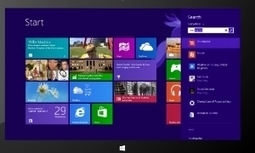
Over the past couple of years, we’ve been lucky enough to work with product teams across Microsoft to include the capabilities of Bing in some of our most exciting products. Whether Xbox, Windows Phone, Office or Windows 8, we’ve begun a journey to make it easier to find the stuff you are looking for and take action on your favorite Microsoft devices. Today we take another important step in that journey, as the Windows team took the wraps off the upcoming release of Windows 8.1. It’s an exciting release which will bring lots of cool new features to Windows users just a short time after the launch of Windows 8. One of the big investment areas in the release is a new way to think about search in Windows. We’ve been working hard with the Windows team to reimagine what search can and should mean in the Windows experience. With search in Windows 8.1 our intent is to have one way to find what you’re looking for, no matter where it lives – whether it’s a document on your PC, a photo album in the cloud, an app, PC setting or a website. In just a tap or a click you can play, view, launch, or browse. To set the course, we looked hard how people have been interacting with the new user experience introduced in Windows 8. Search has long been a part of Windows – especially powerful and useful in Windows 8 – where the Search Charm gives you a single place to find content in your apps. People told us they liked the ease of having fewer places to search. In Windows 8, people could direct their question at an app (like Travel) and have Bing bring back a beautiful, multi-faceted set of information and tools to help them plan their summer trip. But Windows 8.1 takes an even bigger step – with its new search experience, you can find your own personal stuff as well as content from the open web and the creativity of the millions of authors and developers. Modern search needs to be complete and help you find what you’re looking for, whether it’s on your PC, in your top apps, or on the web. At the same time, the web itself has become more vibrant, more capable, and unimaginably vast, encompassing tens of trillions of web pages housing pictures and videos and the digital footprints of billions of people spread across the world. Frankly, it can be a bit overwhelming. So we knew that completeness on its own wasn’t enough. Modern search needs to be finely crafted and well-organized so that you can not only find what you’re looking for, but you can find it quickly. Modern search is fast and fluid. Just as the best modern apps provide a natural, rich experience, we wanted to bring that same level of intuitive design to accomplishing a broader range of tasks. So we’ve designed an entirely modern search experience specifically for Windows that will begin to unify your online and offline worlds, so you can interact more naturally with the tools you use and the things you create. We think your digital world should be accessible without having to actually ‘go to search’. Just like few people say they are going to ‘go online’, we want to make ‘searching’ something that’s just there when you need it. So from the Start screen in Windows 8.1, you can just start typing what you want. A city. An artist. The name of your cat – it doesn’t matter. As you type, you will see suggestions about what you might be looking for and a quick tap on any of the suggestions will expose you to a whole new way to use Windows. Regardless of where something lives and what it is – a document on your PC, your photo album in the cloud, an app, a website, a program – with just a tap, you can play, view, launch, browse, and more. Modern search isn’t just about finding information. It’s about using your PC to do the things you love. We think that your search experience should be beautiful as well as functional and we don’t think the two are at odds. Modern search takes the best of Bing multimedia and brings it into the Windows search experience to create something that’s not only useful and well-organized but also highly crafted. You’ll see rich images across all your search results that help you find what you’re looking for faster and help bring order to the vast information on the web. Modern search needs to be functional, and we think it should also be spectacular. Imagine you’re planning a trip to Paris. Simply type the name of the city and you’ll immediately see beautiful, full-bleed images, upcoming events in the city, and popular attractions. But you can also check the current weather and book a hotel in the Bing Travel app, without having to open it up and type “Paris” again. In the same way, your itinerary and budget, whether they are saved on your laptop or in the cloud, are right there. And of course, we’ll show you the great web results you’ve come to expect from Bing. “Paris” isn’t just a single file or a search query in an app: it is a concept, full of both meaning and context, and we’ll bring its unique meaning to your digital life, all in one place. Windows 8.1, with its new search capabilities, is the first step in moving beyond what search can do today and towards an intent-driven computing experience. It acknowledges the role of the ever more capable and web and that the things you create and use will be stored across multiple spaces. Because your computer should be the ultimate toolbox: ever capable, always organized, and ready to help you do and know in a way that feels natural. - Derrick Connell, Corporate Vice President, Bing
Scoop.it!

Finding your way in a crowd, or in the middle of nowhere, is now much easier and quicker thanks to HERE Maps with LiveSight.
The world is a vast place; full of different cities, shops, parks, and anything else you can possibly think of. HERE Maps has always been your best friend when it comes to getting to unfamiliar places, and it’s also helped you find new routes in familiar ones. HERE Maps is your eye in the sky. Now, those eyes are also fixed on the ground, looking at the world in the exact same way that you do. Once you’ve updated HERE Maps on your Nokia Lumia Windows Phone 8 smartphone, you’ll see the LiveSight incorporated immediately. HERE Maps will find your position and pin your location on the map, just as normal. You’ll also notice that there’s an additional eye icon next to your location that’s shouting to be tapped. Tap it! Here’s where the digital world meets the real one. Venues and points of interest (POI) will start to populate the screen around you and the map will begin to drop away to the bottom of the screen, revealing exactly what you can see in true real-time – delivered via the main camera.
If you’re holding the phone perfectly upright you’ll see POIs dart about the screen as you start to move the phone in any direction. If one of these icons is positioned directly in the centre of your screen, you know that the venue or location is directly ahead of you. Cleverly, by placing your finger or thumb on the middle of the screen and pulling items downwards to the bottom, you’ll start to flick your way through venues that are closer or further away. The nearest icon will fade out at the bottom, leaving the most distant ones on the screen. This is really useful when looking at a cluster of icons and you’re trying to establish which one you want to navigate to. At any point, of course, you can tap on a POI and see details of its exact location, including address, the phone numbers, photos and reviews. And if you need to, pressing the directions option will guide you there. The radar at the top of the screen lets you see the position of other places around you, too. Within the LiveSight view once again, as you begin to lower your phone to around 45 degrees or more, the familiar HERE Map will poke into view at the bottom of your screen. While still maintaining the LiveSight view above, this mix of traditional map and LiveSight really helps you understand where you are in relation to the rest of your local surroundings. If you prefer to see local POIs in list form, pull up the Places window from below and see what’s around you. It’s from here that you’re also able to choose which categories you want to appear when using LiveSight, too. While LiveSight helps you to discover many different venues around you, it can also help you to find specific places. For example, let’s say you get off a train and are looking to meet somebody at a nearby bar, or restaurant. Type that place into the search option in HERE Maps and with the search results on screen, change the map view to ‘LiveSight’ by tapping the icon at the bottom right of the map. You’ll now see only those results in LiveSight, which makes getting from A-to-B much easier than sifting through many different venues. LiveSight gives you real-time imagery of the places you’re exploring, or trying to get to. It doesn’t provide you with simulations, or photos that may now be out of date. It’s real-world visuals, right now.
Scoop.it!

We know your favorite Windows Phone related podcast comes from us. Daniel and Jay are a dynamic duo that help keep you up to date on the latest things with Windows Phone and more. But we approach it more for the general consumer and don’t focus too much on development. For that we highly recommend the Windows Developer Show from brothers Ryan and Travis Lowdermilk. There’s a new app in the Store that you should check out to get their podcast. So what is the Windows Developer Show (www.windowsdevelopershow.com)? It’s a podcast that started out focusing on Windows Phone development. As the platform matured and Microsoft’s three screens and a cloud strategy came into focus they began to include Windows 8 and other Microsoft technologies like the Xbox. While its developer focused, anyone can listen and gain some insight from the show. The Windows Developer Show app for Windows Phone 8 was made by Shayne Boyer. The same developer that made the I’m Here app. Why the reason for the app? Some users can’t access some podcasts abroad and the Windows Developer Show had a handful of fans who were having trouble getting access to it. Here’s what the app currently gives you: Support for all tile sizesStream episodes of the Windows Developer ShowShow notes and links for the guests in each episode in addition to resources mentioned in the showWeigh in Wednesday Poll Results in real-timeIt’s excellent at what it does and that’s give users access to episodes of the show. However feedback has already been pouring in. Shayne has been taking feedback and ideas for future versions. Here’s what is in the pipeline for the app: Offline supportCloud sync with a Windows 8 version or companion appPoll voting and not just viewingTwitter feeds from episode guests and hosts of the showThird party developers to the rescue! The app has been successful with users too. During the first eight days in the Store it picked up 2000+ downloads and acquired 75+ reviews 4 stars or above. In addition to fans, the hosts of the show (Ryan and Travis) are both fans of the app. If you’ve got any feedback sound off below in the comments. Apps like this are a great example of the Windows Phone (and Windows 8) community. The app itself is well designed and a very good first showing. And if you’re not listening to the Windows Developer Show you should. Add it to your podcast lineup. The app is free (no ads) for Windows Phone 8 devices.
Scoop.it!
The creative minds behind the design of Xbox One discuss the driving forces behind the new system's design.
Scoop.it!

When the guys and girls at Gizmodo got their first look at the Nokia Lumia 925, they declared enthusiastically, “This is the Windows phone that you’ll want.” If you’re in agreement with their expert opinion, today is your lucky day.
|