Your new post is loading...

|
Scooped by
David Anders
January 25, 2013 11:01 PM
|
Once upon a time, creating a bootable floppy was high on the list of "things to do when installing Windows." Bootable floppies made system recovery much easier. WinUSB Maker creates a bootable startup disk on any removable USB drive or similar location. It does much more, too, such as creating bootable ISO image, GRLDR, and DOS disks as well as full drive backups. And it's extremely easy to use. You'll need your Windows installation disk or an existing setup disk, ISO image, or folder to use the program, and be sure to use a USB drive with enough capacity. WinUSB Maker's user interface is about the size of a smartphone on the screen, and all its options and controls are right there up front. The default Functions selection, Setup Folder Bootable Disk, creates a bootable drive that can start a sick PC and restore or, if all else fails, reinstall the operating system. We could specify Normal Detection Mode, which identified all our removable drives and their capacities, or Fixed Detection Mode, which showed our hard drives. WinUSB Maker also includes check boxes to force either NTSB or FAT32 file systems, which certainly expands the range of compatible devices. With our USB drive selected, we browsed to our Windows installation disk, though you can also use an ISO image if your copy of Windows didn't come with a disk, such as Netbook installations. WinUSB Maker can identify valid source files.
WinUSB Maker - CNET Download.com http://download.cnet.com/WinUSB-Maker/3000-2094_4-75605122.html#ixzz2J3D2xn3z
|
|
Scooped by
David Anders
January 18, 2013 2:57 PM
|
Choosing the best storage drive for your PC has never been so complicated. We break down the differences between SSDs, good old hard drives, and genre-busting hybrid drives to help you make an informed decision. In times past, choosing the best PC storage option required merely selecting the highest-capacity hard drive one could afford. If only life were still so simple! The fairly recent rise of solid-state drives and hybrid drives (which mix standard hard drives with solid-state memory) have significantly altered the storage landscape, creating a cornucopia of confusing options for the everyday consumer. Yes, selecting the best drive type for a particular need can be befuddling, but fear not: We’re here to help. Below, we explain the basic advantages and drawbacks for each of the most popular PC storage options available today. Tuck away this knowledge to make a fully informed decision the next time you're shopping for additional drive space.
|
|
Scooped by
David Anders
January 6, 2013 9:32 AM
|
I can pull them up any where except for my network. Any suggestions are welcomed. SUG Have you checked the Host file, Router, Modem to see if the IP address and or the web address are not added into the block?
Have you booted into safe mode with internet and see if you can connect to the site?
Disabled firewall/AV/Securities to see if you can connect?
Reset the Browser (not restore)? Tried a different browser? Ran the browser with out add ons?
Check the Anti Virus and Firewall for blocks as well.
When you state that you reset what? Reboot router of factory restore?
Have you tried using the IP address to access the site do you get the same error messages? SUG Interesting issue...need some clarification before looking at potential causes though.
Need to know, are we talking about multiple devices on your network all seeing this issue, or just a single device?
When you say you are able to access on a different network...is that with the same device on both networks? Have you done a tracert to see where it is failing Not sure, but it seems as if your ISP Provider may have been black listed by this one specific web host. I would try getting in contact with the web host to see if this is the case. I know email servers will get black listed, not sure if this is the case here though Try changing your DSN address to Googles DNS servers for a test - 8.8.8.8 and 8.8.4.4 . or openDNS servers at - 208.67.222.222 208.67.220.220 ipconfig /flushdns.........then see if you can do a nslookup on the site. If you can its not dns related at all. Just a note, trace route (tracert in DOS/Windows) may not necessarily work...it all depends on if there is a firewall blocking ICMP Echo Request (aka ping) in the path or not...as tracert uses ICMP Echo Request with an incremental TTL.
There are two things we really need to know:
1. Is this happening on just one PC on this network, or all PC's on this network.
2. Does this issue follow the machine when moved to another network.
If the issue does not follow the PC when moved to another network then there is most likely nothing wrong with the IP stack on the PC, and most likely no software (browser/software firewall) issues.
Seeing output from PING and NSLOOKUP wouldn't hurt but knowing the answers to 1 and 2 above will really narrow down where to start looking for a problem. Might try COMODO's Secure DNS servers...
8.26.56.26
8.20.247.20
You should see a place to enter custom DNS servers in the Internet Settings section of your router.
|
|
Scooped by
David Anders
December 26, 2012 1:45 PM
|
At the forefront of this trend are the botnet creation kits like Citadel, ZeuS and SpyEye, which make it simple for miscreants to assemble collections of compromised machines. By default, most bot malware will extract any passwords stored in the victim PC’s browser, and will intercept and record any credentials submitted in Web forms, such as when a user enters his credit card number, address, etc. at an online retail shop. These shops are just one example of a concept that I have been trying to get across to readers about the many, many uses of a hacked PC. One of the ideas I attempted to communicate with that hacked PC graphic is that nearly every aspect of a hacked computer and a user’s online life can be and has been commoditized. If it has value and can be resold, you can be sure there is a service or product offered in the cybercriminal underground to monetize it. Once again, I haven’t yet found an exception to this rule.
|
|
Scooped by
David Anders
December 16, 2012 7:06 PM
|
Warning: This is a highly technical article. If you are not an IT Expert, don’t try this at home . Thanks to Dennis J Krohn (DDK Communications) for working with Microsoft on this and emaill...
So about an hour after Dennis and Susan emailed me the resolution last night, my main workstation KSOD’d. It has already done this once before and Microsoft did not have a resolution — so my resolution last time was to reinstall Windows to a new directory and manually reinstall and reconfigure all my applications and settings. THIS time, very fortunately, I got to try these steps out and they worked like a charm. My workstation was back up and running in less than 5 minutes.
Here is how to recover from the KSOD (blacK Screen Of Death):
There apparently this a problem related to the Remote Procedure Call service (RPC) running under LocalSystem account instead of NT Authority\NetworkService account.
1. On the affected machine, boot using the Vista Media and Select “Next” and then in the bottom left you will see “Repair your Computer”; select Next and then Select Command Prompt.
2. At the command prompt, launch regedit.exe and load the SYSTEM hive, follow the below steps.
a. Select HKEY_LOCAL_MACHINE
b. On the File menu, select Load Hive.
c. Browse to %WINDIR%\System32\Config Folder and select “SYSTEM”
d. Select Open.
e. In the Load Hive dialog box, type in “MySYSTEM” box for the registry hive that you want to edit.
3. After the hive is loaded, modify the following key value per the instructions below: You will need to know what ControlSet the machine is currently running on, this can be determined by going to HKEY_LOCAL_MACHINE\MySYSTEM\Select and find the “Current” value in the Right hand side. (Example: Current value is 1 then the ControlSet will be ControlSet001)
Key: HKEY_LOCAL_MACHINE\MySYSTEM\ControlSet00X\Services\RpcSs (X is the Number from the Current Key from above)
Value Name: ObjectName
Old Value: LocalSystem
New Value: NT AUTHORITY\NetworkService
4. Unload the SYSTEM hive by selecting the key “MySYSTEM” and then select File -> Unload Hive… menu item.
5. Exit regedit.exe
6. Reboot the system normally
|
|
Scooped by
David Anders
December 8, 2012 11:58 PM
|
Ransomware — when a virus freezes a user’s computer and criminals demand money to unlock it — has become a lucrative online scheme. In the past year, hundreds of thousands of people across the world have switched on their computers to find distressing messages alerting them that they no longer have access to their PCs or any of the files on them. The messages claim to be from the Federal Bureau of Investigation, some 20 other law enforcement agencies across the globe or, most recently, Anonymous, a shadowy group of hackers. The computer users are told that the only way to get their machines back is to pay a steep fine. And, curiously, it’s working. The scheme is making more than $5 million a year, according to computer security experts who are tracking them. The scourge dates to 2009 in Eastern Europe. Three years later, with business booming, the perpetrators have moved west. Security experts say that there are now more than 16 gangs of sophisticated criminals extorting millions from victims across Europe. The threat, known as ransomware, recently hit the United States. Some gangs have abandoned previously lucrative schemes, like fake antivirus scams and banking trojans, to focus on ransomware full time. Essentially online extortion, ransomware involves infecting a user’s computer with a virus that locks it. The attackers demand money before the computer will be unlocked, but once the money is paid, they rarely unlock it. In the vast majority of cases, victims do not regain access to their computer unless they hire a computer technician to remove the virus manually. And even then, they risk losing all files and data because the best way to remove the virus is to wipe the computer clean. It may be hard to fathom why anyone would agree to fork over hundreds of dollars to a demanding stranger, but security researchers estimate that 2.9 percent of compromised computer owners take the bait and pay. That, they say, is an extremely conservative estimate. In some countries, the payout rate has been as high as 15 percent.
|
|
Scooped by
David Anders
December 1, 2012 9:07 PM
|
Microsoft antivirus software fails security test 30/11/2012 Microsoft's antivirus software, Microsoft Security Essentials, has failed a certification test by German antivirus research firm AV. The tests, which were carried out over September and October, challenged home user security products against real-world scenarios, giving each a score of between zero and six in three separate categories: protection, repair and usability. Out of 18 available points, Microsoft Security Essentials scored 10.5, falling short of the 11 needed for certification to be awarded.
The software performed particularly badly in the protection category, scoring just 1.5 out of six points.
|
|
Scooped by
David Anders
November 30, 2012 5:22 PM
|
If the Gmail scare earlier this week has you thinking about backing up your Gmail or other web-based email account, we’re here to help. Read on to learn how to backup your web-based email using open source email application Thunderbird. In case you missed it, earlier this week Gmail suffered an unusual series of glitches that led to 0.02% of Gmail users finding their inboxes totally empty. The good news is that the glitch was fixed and no actual data was lost (they restored the missing email from tape backups that were unaffected by the issue). While that’s wonderful nobody lost any important emails it’s also very unsettling. Not every “Oops, we lost your data!” scenario ends so well. Today we’re going to walk you through backing up your email using the free and robust open-source application Thunderbird.
|
|
Scooped by
David Anders
November 24, 2012 11:21 AM
|
QuickConnect and XpressConnect offer cloud-based methods to automate BYOD client configuration and connection... Deploying the enterprise mode of Wi-Fi Protected Access (WPA2) with 802.1X authentication provides great Wi-Fi security, but complicates the client configuration and connection process. In bring-your-own-device (BYOD) environments, this can cause user frustration and a spike in help desk calls. The solution is to deploy an automated configuration process so users can easily connect their devices without intervention from IT staff. In this review, we looked at three tools to help distribute your Wi-Fi and 802.1X settings to users: ClearPass QuickConnect from Aruba, XpressConnect from CloudPath, and the open source SU1X. Though there are differences between them, all help you generate a custom configuration program or app that users can run on their computers, smartphones, or tablets to configure it with wired or wireless network settings. The configuration program or app can be distributed to users via a website, captive portal on a separate "setup" SSID, or other means, like a CD or flash drive.
|
|
Scooped by
David Anders
November 24, 2012 10:47 AM
|
As we leave our glowing multi-monitor gaming rigs behind on our journey home for the holidays, many of us will be recruited to fix a wide variety of gadgets and technology. It's the burden that we... The last thing you should do is ensure the family PC has an adequate backup scheme — be it cloud-based or targeted at an external hard drive — if only to save yourself a considerable amount of file recovery work down the road. If you haven't read our comprehensive guide to PC backups, be sure to give it a look before you head home. And with that, you can rest easy knowing you've done your part in keeping all that high-tech gear running at top performance. It didn't even take that long, did it? We wrangled home theater systems, unruly network equipment and mobile devices, then moved on to social networks and compromised PCs. It's really all in a day's work for a tech buff like you, so go ahead, enjoy that well deserved slice of pie. http://www.theverge.com/2012/9/21/3320670/best-backup-solution-build-how-to-mac-pc
|
|
Scooped by
David Anders
November 13, 2012 12:41 PM
|
Stand up for your right to repair! Toshiba just took down one of the most popular sources of repair information for their laptops, Tim Hicks’ laptop repair manual repository at Future Proof. It’s a sad day for free repair manuals. Toshiba just took down one of the most popular sources of repair information for their laptops, Tim Hicks’ laptop repair manual repository at Future Proof. Tim’s site is one of the only places online to get ad- and malware-free, manufacturer-authorized manuals. Check out the full editorial I wrote on the situation for Wired. We’re not surprised by Toshiba’s actions: we’ve known about manufacturers’ iron grip on repair documentation for a long time. We’ve known about the infuriating and elaborate ways manufacturers will keep users out of their own hardware. We’ve known about the unfortunate extension of copyright law to repair documentation—that’s a big part of why we got started, after all. But we are upset. Taking repair information away from users means less repair: only the very brave, very experienced, or very stupid will try to service a laptop without a manual. And less repair means more disposable culture, more toxic mining and manufacturing, and fewer jobs in independent repair shops. Manufacturers always say that providing repair documentation will lead users to hurt themselves, and that’s what Toshiba told Tim. But when people do attempt repair, they are far more likely to damage themselves or their equipment if they don’t have a good manual with appropriate safety warnings. So, here’s what we’re going to do. We want to write a free and open repair manual to replace the manuals that Toshiba took away. We currently have manuals for just a few Toshiba laptops, but we need more hardware to take apart. You can help: 1] Send us your Toshiba hardware and we’ll write a manual for it. (We’re looking for laptops that are less than four years old, and we just need one of each model. These are the devices we want.) 2] Donate a couple bucks here and we’ll use the money to buy old Toshiba hardware and write manuals for it. 3] Want to write a manual? Great! Let us know, and we’ll send you hardware once we get it in.
|
|
Scooped by
David Anders
November 12, 2012 12:23 PM
|
Microsoft has released a confusing selection of security programs over the years. Deborah Armstrong asked me to make sense of them. When it comes to security, the folks in Redmond can go overboard with new products--or worse, new names for old products. What follows is a complete list of Microsoft programs, past and present, intended to help keep malware off your computer. At least, I think it's complete. If I missed anything, that's what the comment section is for. Microsoft AntiSpyware: No longer available. You can think of this as an antivirus program that looked for spyware rather than viruses. Since modern antivirus programs also look for spyware, it was kind of redundant. It eventually became Windows Defender (see below). Microsoft OneCare Live: No longer available. This utility and security suite included antivirus, backup, and other tools. Windows Live OneCare Scanner: No longer available. This on-demand malware scanner was intended to supplement your regular anti-virus program by offering a second opinion when you felt you needed one. Microsoft Windows Malicious Software Removal Tool: Another on-demand malware scanner, still available, but of limited usefulness. It's designed to remove a few specific, particularly stubborn threats. It's only updated once a month. Microsoft Safety Scanner: Yet another on-demand scanner, although this time with a more comprehensive malware database. Safety Scanner is updated every ten days, which is better than monthly but still not frequently enough. Microsoft Standalone System Sweeper: No longer available. Would you believe…another on-demand scanner? But this time, it's bootable, from either a CD or a flash drive. Bootable scanners are, arguably, the most effective kind. Malware Prevention Diagnostic Tool: An entirely different kind of scanner. Instead of looking for malware, it checks how you've configured Windows and offers to fix settings that can be exploited by the bad guys. Windows Defender: The renamed Microsoft AntiSpyware. It comes with Vista and Windows 7, but is usually turned off. Windows Defender Offline: Another bootable scanner. Microsoft Standalone System Sweeper's replacement. Microsoft Security Essentials: Microsoft's free antivirus program. As these programs go, Essentials is one of the easiest to use. But it's not the best at catching malware. Windows Defender--the Windows 8 version: Like the two Windows before it, version 8 comes with Windows Defender. But this time, it uses the same antimalware engine as Security Essentials. In other words, it's a real antivirus program, but probably not one of the most effective.
|
|
Scooped by
David Anders
November 10, 2012 9:22 AM
|
7 websites With Laptop Teardown Guides & Other Laptop Repair Resources for repairing laptops... There is a huge percentage of Computer Technicians out there know how to fix both laptops and desktops. However, the problem with repairing laptops is getting them apart. There are often screws hidden under stickers, special clips that need to be squeezed in a certain way and usually the laptop needs to be disassembled in a certain order.Of course, it helps if you have a Service Guide to show you how to get the laptop apart; but they are sometimes difficult to get. For example, Apple only allows their service manuals to be viewed by AASP certified businesses/technicians and other brands guard their service manuals fairly closely as well.
Because of this, I have created this small list of sites where you can obtain Laptop teardown guides. Official Sources
These are some of the manufacturers that actually share their tear down guides. The majority do not. Many of these links contain other information about the laptop (drivers, specifications etc..), so look for either the “Maintenance Guide” or “Service Guide” on these pages. Dell Laptops http://support.dell.com/support/systemsinfo/documentation.aspx?c=us&cs=04&l=en&s=bsd&~cat=12#12 HP & Compaq Laptops http://h20000.www2.hp.com/bizsupport/TechSupport/Product.jsp?lang=en&cc=us&contentType=SupportManual&prodTypeId=321957 Toshiba Thinkpad Laptops http://www-307.ibm.com/pc/support/site.wss/MIGR-39298.html Other Sources Tims Laptop Service Manuals – Large list of laptop repair manuals. Scroll about 1/4 down the page to see the manuals.
Large list of laptop repair manuals http://www.tim.id.au/blog/tims-laptop-service-manuals/ Inside My Laptop – Guide on how to replace various laptop parts. http://www.insidemylaptop.com/ EServiceInfo – A large (somewhat unorganised) archive of service manuals. http://www.eserviceinfo.com/browse.php?id=43 IFixIt – IFixIt has teardown guides for Apple computers, PCs and many other consumer electronics. http://www.ifixit.com/Guide Of course, if you want to know how to repair laptops (brand unspecific) then I highly recommend Podnutz’s Laptop Repair Videos. It is difficult to get service guides for many brands so if you know of any other resources, please post them in the comments below. http://www.takeitapart.net/ http://repair4laptop.org/notebook.html Here is a link that is specific to Toshiba. Step by steps guides with pictures. A great resource. http://www.irisvista.com/tech/ I found this one for Acer laptops but they also carry other makes as well and they cover other peripherals such as printers (ever tried to fix a printer?) http://www.mk-electronic.com/ I had a Dell Inspiron 8200 laptop that was not listed on the Dell resource page. Lo and behold, inspecting the link to the Inspiron 1010 (dell.com/support/edocs/systems/ins1010), I noticed at the end ‘ins1010′. After replacing the ’1010′ with ’8200′, I was able to navigate the long dead page for the inspiron 8200.
|
|
|
Scooped by
David Anders
January 25, 2013 3:27 PM
|
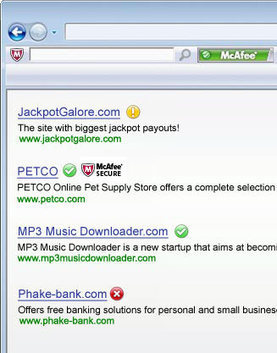
McAfee SiteAdvisor software is a free browser plug-in that provides simple Web site safety ratings and a Secure Search box so you can surf, search and shop more safely.
|
|
Scooped by
David Anders
January 15, 2013 7:36 PM
|
The next time you want to install your favorite browser, update iTunes, get the latest security release for Flash, or set up any of 80 free Windows apps, do yourself a favor. Skip the vendor’s site and go straight to Ninite.com instead. When you’re finished, click the big green Get Installer button and wait while the Ninite back end builds an installer that targets the correct versions (32-bit or 64-bit, XP or Windows 7, and so on). Download that installer, run it, and let Ninite do the work of downloading the files and silently installing them in the background. It automatically refuses any toolbars or other third-party software that the regular installer runs. When it finishes (very quickly, in my experience), you’ll find the shortcuts to your newly installed programs on the Start menu, where you can run them and go through any required initial setup steps. It really is that simple.
|
|
Scooped by
David Anders
January 1, 2013 9:27 PM
|
Consumers and businesses spend billions of dollars a year on antivirus software, but these programs rarely block freshly minted strains, because the malware creators move too fast. Computer viruses used to be the domain of digital mischief makers. But in the mid-2000s, when criminals discovered that malicious software could be profitable, the number of new viruses began to grow exponentially. In 2000, there were fewer than a million new strains of malware, most of them the work of amateurs. By 2010, there were 49 million new strains, according to AV-Test, a German research institute that tests antivirus products. The antivirus industry has grown as well, but experts say it is falling behind. By the time its products are able to block new viruses, it is often too late. The bad guys have already had their fun, siphoning out a company’s trade secrets, erasing data or emptying a consumer’s bank account.
|
|
Scooped by
David Anders
December 18, 2012 3:44 PM
|
This program copies a disk as a raw image from one drive directly to another. This utility is designed for people who have faulty drive and want to transfer the data directly to another drive without doing a file by file copy. This saves the need for operating system re-installs and allows drives with an unknown file system to be copied (including from console game machines, data recorders, mac etc). The program has a built in data recovery function which will attempt to recover data from bad sectors to ensure all the available data is restored from the drive. This program is designed to run under NT/XP/2000 or later operating systems. It will run under windows 95/98/Me operating systems but only windows logical drives can be copied.
|
|
Scooped by
David Anders
December 16, 2012 7:04 PM
|
This guide shows one method of fixing Windows Vista if it stops at a black screen when it boots up.
Last Known Good Configuration
I’m going to walk you through booting Windows Vista using its last known good configuration. Since Windows Vista reverts to a previous version of the registry, you might lose data that was worked with since your last successful boot.
Make sure your computer is powered down.
Turn your computer on and immediately start pressing F8 on your keyboard repeatedly until you see a black screen with white writing that gives you a list of boot options.
Use the down arrow on your keyboard to select the Last Known Good Configuration (Advanced) option.
Press Enter on your keyboard and cross your fingers.
|
|
Scooped by
David Anders
December 4, 2012 12:15 AM
|
TextWrangler is the powerful general purpose text editor, and Unix and server administrator’s tool.At its most basic, a text editor is a...Notepad++, Vim, Sublime Text, jEdit, NoteTab and more.
|
|
Scooped by
David Anders
November 30, 2012 6:57 PM
|
How To Kill and Destroy Your Email A Simple Guide
* Get a lot of email - real and spam.
* Track two or four or six email accounts in your email client.
* Care about your email.
* Choose an Email Client that keeps everything in one file - Entourage and Outlook are the most popular.
* Delete emails and don't empty the TRASH - YES, you have to empty the trash
* Do not Compact your email database.
* Do not file your emails into folders, keep them all in INBOX.
Even folders within the Inbox count as in the Inbox.
* Keep eight years of SENT Emails (and attachments)
* Keep eight years of email with their attachments.
* When you discover you have too many emails in the SENT or TRASH folder, try to delete too many at a time.
* Do not know your POP or IMAP email settings - including server names, ports, email ID and password
|
|
Scooped by
David Anders
November 29, 2012 12:38 PM
|
If you've got a damaged USB thumb drive or memory card, one of these six recovery tools could help you save your important data. While there's no end of data recovery software packages out there, most of them are primarily designed to reclaim data from system drives. In this roundup, I look at the following six packages in terms of how well they recover data from mobile storage such as flash drives and memory cards: CardRecovery, PhotoRec, Recover My Files, Recuva, Remo Recover and Undelete 360.
|
|
Scooped by
David Anders
November 24, 2012 10:50 AM
|
If you're upgrading to a faster, stronger wireless router, don't chuck your older Wi-Fi box. With the magic of DD-WRT, you can turn your older wireless router into a range-expanding Wi-Fi repeater to cover everywhere you need a connection. What You'll Need • Compatible router: Grab that old-but-still-works router and flip it over. Get the model number off the label, and write down the MAC address, while you're at it—the locations for both, on a standard Linksys "blue box," are pictured above. Type the first few characters of your model number into DD-WRT's router database, and look for your model to pop up. If you get any kind of green "Yes" listed with your model, you're in the clear—even the most pared-down DD-WRT build, micro, supports the repeater function. • Firmware files for your router: In that same router database, click on the line that relates to your router model, then grab all the files listed there. You may not end up using all of them, but once you've taken your router offline, even if it's not your main router, you'll want to have all your files available offline. • Print-out of your instructions: There's a good chance, if you've got a fairly popular router, that you'll have access to specific router model instructions on the DD-WRT wiki. You'll usually see a link on the same page as your firmware files; if not, go ahead and search the wiki. If you don't have a printer, or hate wasting paper, use a print-to-PDF tool like doPDF or the Nitro PDF Reader for Windows, or the built-in PDF functions in Mac or Linux. The reason, again, is that you want to be prepared in case you lose internet connectivity on one or more routers during the flash process. • Ethernet cable & computer with Ethernet port: Enough cable to comfortably reach from your computer to the router you're working on, and a computer without any networking problems that you know of. • A pen and paper: The paper for notes, and the pen for both writing and pressing and holding down the reset button on your router. • At least an hour's time, and patience: Instructions for most routers are laid out in step-by-step detail, with very specific instructions. Even so, you do not want to rush things, or load the wrong file at the wrong time. Doing so opens the potential for a "bricked" router, one that doesn't work and can't be accessed or set back to its default, factory-fresh state. That's not going to happen to the patient, cautious firmware flasher, though.
|
|
Scooped by
David Anders
November 23, 2012 9:42 PM
|
In its recently-released holiday buying issue, Consumer Reports says that iMac and MacBook lines still reign over PC competitors. But a close reading of the results show a mixed result for Cupertino. The Consumer Reports cover story looked at best brands in electronics. The reliability section was based on Consumer Reports' annual Product Reliability Survey, and reported on computers from Acer, Apple, Dell, eMachines, Gateway, Hewlett-Packard, Lenovo, Sony and Toshiba. In the ranking of consumer satisfaction, Apple gets a reader score of 78 percent. Dell and Lenovo tied at 59 percent, with Acer, Asus, eMachines, HP, Gateway, and Toshiba grouped together between 56 to 54 percent. That's a significant difference in customer perception. The reasons still appear to bewilder PC makers. These vendors have spent years driving to the bottom of a commodity market, where brands vie almost totally on cost. However, over the past five or so years, customers have increasingly accepted Apple's value proposition: higher-quality machines with leading industrial design, a tightly-integrated operating system, and the introduction of new technologies that come with higher price tags. Apple sold over 4.9 million Macs last quarter and 80 percent of them were MacBooks. And then there are the provision of tech support and its costs. Tech support in general is among the lowest-rated services in all of the surveys conducted by the Consumer Reports National Research Center. But that doesn't apply to Apple, which beat all the makers of Windows-based PCs covered in our most recent survey. CR said that Apple solved three-quarters of user problems compared with Dell's 61 percent, its nearest competitor. So, the others must have scored worse. In the reliability ratings for desktop computers, Apple's iMac repair rate (7 percent) scored significantly better than HP (10), Dell (11) and Gateway (13). This score can't be a surprise to anyone. If you spend years removing cost — read quality — out of any system, here desktop systems, there will come a point where all the little things add up to a big whole, which, in this case, stinks. Meanwhile, Apple has made its iMac all-in-one desktop the focus of its performance computing strategy. Apple's "traditional" desktop computer, the Mac Pro, is missing in action right now, way overdue for a refresh. There's no way of knowing if these quality reports are just about hardware failures or are also software related. Is it related to the crapware that comes with PCs in an attempt to eke out a bit more margin in a commodity product? Hard to tell. Here's an interesting piece about iMac from Apple CEO Tim Cook during the Oct. 25 Apple Q4 earnings call with analysts: In terms of general shortages, the iMac will be constrained for the full quarter in a significant way. Part of that is that we're beginning shipping the 21.5-inch iMac in November and the 27-inch in December So, there will be a short amount of time during the quarter to manufacturer and ramp those and I expect the demand to be robust. So, we will have a significant shortage there. However, in CR's laptop computer ratings, Apple only edged out the many PC competitors by a couple of percentage points. The worst was Dell with a 12 percent rating compared to Apple's 8 percent. So, I see these figures in two ways: Firstly, that PC makers have put more effort into their laptops and they've done a good job getting closer to Apple in quality. On the other hand, we could say that all laptop makers, Apple included, may be having some QA issues with their recent mobile computers. This might have something to do to the increasingly thinner and smaller enclosures that make laptops difficult to assemble as well as to repair. Anecdotal observation: I recently spoke to several Mac buyers who are on a replacement machine. They bought a new MacBook and problems started happening. They took the laptop into get it repaired and were given another machine. That's good customer service (see above) but not so good on the repair reliability front.
|
|
Scooped by
David Anders
November 13, 2012 9:59 AM
|
Many years ago, one of the absolute worst customer experiences I ever had concerned a Toshiba laptop that never worked properly -- which was followed by ridiculous and rude service. The situation involves an Australian site called Tim's Laptop Service Manuals, which provides exactly what it says it does. Well, until Toshiba's clueless lawyers got involved. Toshiba gave Tim a list of excuses for why he needed to take their service manuals down -- most of which made little sense. At the end of the list was basically "we hold the copyright and thus you need to take them down." Legally, they're probably right. But, this is just one of those cases where it's stupid to apply copyright law. It's not as though Toshiba needed copyright as the incentive to produce these manuals. No, the only reason to assert copyright here is to try to limit repairs to authorized dealers, which limits the usefulness of their products to the public. In a sane world, this would be a case of copyright misuse. But, when it comes to copyright, we don't live in a sane world.
|
|
Scooped by
David Anders
November 11, 2012 10:21 AM
|
Yesterday my desktop died, and so I went ahead and got a brand new Windows 8 laptop. Its always been my feeling that as years go on, user experience has been going down for people who use a computer and the Internet, because of decisions all companies make that are clearly anti-user, either because they think they know best, or in many cases, for financial gains. But from spending all night reinstalling everything and customizing the laptop, I realized just how bad it has become. These are some of the annoyances I encountered while setting up this Windows 8 laptop. Now I realize those are very specific examples, and may not apply to most people, but I think they are fairly indicative of what most people go through. Also, many of these things can be fixed, when you know how to, or after some Google searches, but it's still annoying at the time. The first step was getting rid of the usual pre-installed crap. This is supposed to be a fairly clean HP laptop, yet there still were 28 different useless items in the Programs and Features window, from games, to toolbars, Norton Security, Microsoft Office launcher asking you to buy a license, etc. It took me over an hour to go through all the uninstallers. While Norton actually uninstalled correctly (that surprised me) it seems like it turned all security off on the system and doesn't bother reinstating it. I had to go back and turn the firewall and Windows Defender back on, and set them up. This laptop comes with a fingerprint scanner, which is fairly easy to enroll in, but as soon as I installed Firefox, the HP software felt the need to add not only a plugin, but a toolbar icon. Worse, if I remove the icon, the plugin adds it right back. Even if I disable the plugin in Firefox, the icon will be added back, meaning it completely ignores both user preferences. Only completely removing the HP software got rid of it. Then it was time to install some programs. Of course, Windows 8 doesn't let you do that. SmartFilter blocked every attempt, telling me how it protected my PC from myself, and has no option to disable it from the dialog box. You need to go in the Control Panel to disable that, and when you do, you get a constant warning about your PC being at risk. Now that Norton was gone, I personally happen to like Comodo firewall. So I go to download it, but the installer nicely tells me that this doesn't work on Windows 8, and I need to download another file instead. However, this is their pro product, which basically means it's filled with crap. It's a good thing I noticed the tiny Customize Installer button because otherwise it would have: Changed my home page, subscribed me to something called GeekBuddy, enrolled me to their cloud program, change my DNS servers, and sent information about each scan it does to the company. The same was true with many of the applications I installed, like Adobe Reader trying to install McAfee, or QuickTime trying to sign me up for offers. Next was time to get used to the new start screen. At first I didn't like it, but I think it may actually be a decent idea. Of course I first had to remove everything so that I could put only my own software there. By now there were over 40 items on there, from the weather in South Africa, to some more games, and multiple links to their news, sports and other Bing related pages. I didn't find any way to quickly clean it up, so I had to manually remove each icon. Finally, now that everything had been uninstalled and reinstalled, I did a quick check of msconfig, which apparently in Windows 8 has been integrated into the Task Manager. Unsurprisingly, the amount of applications that had set themselves to run on startup was staggering. All sorts of crap like HP Messaging, QuickTime Task, Google Update, Apple Push, and so on. The bottom line is that this isn't about Microsoft, HP, Apple or Adobe. It's about all of them, and how bad the experience has become. While many of these issues can be fixed, checkboxes unchecked, and so on, I feel like as time goes on, every company is trying to come up with any possible idea that they can garner in order to screw their customers over, in most cases just to make an extra buck. The simple fact is that most people don't go through the trouble is fixing all of this crap, they just put up with it, and that's exactly what companies count on.
|