With Windows 8.1 SkyDrive makes many of your files available only when you're online. Here's how to change that so you always have a local copy at hand.


 Your new post is loading...
 Your new post is loading...
Your new post is loading...
 Scoop.it!
With Windows 8.1 SkyDrive makes many of your files available only when you're online. Here's how to change that so you always have a local copy at hand. 
No comment yet.
Sign up to comment
Scoop.it!

One of Microsoft's strongest supporters took a hard look at the next version of Windows 8 and threw up his hands in frustration.
Scoop.it!
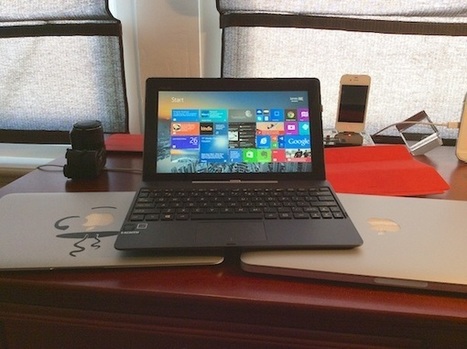
Like many, I left Windows behind for the most part and switched almost exclusively to the Mac. That's gradually changing with Windows 8.1.
Scoop.it!

Sure, you can rip your PC apart and eyeball troublesome hardware directly - but there's an easier way to find drivers for unknown devices.
Scoop.it!

How running Windows 8 on OS X Mavericks gives me the best of both worlds, and brings back a Windows feature that I've sorely missed.
Scoop.it!

Vista and 7 troubleshooting for Software
Scoop.it!

The new Windows is a culture shock, and it can be a challenge to figure out how to find common features and applications unless you know this one tip.
Scoop.it!
About scarewareAvoiding scareware infectionsFinding and deleting scareware infectionsPrerequisite step for all methodsWindows 7, Vista, and XP (General)Windows 8.x, 7, and Vista (Advanced)Windows XP (Advanced)
Scoop.it!

Most new Windows 8 users have used earlier versions of Windows. Moving around in Windows 8 will be very familiar to most of you, however, there are a few things that
Scoop.it!
Scoop.it!
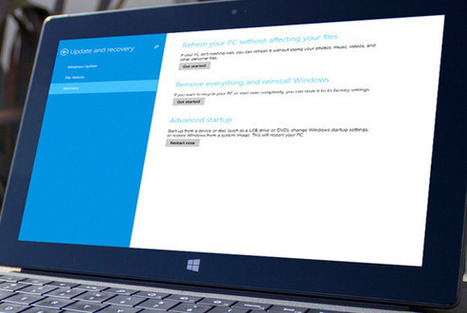
Your browser goes bonkers! Your firewall freaks out! No worries: Windows can repair many problems itself. Here's how.
Scoop.it!
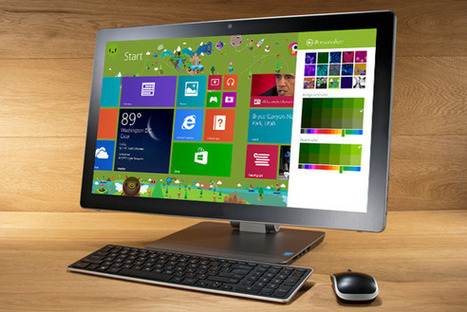
How do you install Windows 8.1? With PCWorld's help, of course. This step-by-step guide will walk you through the process, no matter which OS you upgrade from.
|
Scoop.it!

An online password should be long and complex. A Windows login password should be easy to type. Windows 8 expects you to use one password for both. I offer three solutions.
Scoop.it!

Overwhelmed by an overflowing Inbox? Take these steps to simplify your email today.
Scoop.it!
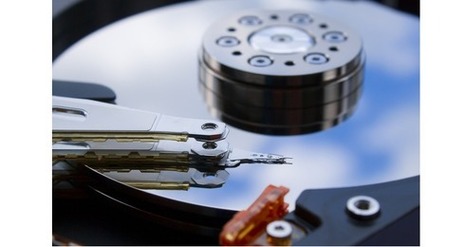
Your hard drive (or SSD) is overflowing. You’ve just bought a new one with a larger capacity. Now what do you do?
Scoop.it!

From
bgr

We've argued in the past that it wouldn't be fair to compare Windows 8 to Vista, in part because Vista was widely hated by many Windows users while Windows 8 is merely polarizing. In other words, e...
Scoop.it!
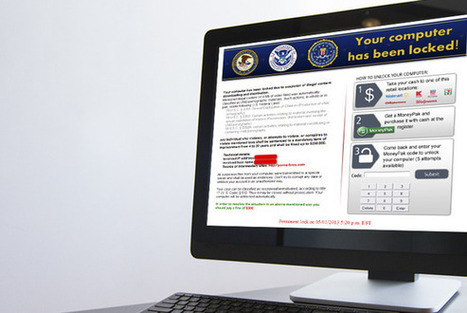
Don't negotiate with e-terrorists. Be a hero and rescue your hostage PC.
Scoop.it!
How do you install Windows 8.1? With PCWorld's help, of course. This step-by-step guide will walk you through the process, no matter which OS you upgrade from.
Scoop.it!

Unused applications can be vulnerable to security breaches. Clean them out before they cause trouble, and jettison older data files while you're at it.
Scoop.it!
Windows 8 isn't even out yet, but it's already under attack from both the good guys and the bad guys in the security community.
Scoop.it!
If you're having problems with Windows 8, you might be able to take care of them yourself. This video shows you ten or so ways to fix your computer woes, both big and small.
Scoop.it!

Starting Windows 8 is as easy as turning on your computer — Windows 8 leaps onto the screen automatically with a flourish. But before you can begin working, Windows
Scoop.it!
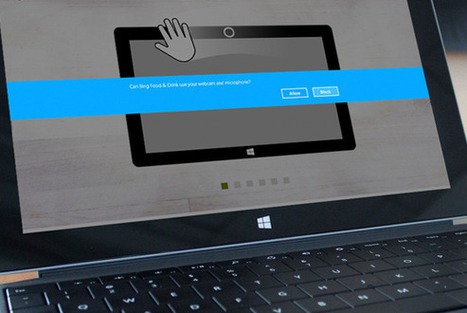
Tiles. Files. Apps and Snaps. The update's jam-packed with little things that add up to a big improvement over Windows 8.
Scoop.it!

Whether you're embracing Windows 8 or reluctantly retiring XP, this guide will get you ready for Microsoft's latest operating system.
|