Make your AI-generated presentation your own with Prezi AI.
Did you know you can customize your Prezi AI presentation even before entering the full editor?
In this quick tutorial, you’ll learn how to preview, personalize, and fine-tune your design right after Prezi’s AI presentation generator creates your content.
👇 Try it free at https://prezi.com and start designing AI-powered presentations that match your unique style.
In this video, you’ll learn how to: ✅ Preview your presentation using the navigation arrows and Home button. ✅ Adjust your color palette and design directly in the Prezi AI panel. ✅ Search for new styles by describing an image or clicking Suggest new for fresh ideas. ✅ Revert to the original design anytime with a single click.
⏳What you’ll learn: 00:00 – Preview your presentation and personalize it before you enter the editor 00:19 – Customize your color palette 00:31– Explore more AI-generated design options 00:44 – Revert back to your original design
Prezi AI gives you creative control, from layout to color; you can personalize every detail and make your presentation truly yours.
📍 Ideal for: Educators, marketers, and teams who want visually consistent, professional presentations in minutes.
💬 Have questions? Drop a comment below — we’d love to hear from you!
✨ Start for free at prezi.com and start creating AI-generated presentations today.
Uncover Prezi’s 2026 features, pricing, and promo codes. In-depth review for SMBs, educators, and enterprises. Compare plans, integrations, and real user pros & cons.
Présentation d'une programmation d'activité Cette ligne du temps met en lumière les activités planifiées pour 2026 par secteur. 2026 L'année 2026 sera marquée par le déploiement progressif d'activités variées, organisées par secteur, afin de répondre efficacement aux besoins
Benefits of Public Speaking Activities in Speech Crafting Benefits of Storytelling Storytelling Program Participating in storytelling enhances students' imagination and creativity. Additionally, it improves vocabulary and pronunciation, fostering a deeper understanding of the
Make your AI-generated presentation your own with Prezi AI.
Did you know you can customize your Prezi AI presentation even before entering the full editor?
In this quick tutorial, you’ll learn how to preview, personalize, and fine-tune your design right after Prezi’s AI presentation generator creates your content.
👇 Try it free at https://prezi.com and start designing AI-powered presentations that match your unique style.
In this video, you’ll learn how to: ✅ Preview your presentation using the navigation arrows and Home button. ✅ Adjust your color palette and design directly in the Prezi AI panel. ✅ Search for new styles by describing an image or clicking Suggest new for fresh ideas. ✅ Revert to the original design anytime with a single click.
⏳What you’ll learn: 00:00 – Preview your presentation and personalize it before you enter the editor 00:19 – Customize your color palette 00:31– Explore more AI-generated design options 00:44 – Revert back to your original design
Prezi AI gives you creative control, from layout to color; you can personalize every detail and make your presentation truly yours.
📍 Ideal for: Educators, marketers, and teams who want visually consistent, professional presentations in minutes.
💬 Have questions? Drop a comment below — we’d love to hear from you!
✨ Start for free at prezi.com and start creating AI-generated presentations today.
Plan d'action 2026 Vision 2026 - Identité et valeurs L'identité de notre organisation repose sur un engagement ferme envers l'innovation, la durabilité et l'inclusivité. Nos valeurs fondamentales, telles que l'intégrité, l'excellence et la collaboration, orientent toutes nos
Learn how to turn a Prezi presentation into a video in just a few simple steps. This tutorial shows you how to record your presentation with Prezi Video, appearing alongside your content with an automatically removed background.
What you'll learn: ✅ How to convert Prezi presentations into video format ✅ Recording with camera or voice-over narration ✅ Adjusting content so you're visible on screen ✅ Saving and sharing your Prezi video as MP4 or a link ✅ Using Prezi Video desktop app for HD recording and live streaming
⏳Timestamps: 0:00 - Introduction 0:09 - Choose to narrate or appear next to your content 0:23 - Allowing camera access 0:29 - Adjusting your content on the canvas 0:42 - Adding presenter notes 0:49 - Recording your presentation 0:59 - Saving and sharing your video 1:06 - Download Prezi Video Desktop app
📍 Perfect for educators, business professionals, and presenters who want to create engaging video presentations. Works with Zoom, Microsoft Teams, and Google Meet for live presentations.
💬 Have questions? Drop a comment below — we’d love to hear from you!
How to Make a Video Presentation in Prezi [2025 Guide]
In today’s video, we cover prezi tutorial, video presentation, how to use prezi, presentation tips, create prezi video, prezi tips, video editing prezi, prezi design ideas, online presentation tool, presentation software, make video presentation, prezi for beginners, visual storytelling, engaging presentations, digital presentations, multimedia presentation, prezi features, presentation techniques, online tools for presentations
Indigenous Rights What is this issue? Indiginous rights have been left behind a lot. This is mainly due to racism. Indigenous people all have the rights to live freely with peace and security. Facts of Issue Facts of the issue: - Average life expectancy for them is 17 years -
Formation organisé·e par Comité Départemental Olympique et Sportif de la Savoie à Chambéry - Objectif : connaitre les possibilité majeures du logiciel PREZI Contenu : -outil de bureautique interactif qui permet de modéliser une présentation attrayante et fluide -c'est un outil web de création de présentations -similaire à d'autres logiciels de présentation, il offre néanmoins des fonctionnalités uniques qui en font une alternative intéressante
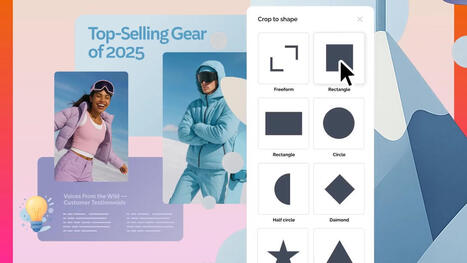
Learn how to crop images in Prezi Present with this quick tutorial. Crop images using freeform cropping or shape masks to create dynamic, interactive presentations in seconds.
🎯 Timestamps: 0:00 - Introduction to image cropping in Prezi 0:17 - How to get started 0:21 - Using Freeform cropping 0:29 - Shape masking with 40+ shapes
✨ What you'll learn: How to crop images in Prezi Present Freeform cropping techniques Shape masking for visual hierarchy Design faster with AI presentation tools Create professional presentations in minutes
🚀 About Prezi: Prezi is an AI presentation software that helps you create presentations in seconds. With Prezi AI, you can transform ideas into dynamic, interactive presentations that captivate your audience. Our AI-powered presentation builder saves time and boosts creativity with templates, structure, and visuals built right in.
Getting ready to map out 2026? Prezi AI makes it easier to turn insights into polished, powerful presentations ✨ In this video, you’ll discover the newest Prezi AI features designed to help yo
Convert your PowerPoint into a dynamic, AI-powered Prezi presentation in minutes! ⚡ In this quick tutorial, you’ll learn how to upload a PPT file into Prezi AI, extract your content automatically, generate a clean outline, and create a fully designed presentation — all in just a few clicks.
⏱️ You’ll learn how to: 00:00 – Intro to turning PPT into a Prezi with AI 00:19 – Start with a PPTX, PDF, or DOCX file 00:25 – Upload your PowerPoint and extract text 00:31 – Generate an outline with Prezi AI 00:36 – Edit and reorder your talking points 00:42 – Create a full AI-generated presentation 00:46 – Preview and navigate your new design 00:53 – Explore design styles, colors, and palettes 00:58 – Recreate your presentation 01:04 – Move into the editor to customize and present
Whether you’re repurposing old slides or starting a new project, this walkthrough shows the fastest way to transform PowerPoint content into a polished Prezi presentation with AI.
💬 Have questions? Drop them in the comments — we’re here to help!
👇 Try Prezi AI for free and turn your PPT into a dynamic presentation: https://prezi.com
🎯 Why Use Prezi AI? - Automatically converts your slides into a clean structure - Saves time with AI-powered presentation design - Creates more dynamic, interactive presentations - Ideal for education, business, and marketing - Helps you design faster with AI and improve your creative workflow
🌍 Who This Tutorial Is For Perfect for teachers, students, marketers, business teams, content creators, and anyone looking to boost productivity using AI presentation software.
Interface Utilisateur Améliorée La nouvelle interface utilisateur de Prezi 2026 offre une navigation fluide et intuitive, facilitant ainsi la création de présentations sans effort. Les utilisateurs peuvent facilement accéder aux différentes fonctionnalités et options disponibles,
Getting ready to map out 2026? Prezi AI makes it easier to turn insights into polished, powerful presentations ✨ In this video, you’ll discover the newest Prezi AI features designed to help yo
Preparing your year-end recap or setting the stage for 2026 goals? Prezi AI makes it easier to turn plans and insights into powerful presentations.
Take your AI-powered presentations to the next level with the newest Prezi AI features, built to help you design faster, customize more deeply, and finish the year strong.
With smarter design options, new theme search, 40+ shape crops, improved layouts, and an all-new text highlighter, Prezi makes it easier than ever to create presentations that look polished and feel uniquely yours.
Whether you’re prepping year-end reports or planning for 2026, these updates give you more creative control and more ways to bring your content to life.
👇 Try it free at https://prezi.com and start designing AI-powered presentations that will allow you to impress with your 2025 recap.
In this video, you’ll learn how to: ✅ Choose and refine your presentation theme using the new design search ✅ Crop visuals into 40+ shapes, including the highly requested circle crop ✅ Organize information with AI-generated charts, roadmaps, and funnels ✅ Direct your audience’s attention using the new inline text highlighter ✅ Build clean, modern, presentation-ready designs in minutes
⏳What you’ll learn: 00:00 – What's new with Prezi 00:14 – Learn how to choose the perfect design theme for you 00:25 – About the 40+ different shapes that you can crop images into 00:32 – How to structure presentation content in charts, roadmaps, funnels, etc. 0:42 – How to use the new inline text highlighter
Prezi AI puts the power of fast, flexible presentation design in your hands, letting you build stronger, more engaging presentations without slowing down your workflow. These new year-end updates make it even easier to create presentations that match your style and tell your story clearly. Whether you're closing out the year or planning your 2026 goals, Prezi AI helps you present your vision with clarity and impact.
📍 Great for: teachers, marketers, teams, and creators who want standout slides without the heavy design work.
💬 Have questions or feature requests? Drop them in the comments. We’d love to hear from you!
✨ Try Prezi AI for free at https://prez.is/2025features/ and start turning ideas into beautiful AI-generated presentations.
Transform your Prezi presentation into an engaging AI-powered video in minutes using the Prezi desktop app (currently, only available to Mac users).. Whether you want to narrate your slides or appear on screen, Prezi makes recording fast, dynamic, and easy.
👇 Try it free at https://prezi.com and start creating videos that connect with your audience anytime, anywhere.
In this video, you’ll learn how to: ✅ Record your presentation using the Prezi desktop app ✅ Choose between Narration (voice-only) and Cameo (on-screen) modes ✅ Set up your microphone, camera, and presenter notes ✅ Move smoothly through slides with keyboard shortcuts ✅ Preview, trim, and save your video for sharing
⏳What you’ll learn: 00:00 – Introduction: How to record a video in the Prezi desktop app (Mac) 00:22 – Start recording from the Dashboard or Editor on the desktop app 00:31 – In the Prezi recording studio, show or hide presenter notes and next slides 00:35 – Select your microphone and camera setup 00:40– Choose between Narration or Cameo mode 00:49 – Record and move through your presentation 00:57 – Pause, resume, and reposition Cameo while recording 01:06 – End, preview, trim, and save your video 01:14 – Outro: Share your Prezi video
With Prezi AI, you can design, record, and share interactive presentations — all powered by smart AI tools that save you time and bring your story to life.
📍 Ideal for: Business professionals, educators, creators, and anyone looking to make AI-enhanced presentation videos quickly and effortlessly.
💬 Have questions? Drop a comment below — we’d love to hear from you!
✨ Start for free at prezi.com and start creating AI-generated presentations today.
To get content containing either thought or leadership enter:
To get content containing both thought and leadership enter:
To get content containing the expression thought leadership enter:
You can enter several keywords and you can refine them whenever you want. Our suggestion engine uses more signals but entering a few keywords here will rapidly give you great content to curate.


 Scoop.it!


 Your new post is loading...