Your new post is loading...

|
Scooped by
Kamyar Shah
April 7, 2016 3:50 PM
|
Career analyst Dan Pink examines the puzzle of motivation, starting with a fact that social scientists know but most managers don't: Traditional rewards aren't always as effective as we think. Listen for illuminating stories -- and maybe, a way forward.
|
|
Scooped by
Kamyar Shah
April 5, 2016 8:49 AM
|
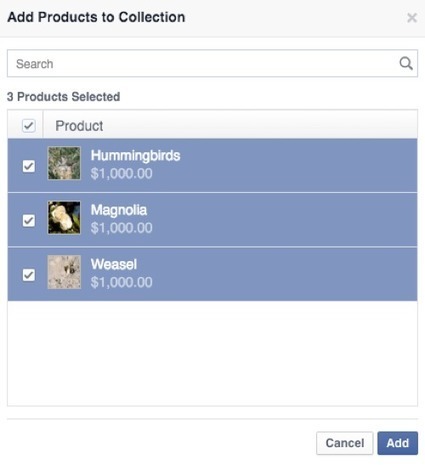
Does your business sell products? Discover how to add a Shop section to your Facebook page.
|
|
Scooped by
Kamyar Shah
April 3, 2016 1:11 PM
|
Body language affects how others see us, but it may also change how we see ourselves. Social psychologist Amy Cuddy shows how “power posing” -- standing in a posture of confidence, even when we don’t feel confident -- can affect testosterone and cortisol levels in the brain, and might even have an impact on our chances for success.
|
|
Scooped by
Kamyar Shah
April 1, 2016 11:16 AM
|
Are you stuck trying to create visual content for social media? Is it taking you hours to do it? Here's 50 ways to create visual content faster and easier.
|
|
Scooped by
Kamyar Shah
March 30, 2016 10:35 AM
|
Are you active in Facebook groups? Discover how to use Trello to manage the content you share in Facebook groups.
|
|
Scooped by
Kamyar Shah
March 23, 2016 8:26 AM
|
At this point in your career, you might be feeling as if you’ve read everything you could possibly ever read about using social media for your business. However, the very nature of the industry means that networks and platforms are constantly evolving and changing. News and tips become outdated so quickly and regularly, making the role of a content marketer one of continuous re-learning and re-mastering previously understood techniques. How to Use Twitter for Business Because it exists in an almost constant state of change (often for the better),using Twitter for your business will mean keeping yourself up to date on all of the changes taking hold in 2016. With new features focusing on up-and-coming trends and best practices, the following guide will help you stay ahead of the curve—no professors required. The future is animated Sometimes the message you are trying to convey cannot accurately be described by words alone. Thankfully, the popularity of emojis, memes, and GIFs has skyrocketed, making the inclusion of such visual messages practically a language of their own. As a animated images, GIFs add an extra touch to certain messages and can usually add a feeling or emotion that words alone cannot. Recognizing the power of the GIF, Twitter recently announced GIF search—a feature that will allow users to search a GIF library provided by GIPHY and Riffsy and easily include their chosen GIF in direct messages and Tweets. While your brand’s Twitter account might have previously included solely text or static images, 2016 will be filled with GIF-centric content. That new features announcement you’re going to Tweet about can now include a GIF of a surprised panda—an image that will appeal to your audience’s attention span and emotions more than a text-only Tweet could. We were lucky enough to have GIPHY join us for a #HootChat recently, and they shared the following three key tips for using GIFS, all of which can be applied to your business’ Twitter strategy in 2016. 1. Context is key: Now that you can easily search and include GIFs in your Twitter content, it’s tempting to just choose the first one that catches your eye to include alongside your content. However, as we explained previously, “Before you share anything, you should make sure that you know what that context is so that you don’t accidentally share a GIF that definitely doesn’t mean what you thought it did.” In 2016, everything has the potential to become a GIF (and I mean everything), so ensure that you’re not sharing moments from potentially awkward sources. If you can’t explain the context of a certain GIF to your parents, you might want to refrain from including it alongside your branded Twitter content. 2. Avoid being too casual: While it’s tempting to continuously use that Step Brothers bunk bed GIF (eight years old, by the way), if you’re continuously being purely silly through your image selection you run the risk of alienating certain audience members. As the GIPHY team explained to us, “It’s like reciting movie quotes. When someone uses the perfect GIF, it’s entertaining…[But] when a brand gets too meme-y or ‘hip with the kids,’ it’s time to get off the internet.” As we explain, you can use GIFs to animate data, add life to potentially boring content, showcase your product or service, and for a myriad other non-slapstick comedy purposes. 3. Skip the overly branded content: This is a given, but in 2016 your audience is savvy and can usually immediately recognize overly-salesy content. With technology today making it easier than ever to create a custom GIF for your company, it can be tempting to splash your logo or motto everywhere. Instead, as GIPHY advises, “keep it simple and skip the over-done branding in favor of a mini logo in the corner, some subtle product placement, or no official branding at all.” Employee advocacy It’s 2016, and companies are finally starting to recognize the immense power they have in their own employees. In a post our own Ryan Holmes wrote declaring five trends that will change how companies use social media in 2016, employee advocacy was one of the top five. As Holmes explains, “Employee social advocacy programs, which encourage staff to share updates about the business on their own social media accounts, have grown by 191 percent since 2013 and are due to take off in the year ahead.” Twitter is an ideal network for employee advocacy initiatives. Emphasizing this, Ad Week explains, “All Tweets are public, and easily amplified across audience segments—making it ideal for employee messages to reach potential customers.” The goal here is not to hijack your employees Twitter accounts or monitor them to ensure that their accounts are scrubbed to a corporate sheen, but rather to give them the resources so that when your business does have positive news to share, they can easily do so. In fact, one could argue that having a non-sanitized Twitter account makes audience members listen more, and in turn trust an employee’s messages much more. As Holmes explains, “Content shared by employees, by one recent measure, gets eight times more engagement than content shared by brand channels.” If you want to make the process of sharing messages of advocacy to Twitter and other social networks as effortless as possible, Hootsuite’s Amplify facilitates employee sharing and enables them to “build their professional brand, share content with their networks, and stay on top of the stories and news resonating across different departments, divisions, and regions.” In 2016 (and beyond), Twitter will be a hotbed for employee advocacy initiatives, and tools such as Amplify help make this as easy on businesses as possible. Customer service If you aren’t already doing this, social media customer service is something to consider seriously for your business in 2016. With 80 percent of social customer service interactions taking place there, Twitter is the perfect place for this. With two new customer service tools being introduced by the platform in 2016, it’s obvious that Twitter takes their role as a social feedback hub seriously. These tools, Customer Feedback and a Direct Message prompt feature, make social customer service through Twitter as seamless as possible. When using Twitter for your business as a customer service tool, it’s important to know when to take the conversation offline, as well as make the process as easy for your customers as possible. With the DM prompt feature, “A business can now add a deep link to their Tweets that automatically displays a call to action button, which allows the customer to send the business a Direct Message, quickly and easily.” Respond to any inquiries you receive through this feedback tool as soon as you can, as you want to ensure you are doing everything in your power to help your customers and enhance their perception of your business. The second new feature being introduced by Twitter in 2016 will allow your customers to privately share their opinions of your business with you—incredibly valuable information that can help shape your future strategies. After a customer service interaction, you will be able to send your customer a survey using “two industry standard question formats: Net Promoter ScoreSM (NPS®) and Customer Satisfaction (CSAT).” You will also be able to export this information, which is a highly valuable feature offering you a goldmine of information about your business. To help your business make the most of social media customer service efforts in 2016, “we’re excited to integrate Twitter Customer Feedback into Hootsuite’s customer service solution.” Now that you’ve seen the ways you can use Twitter in 2016 and beyond, discover how Hootsuite can put these lessons into practice. Sign Up for Hootsuite
|
|
Scooped by
Kamyar Shah
March 21, 2016 8:55 AM
|
5 Ways to Use On-Demand Geofilters for Business Let’s look at some ways you can use an On-Demand Geofilter to promote your business. Create an On-Demand Geofilter to brand your snaps Do you encourage your employees to snap from the office or do you have a Snapchat account for your business? If so, brand your snaps with an On-Demand Geofilter. Create an On-Demand Geofilter for your events Are you hosting a local meetup, networking event, or conference? If so, create an On-Demand Geofilter to promote it and encourage as many attendees as possible to send out snaps at the event using the geofilter. Create an On-Demand Geofilter for your local business Want to turn a geofilter into an advertisement to nearby customers? Create an On-Demand Geofilter for your local business. You could include your logo with the text, “I’m at Sherry Closet’s Summer Blowout Sale,” “I’m having dinner at Ajo Al’s,” or similar. Not only will people see it when their friends snap it, but if you create a large enough geofence, people nearby using Snapchat might come across the filter and stop by. Create an On-Demand Geofilter for your service Certain types of service-based businesses could benefit from having a geofilter when showcasing their best work via snaps. For example, hair stylists could have a geofilter for their salon, photographers could have a geofilter for their studio or event venues, home builders could have one for neighborhoods they’re building in, tattoo artists could have a one for their parlor, and so on. Cross-promote your On-Demand Geofilter snaps If you’re using your On-Demand Geofilters for your own account, download the snaps or your entire stories and share them on your other social networks. If you’re encouraging customers to use your On-Demand Geofilters, ask them to download and share their snaps or stories to other networks. The goal is to get as much mileage out of your Snapchat content as possible! One word of warning, though. When sharing your snaps to Twitter or Facebook, you won’t have any issues. When sharing to Instagram, even after you adjust the cropping from the square version, you still might lose a little of your On-Demand Geofilter as Instagram will not show an entire snap from top to bottom. That might be something to keep in mind if you plan to cross-promote to Instagram.
|
|
Scooped by
Kamyar Shah
March 19, 2016 8:17 AM
|
Does your business have profiles on multiple social networks? Looking for a way to manage your social media presence more efficiently? Customizing Hootsuite lets you view, post, and schedule updates for top social networks from one centralized place. In this article you’ll discover how to monitor and manage multiple social media profiles from a single, customized dashboard. #1: Explore Monitoring and Publishing Capabilities Hootsuite lets you organize information into tabs with up to 10 streams per tab (with unlimited tabs) and use up to three social properties with the free plan. With the right configuration, you can get a lot of mileage out of a free account. You can add different types of properties from five major networks: Twitter, Facebook, Google+, LinkedIn, and Instagram. You can also connect to WordPress.com, but for this article, I consider that more of a blogging network than a social network. For each of these properties, you can choose to monitor certain information in streams. If you want to maintain a free account, you can only add three properties to your Hootsuite account. For example, you could have a Twitter profile, Facebook page, and Instagram account. If you wanted more, you could upgrade to the $9.99 per month plan to add up to 50 profiles, but you may not need to. Here’s what you can do with each social network and property type to help you make your decision. Twitter Profiles For Twitter profiles, you can monitor the news feed of everyone you follow, your mentions, your direct message inbox, your tweets, the tweets you’ve liked (favorited), and your tweets that have been retweeted by others. You can also track tweets scheduled to your profile through Hootsuite, tweets by new followers, tweets from people on specific Twitter lists, and tweets that match specific search queries in streams. In terms of publishing, you can send and schedule tweets, reply to tweets from your streams, and send direct messages. Facebook Profiles For Facebook profiles (personal), you can monitor posts you’ve made to your profile timeline (wall), events you’ve been invited to, and posts scheduled to your profile through Hootsuite in streams. In terms of publishing, you can send and schedule posts on your timeline, comment on posts you’ve made on your timeline, and reply to comments made to posts on your timeline. Facebook Pages For Facebook pages (business), you can monitor posts you’ve made to your page timeline, events you’ve created, posts scheduled to your page through Hootsuite, private messages, and unpublished posts (dark posts for ads). Additionally you can monitor posts made by others to your page, all activity related to your page in streams, and posts made by other pages on their own timeline (wall). In terms of publishing, you can send and schedule posts on your timeline, comment on posts you’ve made on your timeline, and reply to comments made to posts on your timeline. You can also comment on other page posts you’re monitoring in a stream as your page. Facebook Groups For Facebook groups you own, you can monitor posts made to the group timeline, all activity in the group, and posts scheduled to your group through Hootsuite in streams. In terms of publishing, you can send and schedule posts to your group, comment on posts in the group, and reply to comments made to posts in the group. Google+ Pages For Google+ pages, you can monitor your home news feed, posts you’ve made to your page, posts made by profiles and pages you’ve added to specific circles, posts scheduled to your page through Hootsuite, and posts that match specific search queries in streams. In terms of publishing, you can send and schedule posts to your page, comment on posts you’ve made on your page, and reply to comments made to posts on your page. You can also comment on posts that appear in search or in your home news feed streams. LinkedIn Profiles For LinkedIn profiles (personal), you can monitor updates to your profile, your home news feed, and posts scheduled to your profile through Hootsuite in streams. In terms of publishing, you can send and schedule posts to your profile. You can comment on updates in your home or updates stream only if someone else has already commented on the post. LinkedIn Pages For LinkedIn pages, you can monitor updates to your page and posts scheduled to your page through Hootsuite in streams. In terms of publishing, you can send and schedule posts to your page and comment on your own updates. LinkedIn Groups For LinkedIn groups, you can monitor all discussions, popular discussions, and posts scheduled to the group through Hootsuite in streams. In terms of publishing, you can send and schedule posts to groups and comment on posts. Surprisingly, this is possible regardless of whether you’re an admin of the group. Instagram Profiles Last but not least, for Instagram profiles, you can monitor your home news feed, your own posts, your latest followers, the latest people you’ve followed, posts you’ve liked, and popular posts throughout Instagram. You can also monitor posts you’ve scheduled to your Instagram profile through Hootsuite, those from specific users and locations, and with specific hashtags. In terms of publishing, you still have to publish through the Instagram app. Hootsuite can facilitate the process by allowing you to create your update through their platform on your desktop and send you a notification on your mobile device to finish up the rest. However, in the browser, you can still comment on Instagram posts, which is nice. #2: Choose Properties to Manage Now choose your three main properties. This is entirely up to you. If I were to make a decision based on wanting to keep a free account, but also wanting to create a powerful monitoring hub for my social media presence, I would choose my Twitter profile, Facebook page, and Facebook group. I would choose them because I could do just about anything with Twitter on Hootsuite, such as create a ton of searches and engage with specific people in Twitter lists. I could also monitor my private messages on both Twitter and Facebook and keep tabs on my private group activity and schedule posts, so it never gets too quiet. So those are some things for you to think about. If you don’t have a Facebook group but you get a lot of leads from Instagram, you would obviously choose that instead. #3: Create a Priority Tab Once you’ve chosen your three main properties, it’s time to create your priority tab to track important information for your accounts. This is the tab of information that, if you only were to check one thing on social media all day, this would be what you’d check. For me, that would be mentions, private messages, posts to my page (the place you’d be most likely to find page spam), updates from the Twitter list of people I want to engage with most, and discussions from my group. #4: Monitor Brand Mentions Create a tab for brand mentions if keeping up with that information is important to you. Twitter and Instagram, in particular, would be the way to go, the latter if people are posting pictures or video of your product. In my case, my “product” is my content. Hence, I monitor blog posts for people who tweet but don’t mention my Twitter handle. #5: Track and Comment on Updates to Facebook Pages in Your Industry One of the best uses of Hootsuite in conjunction with Facebook pages is to create a tab of the latest updates from Facebook pages in your industry. These are pages that are not your competitors, but whose audiences contain your target customer base. Also, add pages of current and potential customers. This will ensure you get in a comment daily, assuming each page comments daily. #6: Go Beyond the Main Networks With Free Apps Here’s the best part about Hootsuite: the free apps. Want to monitor the analytics of your latest YouTube videos, stay on top of your favorite subreddit, or keep up with mentions of your name across the web in Hootsuite streams? You can add free apps for Hootsuite like YouTube, Reddit, and Hootsuite Syndicator (using a Google Alerts or Talkwalker Alerts RSS feed). To add streams like this, click on your Add Stream button in the tab where you want to add the stream, and then click on Apps. Click the Get More Apps button if you don’t see the app you want to install in the initial list. Note that apps are provided by third parties, not Hootsuite. Some apps are created directly by the company to which the app connects (for example, Tailwind created their own app for Hootsuite). Other developers have created other apps. Be sure to read the reviews for any app you install to ensure it’s legit before entering your account information. You’ll find free (and paid) apps for email marketing, video hosting, CRMs, analytics, and much more. These will allow you to monitor even more information inside your Hootsuite streams. In Conclusion As you can see, there’s a lot you can do with a free Hootsuite account in terms of social media monitoring, social media engagement, and beyond. What do you think? Do you monitor any of your social accounts with Hootsuite? Please let us know how you use it in the comments below!
|
|
Scooped by
Kamyar Shah
March 16, 2016 9:41 AM
|
Help Us Spread the Word! Please let your Twitter followers know about this podcast. Simply click here now to post a tweet. If you enjoyed this episode of the Social Media Marketing podcast, please head over to iTunes, leave a rating, write a review, and subscribe. And if you listen on Stitcher, please click here to rate and review this show.
|
|
Scooped by
Kamyar Shah
March 14, 2016 8:16 AM
|
Your body language shapes who you are TEDGlobal 2012 · 21:02 · Filmed Jun 2012 45 subtitle languages Help with subtitles Body language affects how others see us, but it may also change how we see ourselves. Social psychologist Amy Cuddy shows how “power posing” — standing in a posture of confidence, even when we don’t feel confident — can affect testosterone and cortisol levels in the brain, and might even have an impact on our chances for success. Amy Cuddy’s research on body language reveals that we can change other people’s perceptions — and even our own body chemistry — simply by changing body positions. Full bio TED Brain Trust Body language Brain Business Psychology Self Success This talk was presented at an official TED conference, and was featured by our editors on the home page. Discuss Enthusiastically agree? Respectfully beg to differ? Have your say here. Log in to comment Don't have an account? Sign up now — it's fast and free.
|
|
Scooped by
Kamyar Shah
March 11, 2016 7:28 AM
|
Do you want to be a recognized expert in your industry? Discover six ways to use Twitter's Advanced Search to increase your influence in your industry.
|
|
Scooped by
Kamyar Shah
March 9, 2016 8:16 AM
|
Research from Emerson College’s Engagement Lab, suggests luxury brands performing well in social media engagement often lagged behind in word-of-mouth (WOM) performance.
|
|
Scooped by
Kamyar Shah
March 7, 2016 8:09 AM
|
Are your customers leaving negative comments on social media? Find out how to deal with negative comments on social media.
|
|
|
Scooped by
Kamyar Shah
April 6, 2016 9:06 AM
|
Do you need to continuously monitor your social accounts? Worried you’re missing important comments or posts? By combining social media apps on your …
|
|
Scooped by
Kamyar Shah
April 4, 2016 2:29 PM
|
Wish you didn't have to keep creating new content? Discover how to get more value out of your social media content.
|
|
Scooped by
Kamyar Shah
April 2, 2016 10:01 AM
|
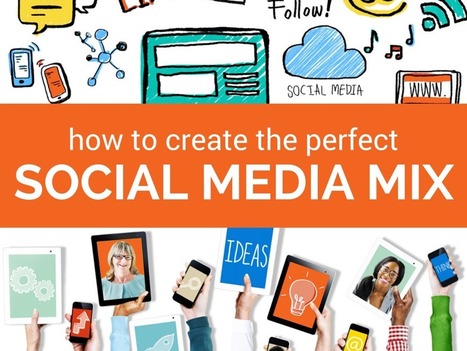
How do you strike the right social media balance in your business? Build awareness and engagement with a perfect social media marketing mix.
|
|
Scooped by
Kamyar Shah
March 31, 2016 10:38 AM
|
Social Media Marketing Podcast 190. In this episode Rick Mulready will explore what's changed with Facebook ads and new ad strategies that work.
|
|
Scooped by
Kamyar Shah
March 29, 2016 10:31 AM
|
You're busy. The last thing you need is another process to be added to your overflowing to-do list. Save time with these social media best practices.
|
|
Scooped by
Kamyar Shah
March 22, 2016 9:19 AM
|
When it comes to social media, according to marketing guru Jay Baer, “the end goal is action, not eyeballs.” If you can get lots of people to view, consume and enjoy your content, great! But the objective is to convert fans into customers. The only way to know if you’re succeeding, is to measure the right metrics. #BeatTheBuzz: The world’s greatest agencies and most exciting brands gather in London, on April 14th. Book your place now! Understanding The Different Classes Of Metrics So, the obvious question is… what are the right metrics to measure? Are the number of click-throughs the most telling statistic? Not if you’re optimized for sharing. Bounce rate is critical — unless you’re only focused on getting big numbers of unique visits. Before you decide which metrics are meaningful, you have to understand the meaning of the metrics. If you like our stories, there is an easy way to stay updated: Follow @wersm Social media metrics can generally be broken down into four categories: Consumption metrics measure the sheer number of people who viewed, read, downloaded, listened to or otherwise absorbed your content. Sharing metrics measure how much your content resonated with your audience and how frequently they shared it on their own channels. Lead-generation metrics reveal how frequently your content resulted in the generation of a lead. Sales metrics show which elements actually led to a sale Keep An Eye On Vanity Metrics, But Don’t Obsess It is easy to focus on “vanity metrics” like followers, friends, likes and shares. Don’t spend too much time analyzing these feel-good metrics. They usually don’t tell the whole story. For example, Entrepreneur points out that Follows, Likes and even social actions such as Shares and Retweets can come from bots. Bots rarely become paying customers. If you like our stories, there is an easy way to stay updated: Follow @wersm Also, these actions often come from people who are not your target customers, which represent the bulk of your followers. Finally, shares or mentions can come from trolls, competitors or other online saboteurs who are trashing your brand instead of empowering it. Conversation, Applause And Amplification Rates: 3 Parts of 1 Super-Metric Don’t confuse vanity metrics with conversation rate, applause rate and amplification rate, which combine to become the single most dominant page-level metric. When measured together, these three categories might just be the most revealing and actionable metrics on all social media. When you look at them at the same time, you can analyse the level, and more importantly the kind of engagement that your content generates. The key is to look for lopsided disproportions among the three individual metrics. For example, if a Facebook post gets many comments (conversation) but gets very few likes (applause), there is a strong chance that the post was viewed in a negative light and most of the comments were bad. If you like our stories, there is an easy way to stay updated: Follow @wersm It’s important to bear in mind that the most important metric is based on your KPI. If you are running a Facebook store, you may choose to measure ROI – what are the sales derived from your investment in that Facebook ads campaign? If you are running a branding campaign to alert the general public that your company is involved in non-profit work, your KPIs would be based on impressions, and your focus would then be on tracking CPM. Diving Deeper Into ROI: Measure Revenue Per Channel If you’re not measuring return on investment, what are you measuring? But as more and more channels become available with the release of every new app and the launch of every new social site, it becomes ever more important to break down ROI per channel. One proponent of this strategy gives the following example of what an ROI per channel analysis looks like in real life: Someone spends $50 on a purchase from your website after their fifth visit. They came to your site twice from organic search, twice from social media and once from email. The calculation for ROI per channel would break down as: – Social: $20 – Search: $20 – Email: $10 Use Google Analytics Interactive Tool to break down each purchase this way every month. KISSmetrics is an SaaS tool that can help measure ROI per channel as well. Move Beyond Aggregate Data By Measuring Lead Growth Aggregate data, such as mentions or follows, can give a good general snapshot of brand awareness. But your goal should be to understand the origin of your targeted leads. Utilize attribution programs like Convertro and Marketo to find out which social campaigns are encouraging conversion growth or positive leads. Programs like these will reveal how many times a customer has to open an email, visit your page or interact on social media before they buy something. Some programs can help you take this analysis to a granular level by assigning relative weight to different actions, which helps to reveal which actions played the most direct role in every conversion. If you like our stories, there is an easy way to stay updated: Follow @wersm Everyone knows how to measure obvious “win” metrics like conversion rate. But like a wide receiver catching a touchdown in the end zone during a football game, a conversion is the final result of many other things happening correctly and in the correct order. If the tight end misses a block, or the running back blows the play-action fake, the quarterback never gets to throw the ball, and the receiver never catches the touchdown pass. If you’re a coach, your strategy can’t be to catch more touchdown passes. You need to analyse film from last week’s game to see what went right, and what went wrong throughout the entire play. Metrics like ROI per channel and lead growth, are less obvious than conversion rate, but without them, you’ve lost the game. Nick Rojas is a business consultant and journalist who lives in Chicago and his hometown Los Angeles with his wife. His work often discusses social media, marketing, and branding in regards to small and medium enterprises (SMEs). Did you like this post? Subscribe to our Newsletter! We don't spam, we will just send you a daily email with the best of our posts. Previous post: Is Snapchat Secretly About To Launch Smart Glasses? Next Post: #BeatTheBuzz Spotlight: Phil Clayton From Facebook UK ABOUT THE AUTHOR: GUEST BLOGGER If you would like to write for us as a Guest Blogger, send us your copy by email or contact us via social media.
|
|
Scooped by
Kamyar Shah
March 20, 2016 8:54 AM
|
Do you want to reach the right people with your Facebook Ads? Want to learn more about targeted audiences? Facebook’s demographic and segmentation tools let you serve your Facebook ads to people who match your ideal customer persona. In this article you’ll discover how to build a target audience for your Facebook ads. Listen to this article: Listen now: Play in new window | Download #1: Explore Facebook Ad Targeting Options There are four primary sets of attributes to consider when targeting your audience with Facebook ads. Understanding what each one represents will give you the building blocks to construct your target audience. Locations Location targeting allows you to focus on an audience in a specific geographic area like a country, city, state or zip code. With advanced options, you can choose people who actually reside in the area or are just physically located in the area. This type of targeting is critical if you’re focusing on an area around a retail store and want to offer a coupon to nearby shoppers. Demographics Demographic filters give you the option to target people based on criteria like education, profession, relationship status, life events and other cultural and social affiliations. Interests Interests data is based on Facebook’s gathering of specific information when you use the platform. For instance, if you like a page about pop music, you won’t be flagged as having an interest in rock and roll. Use Interests to filter people based on their interactions with pages, events and apps inside of Facebook. Behaviors Base behavior targeting on online and offline habits like mobile device use, travel patterns and digital activities like online gaming. For instance, you could segment your audience by those who are planning to travel or those who have just returned from travel. With proper use of these segmentation methods, you can narrow your audience and match your message or offer to a specific audience niche. Now you might be thinking, “That’s great if I know the details about my audience demographics, but I don’t.” Don’t worry; Facebook gives you the tools you need to gain valuable insight into your customers and your competition. #2: Gather Audience Details With Insights With Facebook’s Audience Insights, you can get detailed information about your target audience. If you have a large enough customer base, you can import your customers‘ email addresses or phone numbers into Facebook as a custom audience. Once the process is complete, you then use Audience Insights to see the information about your customers‘ age and gender, location, lifestyle types, education, marital status, job titles, top interests and more. With this tool, you can also run insight reports on competitors, top brands or interests. The trick is to make sure you have a similar topic or brand to offer. For instance, say you own an appliance store and want to sell more Whirlpool appliances. By choosing that brand in Audience Insights, you can see that there are 400K+ active monthly Facebook members interested in Whirlpool. Of that group, 59% are married, over 50% have households of three or more and 32% are in the healthcare industry. Do you think a sponsored story about the health benefits of Whirlpool appliances for families with kids, citing healthcare professionals, would resonate with that audience? Yes, it would. #3: Build Your Audience Now that you understand the basic concepts of audience targeting and the tools, it’s time to take a look at some real-world examples. These examples show how you can target customers using techniques for a variety of industries. Remember that these are just examples. The goal is to create your own interpretations to fit your business. Realtor Suppose you’re a realtor and you want to target homebuyers. There isn’t a segment on Facebook for active homebuyers, so how do you do this? Think about your customers and what motivates them to buy a house. Consider focusing on people who are outgrowing their apartment because they‘re expectant parents. Your audience would be Expectant Parents and New Parents, Apartment Renters, Married or Engaged. This audience in Dallas, Texas is comprised of about 3,500 to 4,000 active monthly Facebook users. As a realtor, you’ll also want to look at Recently Moved, Away From Family or Hometown and New Job segments as well. These options allow you to target people who are starting a new job and moving to the area. Auto Shop Facebook has some powerful automotive segments, most of which are provided by third-party data partners. Say you’re a small automotive shop for European cars and want to generate new business. Build an audience of affluent older men with European sports cars. This segment in Dallas, Texas is about 7,100 people, and targeting this group is extremely affordable. At a spend of $5/day, you can reach 370 to 990 of these people. If you own a dealership, there are even more options available, as you can target consumers Near Market or In Market actively shopping for a new vehicle. You can even get as specific as the make of vehicle. If you have services relevant to new car owners like auto insurance, you can also select New Vehicle Owners. Home Services For this example, suppose you have an HVAC, plumbing or home maintenance company and want to attract more business. You can easily create a segment of Single Family Homeowners with home values from $200,000 to over $1 million, and have lived in their residences for over six years. This is the perfect time to hit these folks up for upgrades or repairs. The average sale for a business like yours will likely be fairly large. Generating leads for a business on Facebook is particularly tricky. Let’s face it, when people’s air conditioners break down, they’re more likely to Google “ac repair” in their area rather than go to Facebook. Because of these challenges, it’s important that you have a compelling offer or call to action. Travel Agent Travel is a great vertical for social media, as research has shown that social plays a major role in influencing a person’s travel choices. Like the auto vertical, you have a great deal of control over targeting people in the various stages of their travel lifecycle. In this scenario, you want to connect a life event to an audience segment with a specific offer to travel. Create an audience of people who have a relationship status of Engaged, are Frequent Personal Travelers International and who also have an interest in Beaches to market a romantic beach honeymoon. That’s an easy travel scenario, but imagine the options you have with these type of controls. If you combine age, interests and household information, you’ll have a powerful formula for targeting all types of travel and entertainment destinations. If you need to market a local attraction, museum or event, you can easily tie in Currently Traveling in your area combined with relevant interests. B2B Rounding out these scenarios is the elusive audience of small business owners. This segment purchases all types of B2B services and products. There are a few areas you can use to segment small businesses. Choose Job Title and Owner as the value, or search for Office Type as Small Business or Home Office, and you’ll get a decent number of small businesses to target. Use behavior targeting to add 10–49 Employees and Technology Early Adopters. This will build an excellent audience of small business owners with 10 to 49 employees who are early adopters of new technology. Here’s one last bonus tip for marketing professionals. Use the Purchase Behavior category to target Business Purchases and specifically Business Marketing. If you want to target users who make decisions for buying marketing services, this is a great B2B segment. Conclusion This article gives you a basic understanding of Facebook audience targeting and how it’s used in the real world. Now, think about your own audience targeting, segmentation and message. What do you think? Have you used techniques like these to target your audience on Facebook? If so, what tips do you have to share? Please leave your comments and questions below.
|
|
Scooped by
Kamyar Shah
March 17, 2016 9:07 AM
|
Are you familiar with the Facebook Business Manager? Do you want to keep your Facebook accounts more secure? Whether you oversee one or many Facebook pages, Facebook Business Manager puts everything you need in one central place. In this article you’ll discover how to use Business Manager to securely manage pages, admins, ad accounts and more. Why Use Facebook Business Manager? The best reason to use Business Manager is to keep you focused on your work. When you log in to Business Manager, you’re taken directly to your business assets on Facebook. From there, you can access your pages, Ads Manager, Power Editor and other business–related assets without seeing your personal news feed or notifications. The second-best reason to use Business Manager is to keep everything organized and secure. If you manage more than one Facebook page, ad account or other asset for yourself or your clients, there’s a lot of back and forth to get from one asset to the next. More importantly, it’s difficult to oversee everything you and others are able to access. Business Manager allows you to quickly see all of your pages, ad accounts, the people who have assigned roles and much more. This is especially handy when you need to revoke access to several of your business’s Facebook assets for someone who no longer works for you. Instead of having to go to all of your business assets to remove that person, you simply go to the People section in Business Manager and remove their access to everything in one click. Speaking of people, with Business Manager you don’t have to be friends with people you assign roles to for your pages, ad accounts, and so on. You simply use Business Manager to assign roles. They never have to see your personal profile and you don’t have to see theirs. Now that you know why you should use Business Manager, here are the things you can do with it. If you’re new to Business Manager, first set up your account at business.facebook.com. Then take the following steps. #1: Create New Business Assets If you have no business assets (pages, ad accounts and product catalogs) when you sign up for Business Manager, create them using the Add New menu. Note that when you create assets within Business Manager, you won’t be taken through the standard setup wizard directly. For instance, to create a new page, you need to go to the Business Settings menu and click on Pages. Then click on the page you just created. From there, you will be taken through the standard wizard to fully set up your new Facebook page. #2: Claim Your Business Assets To claim business assets you own (pages, ad accounts, apps, etc.), use the Claim Assets menu. These assets will be added to your Business Manager immediately, since you have full control of them. Note that you should only add assets you personally own to Business Manager, as only one Business Manager can claim an asset. Thus, if you claim a client’s Facebook page, your client will only be able to request access to it; they would not be able to claim it themselves. Instead, you need to request access to a client’s page, ad account or other asset. This is extremely important to note when claiming ad accounts. While pages can be removed from Business Manager, ad accounts cannot. Thus, you don’t want to claim an ad account that doesn’t belong to you. If you’re interested in claiming your own Instagram account to a page or ad account for advertising through Business Manager, do this under the Business Settings menu by clicking on Instagram accounts. Then select the Claim New Instagram Account button at the top right to begin the process. Note: This step is no longer required, as you can advertise on Instagram through the Ads Manager. #3: Request Access to Business Assets Owned by Others If you’re not the owner of an asset (page, ad account or product catalog), use the Request Access menu to add them to your Business Manager. Approval of the current owner or admin is required before these assets are added to your Business Manager. Be aware that Facebook will sometimes limit the number of assets you can request until some owners and admins approve your requests. Remember, this is the option you should use if you manage assets for clients or any assets you don’t own. #4: Manage All Your Business Assets Once you have created, claimed and requested business assets, you will be able to manage them using Business Manager. When you log into Business Manager, you get an overview of the analytics for each asset. From here, you’re able to use the Business Settings menu to access the following assets. Pages Click on Pages to see a list of all of the pages you have access to within Business Manager. Select a specific page to view additional details and options for that page. Buttons give you the options to view the history of when the page was added to Business Manager and when people or partners were assigned roles, add people or assign partners to your page (both of which we’ll discuss in detail in the following sections) and remove the page from Business Manager. Click on the page’s link under the page name to view your page and edit it. From here, you have the option to post to your page as your page, view your messages, see notifications, review your Insights, schedule posts with Publishing Tools, access your page settings, promote your page, boost posts on your wall, modify tabs and more. You have two options if you want to use Facebook as your page. Click on the link at the top right to Use Facebook as Your Page. Alternatively, click on the View Pages Feed in the left sidebar box to be taken outside of Business Manager. This allows you to view the news feed of updates from pages you liked with your page, comment on those updates and find new pages to like as your page within Business Manager. This option of interacting as your page keeps you in Business Manager, and has a cleaner interface. Use the green Like Other Pages button to find new pages to like as your page. Ad Accounts If you only have one ad account in your Business Manager, click on the Ads Manager or Power Editor links in the menu to access those specific areas for your ad account. If you have more than one ad account in Business Manager or want to assign people or add partners to your ad account, go to the Business Settings menu and click on Ad Accounts. Then select the ad account you want to manage. Use the buttons to view the history of when the ad account was added to Business Manager and when people or partners were assigned roles within Business Manager. Also, you can Add People or Assign Partners to your page (both of which we will discuss in detail in the following sections) or Deactivate the ad account from Business Manager. To view and use your Ads Manager, Power Editor or Payment Methods for the ad account, click on the links under the ad account information. Apps Have you created any apps in the Developers section of Facebook for your business? Add them to your Business Manager and manage them from there. Simply grab the app ID from your My Apps page to add an app. Pixels If you have the new Facebook pixel for your ad accounts, you will find them listed here. Edit each ad account‘s associations and partners as needed. Remember, each Facebook ad account can only have one pixel for remarketing and conversion tracking purposes. Product Catalogs Any product catalogs for your business will be listed in this section. Create new product catalogs and manage existing catalogs from this view as well. Add people, assign partners, add a product feed, associate sources (Facebook pixels) and delete product catalogs, as needed. #5: Assign People or Add Partners When giving others access to your business assets such as pages and ad accounts, you have the option to either assign people or add partners. Here’s how to understand the difference: People are individuals you give access to business assets. For example, if you are working with a Facebook consultant, you would give that person a specific role to access your pages, ad accounts and other assets as needed to manage them by adding them via email. Partners are businesses you give access to business assets. For example, if you’re working with an agency, you would give the agency a specific role to access your pages, ad accounts and other assets. Add them via their Business Manager ID. The agency would then assign employees specific roles to access to your pages, ad accounts and other assets, as needed, to manage them. Assign People To assign people, use the Add New menu and click on People. On the following screen, enter the email address of the person you would like to grant access to your business assets. Use the definition of roles to choose whether he or she should be added as an employee or an admin. After you click Add People, you’ll be prompted to check boxes next to the pages, ad accounts and other assets you want them to manage. For each asset, you’ll be able to assign specific roles using the drop-down that appears when you check the box next to it. Select the option to Learn About Roles to get a definition for each role. If you don’t want to assign a specific asset from a particular group, use the Skip button at the bottom right instead. Go to the Business Settings menu and click on People to see everyone who has access to your business assets. From there, you can cancel invitations, view history, assign assets and remove people, as needed. Add Partners To add partners, go to the business asset you want to assign to them, such as the Facebook page, and click the Assign Partner button. You’ll then be prompted to enter the partner‘s Business Manager ID, which you need to get from them. Specify your partner‘s role on the following screen. After a partner is added, go to the Business Settings menu and click on Partners to see what partners have access to your business assets. That’s where you go to remove them, if necessary. Alternatively, to edit roles for people and partners, go to your business asset. Click on the Assigned People or Partners tabs to find the options to edit their roles. #6: Organize Business Assets Into Projects If you have a lot of pages and other assets in your Business Manager, you may want to use Projects to organize them. To do this, go to the Business Settings menu and click on Projects. Once there, add a new project and assign pages, ad accounts, product catalogs, Instagram accounts and apps to the project. Note that each page and ad account can only have one project. If needed for reorganization, assets can be removed from one project and added to another. Projects aren’t required. However, they come in handy if you have a huge list of pages or ad accounts to go through when assigning people or partners, since you can filter by project. #7: Browse Additional Options While we’ve gone through the main functions of Business Manager, here are some other features to explore. Navigation Menu At the top right of your Business Manager, you’ll see the email address you used to sign up for Business Manager. Click on this to find the option to switch back to your personal profile. This allows you to view your personal news feed and notifications or log out of Facebook. Also, the search box and notifications globe within the Business Manager view allow you to search within your business assets and see notifications for events within Business Manager only. If you need support, click on the owl icon at the right to go to the Help Center, get Advertiser Support or Report a Problem. Payment Methods Under the Business Settings menu, click on Payment Methods to add credit cards to use with specific ad accounts. Shared Logins This feature within Business Manager is being deprecated. People with shared logins in Business Manager must upgrade to Business Manager. Requests If someone requests to claim or access one of your business assets, it will show up in Requests under the Business Settings menu. Preferences To receive email notifications for specific Business Manager–related events, configure those settings in your Preferences under the Business Settings menu. Info Go to Info under the Business Settings menu to edit your business name, primary page selection, find your Business Manager ID to give to others for partner access, request security code access and configure other settings. If you’re looking for better ways to manage your Facebook business assets, then Business Manager is a great option. What do you think? Do you use Business Manager for your pages, ad accounts and other assets? How is it working for you? Please share your experiences and tips in the comments.
|
|
Scooped by
Kamyar Shah
March 15, 2016 8:52 AM
|
Are you marketing on YouTube? Could you use some new ideas to improve your YouTube results? Perhaps you should reconsider your YouTube approach. In this article you’ll discover four tips to make your YouTube marketing more effective. #1: Pique Curiosity With Unconventional Video People aren’t going to click on your video to see a boring infomercial. They may be willing to tolerate a dry tutorial if it offers unique advice that they won’t find elsewhere. The most successful YouTube videos, though, tell an original and interesting story. This ad from Android is a good example. It may be easier to come up with great content ideas if you don’t limit yourself to videos that relate directly to your product or business. This is particularly important if you’re in an industry that’s hard to get people excited about (such as asphalt contracting). Consider this video of a young girl dancing, which was used to promote the Samsung Galaxy 580 phone. The video is seemingly unrelated to the product, yet still reflects positively on the company. The video conveys the excitement that Samsung wants its customers to feel about its phone. It helps set the mood for people to take the next step, which is to visit the URL at the end to learn more about the product. Your goal is to keep viewers engaged long enough to soften them up for your call to action. Don’t go overboard with this type of content, though. You’ve probably seen some commercials and had no idea what the message was until the very end, which left you confused about the company. Make sure that your videos evoke the emotions you want customers to feel about your company, even if there isn’t a direct connection between your video content and the product you’re ultimately promoting. #2: Support Customer Research With Keywords When marketing on YouTube, it’s important to recognize and consider your audience’s stage in the buying process. Some marketers try to cold-sell to customers and prospects who might be interested in their products. The problem is that people who find your videos on YouTube are usually in the discovery stage and aren’t ready to commit to a purchase. For this reason, it’s important to choose keywords that are relevant to people who are looking for new information and to provide video content that educates based on those keywords. You can use the AdWords Display Planner tool to research keywords for your video descriptions and ad targeting. What types of keywords should you look for? Consider words and phrases that are relevant to both your industry and products. For example, if you have a car repair shop, you could target keywords such as “how to change oil” and “auto mechanic.” Testing Keyword Performance in YouTube Ads Your keywords need to receive enough exposure for you to properly test them. Choose keywords with at least 1,000 monthly impressions, and you should be able to gather enough data to gauge their effectiveness. During the initial keyword testing phase, you want to collect data on the performance of keywords in your ads in a cost-effective way. Some of the keywords you’re bidding on may generate more volume than you expect, especially if you’re bidding competitively. YouTube is a massive site, so it’s easy to quickly blow your ad budget, especially if you choose high-volume targeting options. Unless you’re working with a big budget to start with, set your budget low enough to ensure you don’t spend too much on a single keyword target. You can always raise your budget after you’ve had a chance to optimize your campaign and know which keywords offer the best ROI. #3: Qualify Leads With YouTube Video The goal of your video should be to prequalify viewers and send fully interested prospects on to your website to learn more about your products and services. You’ll have an easier time converting website visitors after you’ve warmed them up to your offers. So how do you warm up and qualify a prospect? Focus on providing video that engages and educates people, but leaves them hanging a little. Use the video to convince them that they need to visit your website to get the information they require. Close your video by saying something like: “We describe this in more detail on our site. Please visit yourbranddomain.com for more information.” #4: Optimize Your Channel Page to Drive Traffic Many advertisers focus exclusively on monetizing traffic to their video pages. While most viewers will find your video content first, they’ll also look at your YouTube channel page. Take advantage of those channel page views to drive traffic to your other online properties. To optimize your channel page, provide relevant information about your company and include links to your website and other social media profiles. Also make good use of your banner header, where you can insert four clickable links. Be sure to add appropriate calls to action there. Conclusion To determine which YouTube advertising and marketing strategies are working for you, it’s important to test your campaigns and collect data on what techniques are most effective. Try testing your content in these areas: Video content ideas Different contextual keywords Various video lengths Several audience targets Trial and error play a key role in YouTube advertising, so take some time to brainstorm different variables to test in your campaigns. Try the tactics above to improve your YouTube marketing campaigns and increase brand recognition among your target audience. What do you think? Will any of these tips work for your business? Do you have other tips or tactics that have worked well for you? Please share your thoughts and experiences in the comments below.
|
|
Scooped by
Kamyar Shah
March 12, 2016 9:43 AM
|
Social media news and developments making social media marketing easier. (Pinterest Ads Manager, Twitter Moments, Facebook Lead Ads)
|
|
Scooped by
Kamyar Shah
March 10, 2016 9:49 AM
|
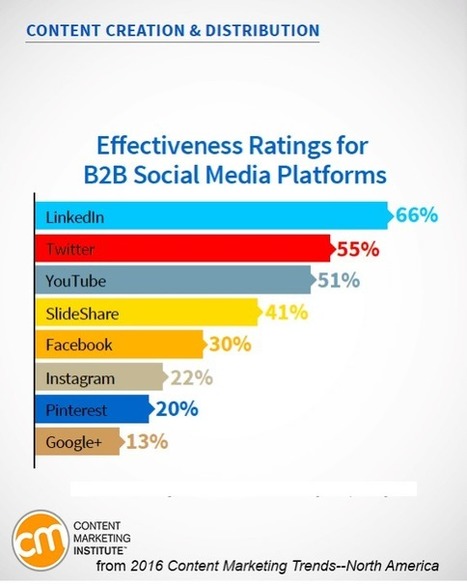
Do you know where to spend your social media marketing dollars? Discover recent insights on the effectiveness of paid social media marketing.
|
|
Scooped by
Kamyar Shah
March 8, 2016 8:15 AM
|
Do you want more organic traffic from Facebook? Discover how to drive organic traffic by pinning a Facebook carousel ad to your page as a post.
|