


Compare the ARZOPA Z3FC, ViewSonic VA1653, and SOTSU FlipAction Go 14 by ports, screen, footprint, warranty and published test evidence.


|
Scooped by
ScreenExtendersHub
onto Smart Workstation Upgrade Intelligence September 20, 4:33 PM
|
 Scoop.it!
Compare the ARZOPA Z3FC, ViewSonic VA1653, and SOTSU FlipAction Go 14 by ports, screen, footprint, warranty and published test evidence.

 Your new post is loading...
 Your new post is loading...
Your new post is loading...
Scoop.it!
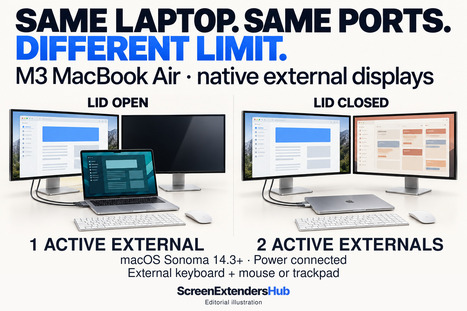
Before buying another screen or dock, check what your exact laptop can drive. This guide examines five gates: the display engine, laptop routing, port video support, bandwidth budget, and expansion architecture. It also provides an evidence recorder for documenting the conditions behind a supported setup.
ScreenExtendersHub's insight:
Two ports do not settle the monitor-count question. Apple’s M3 MacBook Air makes the distinction concrete: it supports one native external display with the lid open, or two with the lid closed. The closed-lid arrangement requires macOS Sonoma 14.3 or later, connected power, and an external keyboard and mouse or trackpad. The built-in screen is inactive, so this is not a three-screen setup.
That lid rule is model-specific. Apple’s M4 and M5 MacBook Air models support two external displays alongside the built-in screen; closing the lid does not raise their external-display limit.
The buying lesson extends beyond Macs: verify your exact laptop, target resolution and refresh rate, built-in-screen state, and dock architecture before ordering. The guide’s five-gate check helps organize that research. Count the supported arrangement before counting sockets.
Scoop.it!

One switching button can conceal eight independent workstation decisions: video, keyboard-and-mouse control, USB data, audio, Ethernet, power, display identity and state, and the security boundary between hosts.
This blueprint compares external KVMs, dual-host KVM docks, monitor-integrated KVMs, separate monitor-input-plus-USB-switch setups, and a software-only route—so you can determine what must switch, what should remain separate, and what the exact model documentation must prove before you buy.
ScreenExtendersHub's insight:
Most two-computer desk failures begin with the wrong question: “Which box should I buy?” The better question is: “Which domains must change ownership when I switch hosts?”
A monitor can move from Computer A to Computer B while USB devices, audio, Ethernet, charging, display state, or sensitive work data remain on a different path. That is why “KVM,” “dock,” or “one-button switching” is only a category promise—not a complete architecture.
Map the eight domains first. Then choose among an external KVM, dual-host dock, monitor KVM, split-switching design, or software-only control route. This blueprint provides the decision framework and an A/B desk commissioning record for verifying the final setup.
Scoop.it!

When two monitors show the same image, the cause is not always the display setting. The computer may be set to Duplicate or Mirror—or the connection chain may be delivering only one usable video stream.
This guide starts with the decisive check: does Windows or macOS detect two separate displays? If it does, select Extend. If it does not, trace the signal path through the splitter, dock, adapter, port, cable, and laptop’s display-output limits.
That distinction prevents wasted troubleshooting and unnecessary replacement of monitors that may be working correctly.
ScreenExtendersHub's insight:
The fastest diagnosis is not “try another cable.” First, determine how many independent displays the operating system can actually detect.
Two detected displays usually point toward a configuration problem. One detected external stream—even when two monitors are illuminated—points toward the signal path. An ordinary HDMI splitter can copy one picture to two screens, but it cannot create a second independent desktop.
This setting-versus-signal-path test turns a vague mirroring complaint into a precise next action before the user resets drivers, replaces monitors, or purchases unnecessary hardware.
Scoop.it!

Can a laptop screen extender damage the hinge? Weight alone cannot answer that. This mechanics-based guide explains opening moment, lateral twist, stability shift, warning signs, safer mounting choices, and when a self-supported monitor is the better option.
ScreenExtendersHub's insight:
Most discussions reduce laptop screen extender risk to accessory weight. That misses the mechanics.
A side-mounted panel can create three different problems: rotational load around the hinge, lateral twist and unequal hinge reactions, and a shift in the laptop’s overall stability. Each follows a different load path and responds to a different fix.
The most useful takeaway is to judge the complete setup: where the panel’s center of mass sits, how the weight is supported, the lid angle, the laptop’s existing hinge condition, and whether the extender transfers any of its weight to the desk.
Scoop.it!
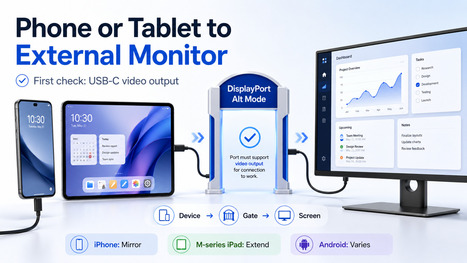
Can your phone or tablet drive an external monitor? It depends on one gate: USB-C video output. This compatibility-first guide explains when iPhone mirrors, when M-series iPad extends, why Android varies by model, and why a better cable cannot fix a port that does not support video.
ScreenExtendersHub's insight:
The useful takeaway is simple: do not start with the cable. Start with the device port.
Many phones and tablets have USB-C, but that does not automatically mean they can send video to a monitor. The real check is whether the exact device supports DisplayPort Alt Mode, external display output, Samsung DeX, Stage Manager, or another valid video path.
This guide is worth saving before buying a cable, hub, dock, or portable monitor because it separates three very different outcomes: iPhone mirroring, M-series iPad extended workspace, and Android behavior that depends heavily on the model.
Scoop.it!
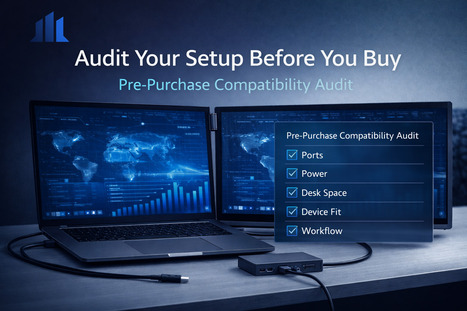
Many laptop screen extender mistakes happen before the product is even purchased. Buyers often compare screen count, product photos, rankings, and specifications before asking the more important question: Can their actual laptop setup support the upgrade?
The Pre-Purchase Compatibility Audit from ScreenExtendersHub helps buyers evaluate the practical factors that determine whether a laptop screen extender or portable monitor will improve productivity or create daily friction.
Before choosing a device, buyers should check laptop ports, USB-C and HDMI support, display output limits, power requirements, operating system behavior, desk depth, cable tolerance, travel habits, mounting stability, screen positioning, and the type of work they actually need extra screen space for.
ScreenExtendersHub's insight:
A laptop screen extender is not just a screen purchase. It is a workstation-fit decision. The smartest buyers audit the setup before comparing models because compatibility, power, ports, desk space, mounting stability, travel use, and workflow demands decide whether the upgrade feels seamless or frustrating. The right device should reduce friction immediately. The wrong one can turn extra screen space into extra clutter.
Scoop.it!
Portable monitors and laptop screen extenders are often grouped together, but they solve different workstation problems. A portable monitor gives users a flexible second display that can work across multiple devices, while a laptop screen extender is usually designed for an attached, laptop-centered multi-screen setup.
The real buying decision is not simply which device looks better. It is which format fits the user’s workflow, desk space, travel routine, laptop compatibility, cable tolerance, and need for mobility.
ScreenExtendersHub's insight:
Portable monitors and laptop screen extenders should not be treated as interchangeable upgrades. A portable monitor is often stronger for users who want flexibility across laptops, tablets, consoles, or desktop setups. A laptop screen extender is often stronger for users who want an attached, laptop-centered workstation they can move as one system.
The best choice depends on workflow, portability, screen positioning, desk depth, laptop compatibility, cable setup, and how often the user changes locations. The mistake is asking, “Which screen is better?” The better question is, “Which setup creates less friction for the way I actually work?”
Scoop.it!
Portable monitor rankings can help buyers discover options, but they should never be treated as the final buying decision. A second screen can improve remote work, coding, research, editing, gaming, and mobile productivity — but only when the display fits the user’s actual laptop, workspace, and workflow.
This video compares several portable monitor options and highlights common buying factors such as display size, portability, connectivity, build quality, everyday usability, and multi-device support.
The more important lesson is that portable monitor decisions should not be made by rankings or specifications alone. Buyers need to consider USB-C support, HDMI limitations, power requirements, brightness, stand design, desk space, travel habits, and whether they need a detachable portable monitor or an attached laptop screen extender.
ScreenExtendersHub’s position is simple: the best external display is not always the one with the most impressive specs. It is the one that fits the user’s real setup without creating new friction.
ScreenExtendersHub's insight:
Portable monitor comparisons are useful, but buyers should look beyond rankings and ask which display actually fits their workflow. A good portable monitor setup depends on screen size, USB-C compatibility, weight, brightness, stand design, desk space, and whether the user needs a detachable second screen or an attached laptop screen extender. The smartest buying decision starts with setup fit, not only product rankings.
Scoop.it!

This Entrepreneur feature highlights how portable monitors are being positioned as practical productivity tools for people who work from laptops, travel frequently, or need more screen space outside a fixed desk setup.
The larger buying lesson is not the temporary sale price. It is the growing demand for lightweight second-screen systems that can support mobile work, hybrid work, content review, research, and multitasking without forcing users into a full desktop environment.
ScreenExtendersHub's insight:
Portable monitors can solve a real productivity problem, but the purchase should not be driven by price alone. Buyers need to evaluate whether the display fits their actual laptop ports, travel routine, screen-size needs, brightness expectations, desk space, cable tolerance, and long-session comfort. A portable monitor is valuable only when it improves the workflow without adding setup friction.
|
Scoop.it!
Compare the ARZOPA Z3FC, ViewSonic VA1653, and SOTSU FlipAction Go 14 by ports, screen, footprint, warranty and published test evidence.
ScreenExtendersHub's insight:
The monitor with the most documented flaws may simply be the one somebody measured.
The article’s evidence audit located three instrumented reviews for the ARZOPA Z3FC; none were located for the ViewSonic VA1653 or SOTSU FlipAction Go 14. That difference changes how confidently buyers can assess performance. It does not establish a winner.
Before choosing, identify the claims your work depends on—brightness, color accuracy, or refresh performance—and check who established them. The evidence matrix separates independent measurements from manufacturer ratings. Use it alongside your laptop’s video capabilities and workspace requirements: a well-documented weakness can be more useful than an unanswered question.
Scoop.it!

Compare six laptop screen extenders across six disclosed axes, then use the interactive Decision Atlas to re-rank every pick for your laptop and workflow.
ScreenExtendersHub's insight:
Most “best” lists hide the decision inside a fixed editorial average. This framework exposes it. In the balanced model, compatibility carries 25% and hinge/mount durability 20%—more than any other decision axis—because an extender that fails your display path or creates an unacceptable hinge-load trade-off is the wrong buy at any price.
Power sanity, portability cost, setup friction, and value-at-risk complete the model. Change those priorities in the Decision Atlas and the six-product order moves with them.
Use the default standing as a starting point, then re-rank for your exact laptop, operating system, desk-versus-travel pattern, and tolerance for cables or drivers. The goal is not to find everyone’s #1. It is to eliminate the wrong #1 for you.
Scoop.it!
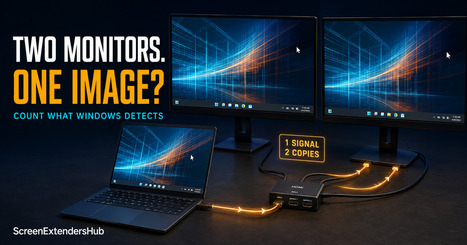
Microsoft’s guide provides a structured troubleshooting process for external displays that are not detected or working correctly in Windows. It covers physical connections, accessories, display-detection controls, cable testing, and display-driver checks. The essential first step is verifying what Windows actually detects before assuming the problem is simply the Duplicate or Extend setting.
ScreenExtendersHub's insight:
Changing Duplicate to Extend works only when Windows receives two independent display paths. If two physical monitors show the same image but Settings lists only one external display, the problem is upstream of the display-mode menu: a splitter, dock, adapter or port may be exposing one video stream and copying it. Count the detected displays first—then troubleshoot the signal path.
Scoop.it!
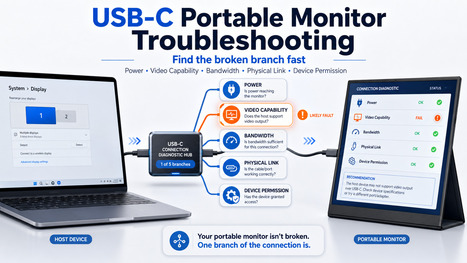
A USB-C portable monitor failure is usually one broken link—not proof that the display is defective. This fault-isolation guide helps diagnose power, video capability, bandwidth, physical link, and device permission through a practical five-minute sequence.
ScreenExtendersHub's insight:
A black screen does not identify the fault. A charge-only cable, data-only port, insufficient power, bandwidth limit, or device restriction can all produce similar symptoms.
The useful part of this guide is its testing order: start with the monitor’s own cable, switch to a confirmed video-capable port, add external power, test a second host device, and only then evaluate resolution and refresh.
That sequence turns a vague “not working” problem into a specific decision: fix the connection, change the display path, or return the monitor when the evidence points to an actual hardware failure.
Scoop.it!
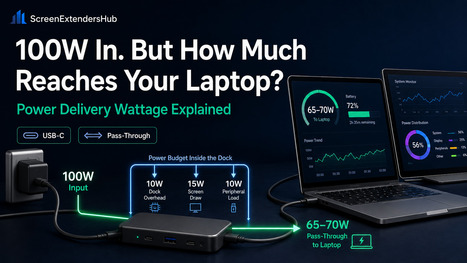
A dock, charger, or portable monitor can advertise impressive Power Delivery wattage and still fail to keep a laptop charged during real work.
The reason is simple: the wattage printed on the box is usually a ceiling, not a promise of what the laptop will actually receive. Dock overhead, pass-through limits, cable capability, screen power draw, connected peripherals, USB-PD negotiation, and the laptop’s own demand can all reduce the usable power that reaches the host.
This ScreenExtendersHub foundation guide explains how to read PD wattage correctly, distinguish input from pass-through, identify cable bottlenecks, understand SPR versus EPR, and calculate whether a setup will charge the laptop or slowly drain it under load.
ScreenExtendersHub's insight:
The biggest Power Delivery mistake is comparing the advertised wattage with the laptop’s charger rating and assuming the numbers match. They often do not.
A “100W” dock may reserve part of that power for its own controller, Ethernet, connected drives, displays, and other peripherals before passing the remainder to the laptop. The correct buying question is not, “How many watts does it advertise?” It is, “How many watts actually reach the laptop after the entire setup takes its share?”
Scoop.it!
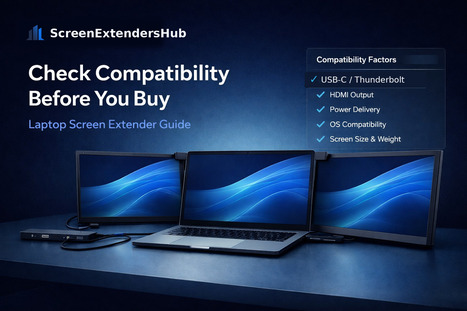
Most laptop screen extender problems are not caused by the screen after it arrives. They are caused by the assumptions buyers make before they purchase.
A product can look perfect in photos, have attractive specifications, and still be the wrong fit for a real laptop setup. USB-C capability, HDMI limitations, DisplayLink requirements, operating system behavior, power delivery, cable routing, hinge balance, desk depth, and travel use can all determine whether a laptop screen extender becomes a productivity upgrade or a daily source of friction.
This ScreenExtendersHub compatibility guide breaks down the decision points buyers should check before choosing a laptop screen extender, especially for remote work, hybrid work, coding, research, trading, content creation, and mobile productivity setups.
ScreenExtendersHub's insight:
A laptop screen extender should not be judged by screen count, product photos, or specifications alone. The real test is whether it fits the buyer’s laptop, ports, power limits, workspace, travel routine, and actual workflow. A good extender removes friction. A poor match adds cable clutter, instability, compatibility problems, and regret. Serious buyers should evaluate compatibility before buying — not after the return window becomes the safety net.
Scoop.it!
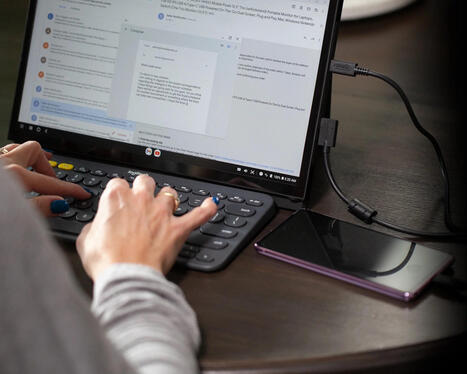
This product page presents the Mobile Pixels DUEX Plus as an attached portable laptop monitor designed to add a second screen without requiring a full desktop setup.
The useful buying question is not whether a laptop monitor promises more screen space, but whether its attachment style, cable setup, weight, screen size, laptop compatibility, and travel practicality make sense for the user’s actual workflow.
ScreenExtendersHub's insight:
Attached laptop monitors can be useful for mobile productivity, but they should be evaluated differently from standalone portable monitors. Buyers need to consider laptop size, hinge balance, attachment weight, USB-C or HDMI compatibility, cable routing, screen positioning, desk depth, and whether the second screen improves focus without making the laptop harder to carry or use. The best setup is the one that adds usable screen space without creating daily friction.
Scoop.it!

This Forbes feature highlights the KYY X90D as part of a growing category of triple laptop screen extenders designed for mobile professionals who want a multi-screen workstation without relying on a fixed desk setup.
The more important buying question is not whether three screens look impressive. It is whether the added display space improves real work without creating problems around weight, stability, laptop compatibility, cable routing, power demand, desk depth, and travel practicality.
ScreenExtendersHub's insight:
Triple laptop screen extenders can be powerful, but they are not automatically the best upgrade for every laptop user. The real decision is whether the setup reduces workflow friction or simply adds more hardware to manage. Buyers should evaluate port compatibility, display output limits, hinge and mounting stability, desk depth, power requirements, travel weight, and whether their work actually benefits from three attached screens instead of one portable monitor or a cleaner docking-station setup.
|






The monitor with the most documented flaws may simply be the one somebody measured.
The article’s evidence audit located three instrumented reviews for the ARZOPA Z3FC; none were located for the ViewSonic VA1653 or SOTSU FlipAction Go 14. That difference changes how confidently buyers can assess performance. It does not establish a winner.
Before choosing, identify the claims your work depends on—brightness, color accuracy, or refresh performance—and check who established them. The evidence matrix separates independent measurements from manufacturer ratings. Use it alongside your laptop’s video capabilities and workspace requirements: a well-documented weakness can be more useful than an unanswered question.